
Browse the documentation
Websites
Applies to: Publishers
A website is the property — a domain, subdomain, or app — where your ads will appear. It is the top-level container in your publisher account: every ad placement you create lives inside a website. So adding your site is always the very first step to earning money as a publisher.
What this is#
Think of a website here as a folder. The folder itself does not show ads — it just groups all the ad zones (the actual ad placements) that belong to one property. One website can hold many zones of different types: a header banner, an in-article native block, a pop, a video slot, and so on.
You must add a website before you can add any ad zone, and (on some networks) you must verify that you own that domain before its zones are allowed to serve real ads.
When you'll use this#
- The first time you set up your account, before creating any ad placements.
- Whenever you start monetising a new domain, subdomain, or app.
- When you want a duplicate of an existing, working site setup for a second property (cloning).
- To keep your property details (categories, languages, URL) current so advertisers can find and target your traffic.
Step by step#
Add your first website#
- Open the Websites page from the left-hand publisher menu.
- Click the New Website button (top right of the list).
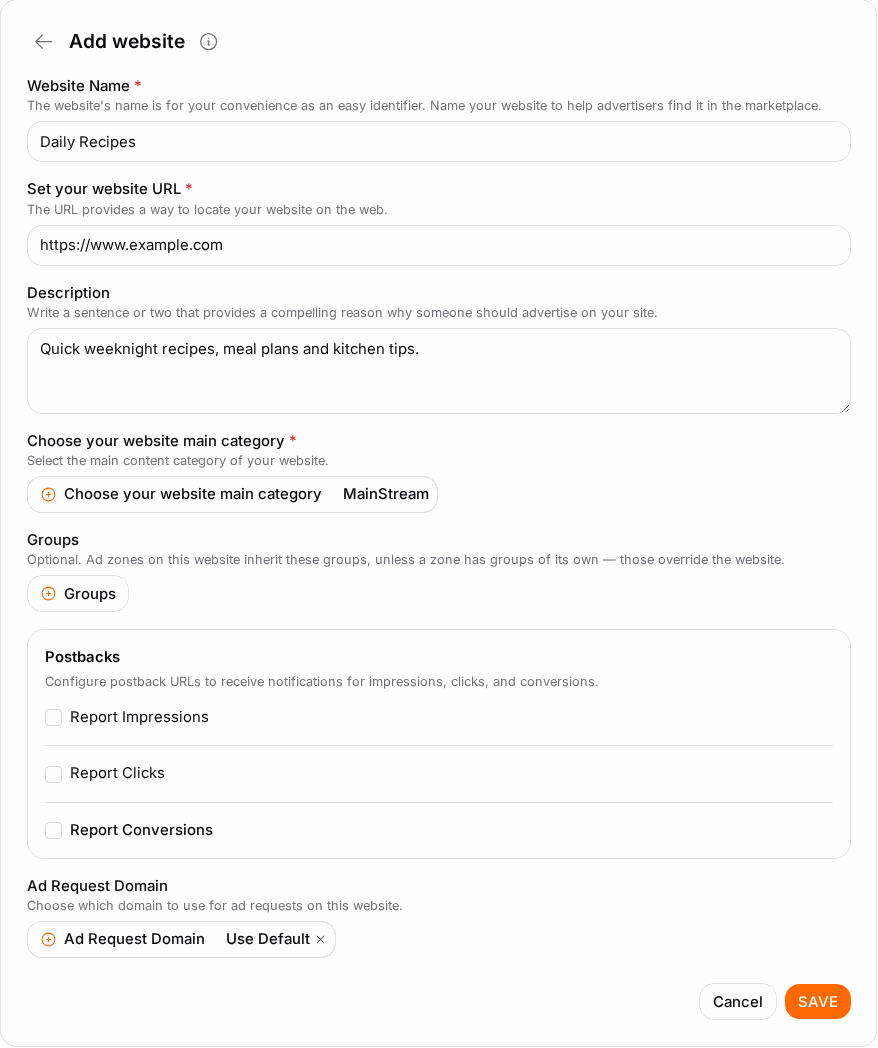
- Fill in the form:
- Name — a short label so you can recognise the site in your lists (e.g. "My Gaming Blog").
- URL — the full web address, including
https://, e.g.https://example.com. - Description (optional) — a note about the site's content and audience.
- Categories — pick the topics that best describe your traffic.
- Languages — the languages your visitors use.
- Type (if shown) — the kind of property (website, app, etc.).
- Click Save. If the name is already used in your account, or the domain is on a block list, you will be told now and the site will not be created.
- The new site appears in the list. If your network requires verification, its status will read Not verified until you complete the step below.
Verify that you own the domain#
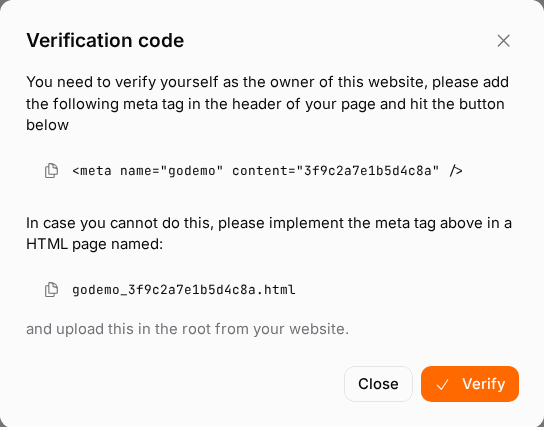
Some networks require proof of ownership before your zones serve paid ads. When verification is required, each website is given a unique verification code.
- Open the website from the list and find the Verify / Ownership section.
- Choose one of the two methods (see the Options reference below):
- Meta tag — copy the provided
<meta>tag and paste it into the<head>section of your site's home page. - File upload — download or create the small verification file (named with your code) and upload it to the root of your domain so it loads at
https://yourdomain/….
- Meta tag — copy the provided
- Make sure the tag or file is live and publicly reachable (open the page/file in a browser to confirm).
- Back in the dashboard, click Verify. The system fetches your site, looks for the code, and marks the website Verified on success.
Clone an existing website#

- In the website list, find the site you want to duplicate.
- Click its Clone action.
- A full copy is created — including all of its ad zones and their settings.
- Open the clone and change its Name and URL to the new property.
Cloned zones start with fresh statistics and their whitelisted-campaign links reset, so you can tune the copy independently from the original.
Options reference#
Website fields#
| Field | What it does | Notes |
|---|---|---|
| Name | A label used across your lists and reports. | Must be unique within your account. |
| URL | The full address of your property. | Include https://. Re-checked against the block list if you change it later. |
| Description | Free-text note about the site. | Optional; helps you and advertisers understand the traffic. |
| Categories | Topics that describe your content. | Used by advertisers to target you. |
| Languages | Languages your audience uses. | Helps match language-targeted campaigns. |
| Type | The kind of property (website, app, etc.). | Only shown when your account uses site types. |
Verification methods#
| Method | How it works | Best when |
|---|---|---|
| Meta tag | Add a <meta> tag containing your code to the <head> of your home page. |
You can edit your site's HTML template. |
| File upload | Place a small file named with your code at your domain root. | You have FTP/file access but can't easily edit the <head>. |
Website list actions#
| Action | What it does |
|---|---|
| Search / filter | Narrow the list by name, URL, or status. |
| Sort | Order by name, URL, date added, or number of ad zones. |
| Open | Edit the site or jump into its Ad Zones. |
| Clone | Duplicate the site plus all its zones. |
| Delete | Soft-delete the site (only when it has no active zones). |
Example#
Setting up a first site. Amina runs https://travel-tips.example. She opens Websites → New Website, enters the name "Travel Tips", the URL, picks the Travel category and English language, and saves. Her network requires verification, so she copies the meta tag into her theme's header template, publishes, and clicks Verify — the status flips to Verified. She can now add her first ad zone.
Launching a sister site. Later she starts https://travel-deals.example with the same layout. Instead of rebuilding everything, she clones "Travel Tips", renames the copy to "Travel Deals", updates the URL, re-verifies, and re-copies the fresh ad codes onto the new site.
Tips#
- Verify the site before you spend time integrating ad code — unverified zones may not serve paid ads.
- Keep categories and languages accurate. They drive which advertisers can target you, which affects fill and earnings.
- Use one website per real property. Don't put zones for two different domains under one website entry — it muddies your reports.
- Cloning is the fastest way to launch a similar second site with a proven zone structure.
Troubleshooting#
| Symptom | Likely cause | Fix |
|---|---|---|
| Verification keeps failing | The tag/file isn't live yet, is on the wrong page, or is blocked. | Open the home page (or file URL) in a browser and confirm the exact code is visible. Clear any page cache/CDN, then click Verify again. |
| "Name already exists" on save | You already have a website with that name. | Choose a different, unique name. |
| "Domain is blocked" on save | The domain is on the network's block list. | Contact support — the site can't be added as-is. |
| Zones on the site show no ads | The website is not verified. | Complete verification first, then re-test the zone. |
| Can't delete a website | It still has active ad zones. | Delete or move its ad zones first, then remove the site. |
Related#
- Ad Zones — the placements you create inside a website.
- Ad Zone Types — choosing the right format for each placement.
- Getting Your Ad Code — copying the snippet onto your site.
- Publisher Statistics — tracking how your sites perform.
- Earnings & Payouts — seeing and withdrawing what you earn.
- Visitor Analytics — the per-site pageview counter you switch on here.
- Controlling Which Ads Run — blocking advertiser domains across your sites.
- Gallery Partner Dashboard — giving the galleries that send you traffic their own read-only login.
- How to add a website — step-by-step guide