
Browse the documentation
How to buy traffic with your own bidder (RTB)
Applies to: Advertisers · Optional feature — available when your network has it switched on
At the end of this guide your own bidder (DSP) receives real-time bid requests for this network's traffic and buys the impressions it wants. Your bidder decides the price per impression and sends the ad back in its bid response. Use this when you already run a bidder; to buy without one, use an ordinary RON campaign.
Before you start#
- An advertiser account with RTB campaigns enabled. You'll see an RTB menu (or RTB under Campaigns). If not, ask your account manager.
- Your bidder's endpoint URL — where the ad server should send bid requests.
- Your bidder speaks OpenRTB. JSON and XML feeds are also offered for pop, push and mail-click formats.
- The RTB Network entry for your bidder. If it isn't in the list in step 4, ask your account manager to add it.
How it works#
For each matching impression the ad server sends your endpoint a bid request: the visitor's device, country, site and the ad slot, plus a bid floor. Your bidder answers with a bid and the ad, or with no bid. Bids below the floor are ignored. With First Price Auction a winner pays its own bid; with Second Price Auction it pays the next-highest bid plus 10%.
Steps#
- Open RTB → Campaigns (or Campaigns → RTB) and click Create new campaign.
- On Basic, enter a Campaign Name and pick the Ad Type you want to buy, e.g. Banner.
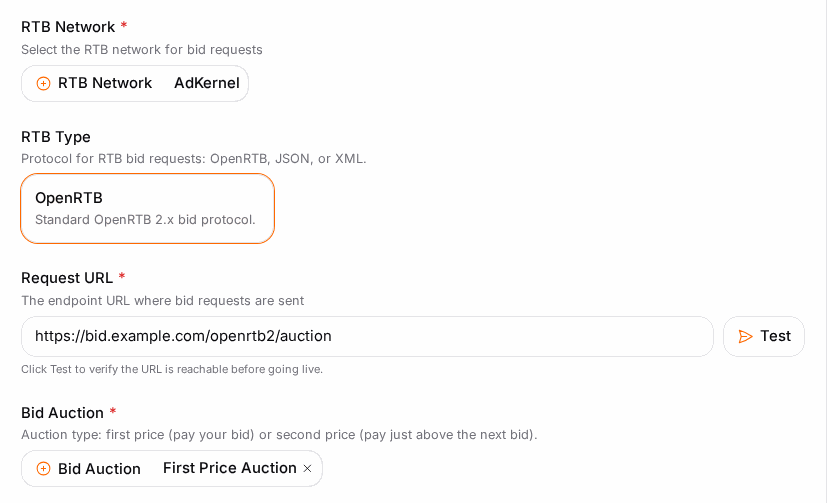
- Choose the RTB Type: OpenRTB, or JSON/XML for the formats that support them.
- Pick the RTB Network of your bidder.
- Enter your bidder's endpoint as the Request URL.
- For banners, pick the Ad Sizes you bid on.
- Choose the Bid Auction: First Price Auction or Second Price Auction.
- Optionally turn on QPS Limit and set Max QPS — the most bid requests per second your bidder should receive.
- Optionally pick RTB Categories to send with each request.
- Set Budget, Geo and Traffic as for any campaign. Requests are only sent for traffic that matches.
- Click Launch Campaign on Review. RTB campaigns have no Ads step: the ad comes from your bid response.
Check it worked#
- Open RTB → RTB Stats, choose today, and group by Campaign.
- Read the columns from left to right:
- Requests — bid requests sent to your endpoint. Zero means the targeting matches no traffic, or the campaign isn't active.
- Bids and Bid Rate — how often your bidder answered with a bid.
- Wins and Win % — bids that won and served.
- Avg Bidfloor — compare it with your bids.
- Timeouts and Errors — click Errors for the breakdown.
- Views, Clicks and Spent show what you bought.
Troubleshooting#
| Symptom | Likely cause | Fix |
|---|---|---|
| Requests stays at 0 | Campaign not active, or targeting matches nothing | Check the status and widen Geo/Traffic |
| Many Timeouts | Your bidder answers too slowly | Speed up the bidder, or lower Max QPS so it isn't overloaded |
| Bids but no Wins | Bids under the floor, or outbid | Compare your bids with Avg Bidfloor |
| Errors count rises | Invalid bid responses (bad JSON, missing ad markup) | Click Errors to see which, and fix the bidder's response |
| Your network isn't in RTB Network | Your bidder isn't registered on this network yet | Ask your account manager |
Related#
- Campaign Types & Pricing — RTB next to the other campaign types
- Bid Rules
- How ad selection works
- Creating a Campaign