
Browse the documentation
Tracker Rules
Applies to: Tracker & affiliate users · Optional feature — available when your network has it switched on
Rules watch your tracker numbers for you and react when a threshold is crossed: alert you, pause or re-activate a source at its traffic platform, change a bid, or block losing placements. Every rule can run in a safe "record only" mode first.
What this is#
Rules (tracker menu) are automation checks over your traffic. A rule has:
- a Scope — what it looks at:
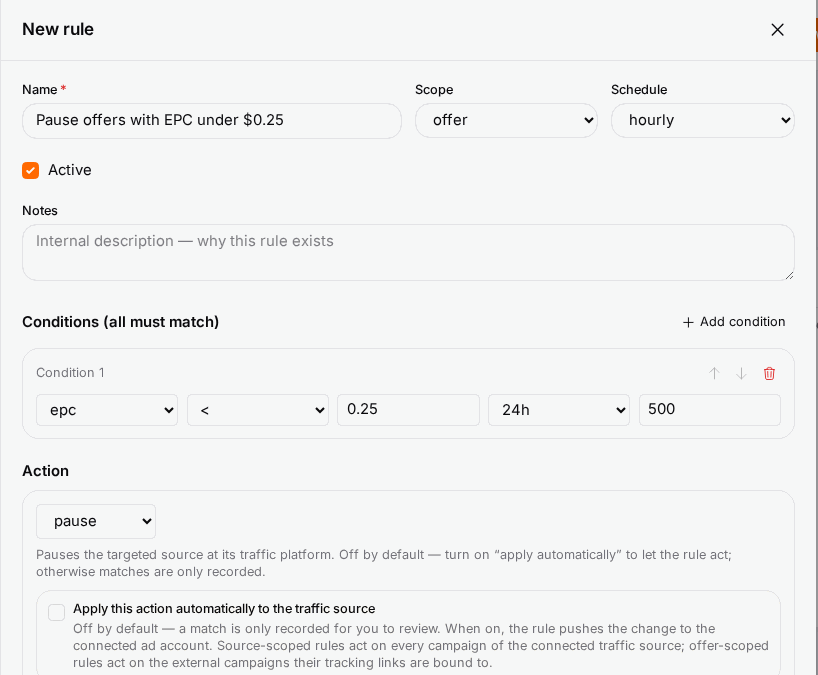
offer,source,campaign,adgroup,adorplacement; - one or more Conditions (all must match) — a Metric, an Operator, a Value, a Time window and Min clicks, for example EPC < 0.25 over 24h with at least 500 clicks;
- one Action — what happens when it matches;
- a Schedule — how often it is checked:
5min,hourlyordaily.
Active rules are checked automatically. An alert rule notifies you when it matches. Pause, activate and bid-adjust rules are checked too, but they only change something at the traffic platform when you switch on Apply this action automatically to the traffic source; until then each match is just recorded in the rule's Execution history for you to review.
To act on a platform, the tracker needs your account there connected on API Integrations.
When you'll use this#
- Stop paying for a source that stopped converting, without watching reports all day.
- Get an alert the moment CPA or ROI goes outside your range.
- Cut the bid on a campaign whose EPC dropped, or raise it where profit is strong.
- Block the individual placements (zones) on a network campaign that lose money.
Step by step#
Create a rule#
- Open Rules and click New rule.
- Give it a Name (for example Pause EPC < $0.25 after 500 clicks) and, if you like, Notes on why it exists.
- Choose the Scope and the Schedule.
- Add Conditions: pick the Metric, Operator and Value, the Time window and the Min clicks that must be reached before the condition counts. Use Add condition for more; all of them must match.
- Choose the Action:
- pause — pauses the target at its traffic platform;
- activate — re-activates a previously paused target;
- bid_adjust — changes the bid by the % change you enter (negative lowers it);
- alert — notifies you; under Alert destination pick My notification preferences or a specific channel;
- block_source — placement rules only: blocks the losing zones on the network campaign behind one tracking link.
- Leave Apply this action automatically off for now and Save.
Test it before letting it act#
Click Test rule (dry run) on the rule's row. It evaluates the rule against current stats right now and tells you how many targets match — "Test (24h) — 3 of 40 target(s) match" — without notifying anyone or changing anything. Use Test window to try the rule over a different window than its own.
When the matches look right, edit the rule and switch on Apply this action automatically.
Placement rules#
A placement rule blocks zones (placements) on one network campaign:
- Set Scope to
placement. - Pick the Target tracking link — a link bound to an external campaign on the Tracking Links page. The editor checks that the network supports placement blocking and which sub-ID slot carries the zone.
- Use a window of 24h or longer: zone-level data is daily, so shorter windows aren't offered.
- Choose block_source (or alert).
Options reference#
| Field | Values | Notes |
|---|---|---|
| Scope | offer, source, campaign, adgroup, ad, placement | Source rules act on every campaign of the connected source; offer rules act on the external campaigns their tracking links are bound to. |
| Metric | epc, cr, cpa, spend, profit, roi, clicks, conversions | |
| Operator | <, <=, =, !=, >=, > |
|
| Time window | 1h, 6h, 12h, 24h, 3d, 7d | Placement rules: 24h and up. |
| Min clicks | number | The condition only counts once this much traffic has arrived. |
| Schedule | 5min, hourly, daily | How often the rule is checked. |
| Apply automatically | on / off | Off = matches are recorded only. |
The rules list shows each rule's Scope, Schedule, Status (Active / Paused) and Last run. Execution history lists every run with When, Target, Action and Outcome (OK, Skipped, Error), with a 30-day trend. Rules can be exported and imported with Export CSV / Import CSV.
Example#
Tom runs push traffic on two networks. He creates a source rule: EPC < 0.20 over 24h, min clicks 1,000, action pause, hourly, with apply-automatically off. For three days he checks the execution history: the matches are the sources he would have paused himself. He switches Apply automatically on. He adds a second rule — ROI > 50% over 3d, bid_adjust +10% — and an alert rule for conversions = 0 over 6h so he hears about a broken postback quickly.
Tips#
- Always set Min clicks — without it a rule can fire on a handful of clicks.
- Start every write-back rule in record-only mode and test it.
- Keep one rule per purpose; it makes the execution history easy to read.
Troubleshooting#
| Symptom | Likely cause | Fix |
|---|---|---|
| A rule matches but nothing changes at the platform | Apply automatically is off | Switch it on once the test looks right. |
| Outcome shows Error | The network account isn't connected or its key expired | Check API Integrations and its API Reports. |
| No tracking links are bound to an external network yet | Placement rules need a bound link | Bind the link to its network campaign on Tracking Links. |
| This network does not support placement blocking yet | The network's API can't block zones | Use an alert rule instead. |
Related#
- Traffic Sources and API Integrations — connect the accounts rules act on
- Performance Reports — the numbers rules read
- Notifications & Alerts — where alert rules send to
- Agentic Media Buying — automated placement management for bought traffic