
Browse the documentation
How to set up an ad zone for traffic you buy
Applies to: Publishers · Ad manager setups
When you buy traffic on another ad network (ExoClick, Adsterra and others) and send it to your own campaigns, you send it to an ad zone of yours. Set that zone up properly and you see, per placement of that network, what you earned and what it cost, and Agentic Media Buying can block the losing ones for you.
Before you start#
- An account at the traffic network, with API access. Most networks give you an API key or token in their advertiser panel (for Adsterra: Settings → API → Generate new token).
- A website in your account for the zone: How to add a website.
- Campaigns of your own that can take this traffic.
Steps#
1. Create the zone and get its URL#
- Open Adzones and click New Ad Zone.
- Fill in Name your ad zone (for example "Adsterra pop US"), pick the website, and choose the Adzone Type that matches what you buy:
- Pop or popunder traffic: Pop Ads.
- Direct-link traffic that should land straight on your offer: Redirects.
- Click Save, then open the Ad Zone Code tab:
- Pop Ads: under Direct pop URL, click Copy URL.
- Redirects: copy the URL under Ad Code.
- This URL is the landing page of your campaign at the network.
One zone per network campaign keeps the numbers clean. Buying the same network in two countries? Use two zones.
2. Connect the network campaign#
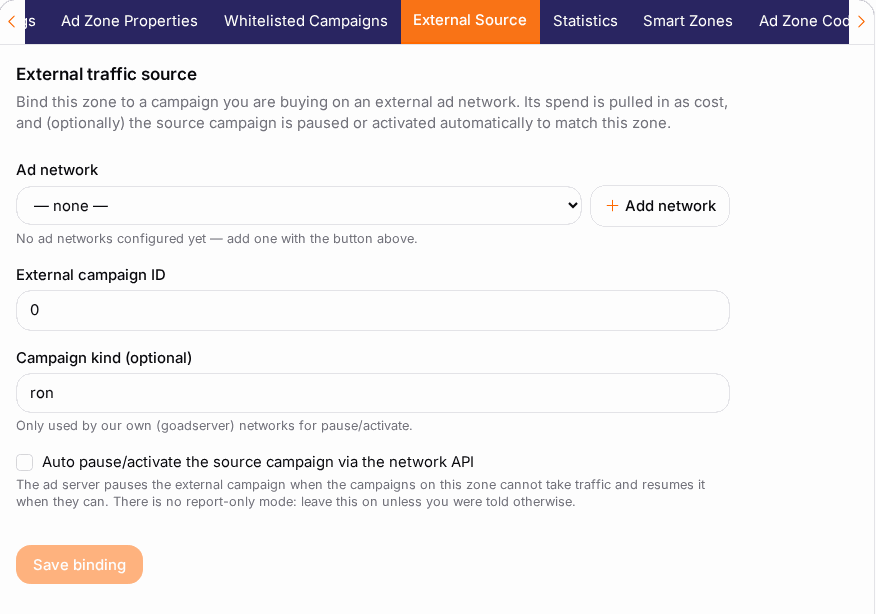
- Open the zone's External Source tab.
- Under Ad network, choose your account at the network. Not there yet? Click Add network, enter its API key, and save. You can also manage these accounts on the Ad Networks page.
- Enter the External campaign ID: the id of the campaign at the network that sends traffic to this zone.
- Leave Auto pause/activate the source campaign via the network API on. The network campaign is then paused when your campaigns cannot take more traffic, and resumed when they can.
- Click Save binding. The Agentic Media Buying section appears below.
No campaign at the network yet? For pop zones on supported networks, the section offers Prepare a campaign, which creates it at the network for you. See Agentic Media Buying.
3. Pass the network's placement on the URL#
- In the Agentic Media Buying section, find Source zone capture. It shows the exact text to add for this network, for example
&sid6=##PLACEMENT_ID##for Adsterra. - Click Copy and add that text to the end of the landing URL of your campaign at the network.
- Save the campaign at the network.
From then on, every visit carries the network's placement (its zone, site or spot), so the report can split earnings and cost per placement.
Check it worked#
- Once the network campaign runs, the zone's Statistics tab shows views.
- After a day of traffic, Source zones in the Agentic Media Buying section lists the network's placements with Revenue, Cost and Profit.
- If every row shows one empty placement, the suffix from step 3 is missing at the network.
Troubleshooting#
| Symptom | Likely cause | Fix |
|---|---|---|
| The External Source tab is missing | The zone is not saved yet, or your platform does not offer media buying. | Save the zone first; ask your account manager otherwise. |
| The Ad network list is empty | No network account is added yet. | Click Add network and enter the API key. |
| Source zones shows no placements | The Source zone capture suffix is not on the network's campaign URL. | Add it at the network and wait for new traffic. |
| Cost shows 0 | The network has not reported cost yet, or the API key is wrong. | Check the key on the Ad Networks page; cost often arrives a few hours later. |
| The network campaign keeps pausing | Your campaigns cannot take more traffic (budget, caps, targeting). | Check your own campaigns' budgets and targeting. |