
Browse the documentation
Conversion Tracking & Retargeting
Applies to: Advertisers · Optional feature — available when your network has it switched on
Clicks tell you who came. Conversions tell you who was worth paying for. This page is where you define what counts as a conversion, wire it up on your own site, and build the audience lists that retargeting campaigns use.
What this is#
Advertiser → Tracking has up to three tabs:
- Conversion Tracking — your conversion types (sale, lead, install, deposit…) and the code that reports them back to us.
- Retargeting — named pixels that collect visitors into audience lists you can target in a later campaign.
- Rejected Postbacks — the conversion calls that arrived but were refused, with the reason.
Conversions reported here show up as a conversion column in your advertiser statistics, so you can compare cost per conversion across campaigns, creatives, countries and traffic sources.
When you'll use this#
- Once, at the start, to connect your website or tracker to conversion reporting.
- When you add a new conversion event worth measuring separately (a lead alongside a sale).
- When conversions are missing from your reports and you need to see what was rejected.
- When you want to re-approach visitors who didn't convert the first time.
Step by step — set up a conversion type#
- Open Tracking from the advertiser menu, on the Conversion Tracking tab.
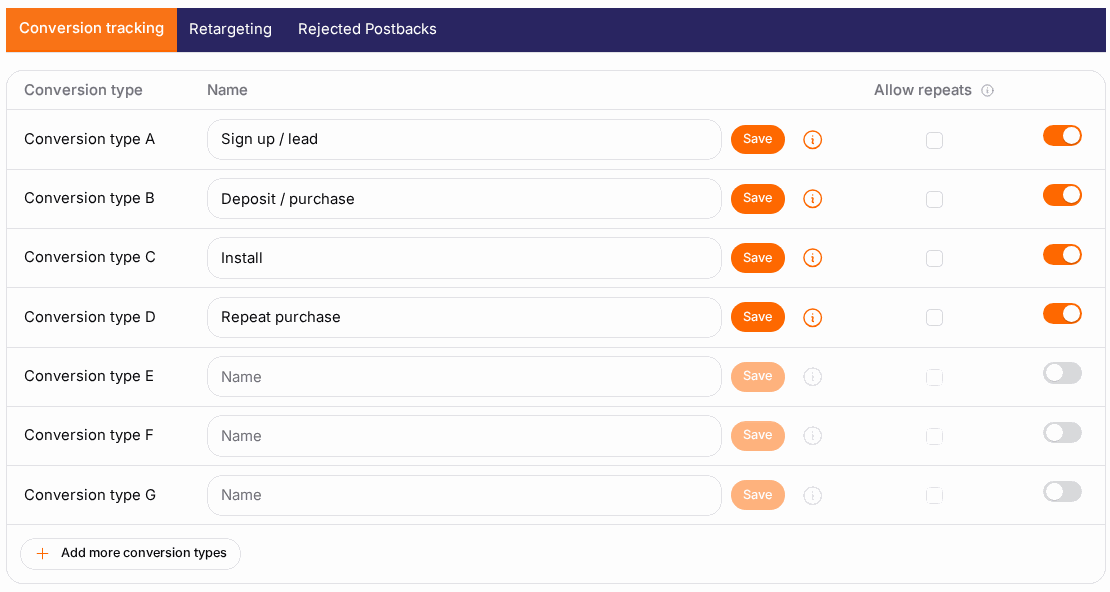
- Each conversion type has a letter (A, B, C…) and a name you choose. Name the first one after what you actually measure — "Sale", "Signup", "Deposit".
- Switch the type Active.
- Click More Info on that type to open the integration instructions.
- Pick the method that suits your setup — S2S tracking (server to server) or Dynamic parameter tracking (JavaScript) — and follow the three steps it shows. Both are described below.
- Fire one test conversion and confirm it appears in your statistics before scaling spend.
Method 1 — S2S tracking (recommended)#
Server-to-server: your backend calls us when the conversion happens. Nothing runs in the visitor's browser, so ad blockers and cookie settings can't break it.
Pass our click ID into your landing page. Add
?cid={tracking}to the destination URL on your ads.{tracking}is replaced with a unique click ID for every click.Landing page: https://example.com New landing page: https://example.com?cid={tracking}Store the
cidyour page receives, and keep it with the visitor's session/order until the conversion happens. It looks like41fec6be-7e68-48ed-b0d7-c10afd63e807.Call our conversion URL from your server the moment the conversion happens, with the stored
cid:https://<your-ad-domain>/conversion.go?pid=<your-account-id>&cid=<the stored cid>&conv_type=A&amount=Change
conv_typeto the letter of the type you're reporting, and put the order value inamountif you want revenue in your reports.
The exact URL — already filled in with your ad domain, account ID and the right letter — is shown in the More Info dialog. Click it to copy.
Method 2 — Dynamic parameter tracking (JavaScript)#
Use this when you can't make a server-side call — a static site, a landing page builder, or a shop platform where you can only paste snippets.
Prepare your destination URL exactly as in step 1 above, with
?cid={tracking}.On the landing page, paste the tracking script. It reads the
cidfrom the URL and remembers it:<script type="text/javascript" src="//<your-ad-domain>/trk.go"></script> <script type="text/javascript"> try { var Track = new <TrackerName>(); var qparam = "cid"; Track.setTracking(qparam); } catch(err) { } </script>On the thank-you / confirmation page, paste the conversion snippet:
<script type="text/javascript" src="//<your-ad-domain>/trk.go"></script>
<script type="text/javascript">
try {
  var Track = new <TrackerName>();
  var conversion_type = 'A';
  var amount = '0.00';
  Track.registerConversion(conversion_type, amount);
} catch(err) { }
</script>
Set amount to the order value if you have it. Both snippets, with your real ad domain and tracker name already filled in, are copyable from the More Info dialog.
This method depends on the visitor's browser. Ad blockers, strict privacy modes and script errors all silently drop conversions. If you can do S2S, do S2S.
Step by step — create a retargeting pixel#
- Open the Retargeting tab.
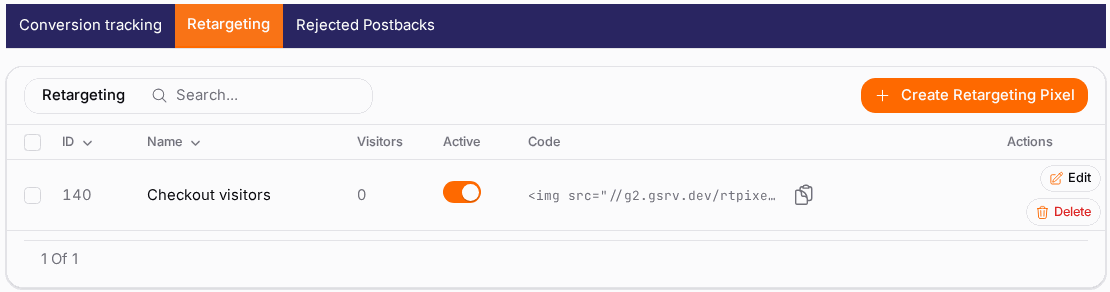
- Click Create Retargeting Pixel and give it a descriptive name — it becomes the audience name you pick later ("Viewed pricing", "Abandoned cart").
- Save, then copy its code with the copy button.
- Paste that code on the pages whose visitors you want to collect. Anyone who loads the page joins the list.
- The Visitors column shows how many the pixel has collected so far — give it time to fill before you target it.
- When the list is big enough, create a campaign and select the pixel in its retargeting targeting (see Targeting & Filters).
Options reference#
Conversion type fields#
| Field | What it does |
|---|---|
| Letter (A, B, C…) | The identifier you pass as conv_type. It never changes. |
| Name | Your label for the type. Shown in reports. |
| Allow repeats | By default only one conversion per click, within 24 hours, is counted. Tick this to count every payout on the type. |
| Active | Whether the type accepts incoming conversions. |
When to tick "Allow repeats". Single-purchase events (a sale, a signup) should stay unticked — deduplication protects you from double counting. Revshare and rebill events, where the same visitor keeps generating payouts from one original click, need it ticked, otherwise the repeats are discarded and your revenue reads low against your network's own report. Retries of the same transaction are still blocked either way, so you can't be double-counted.
Retargeting pixel fields#
| Field | What it does |
|---|---|
| Name | The audience name you'll pick when targeting a campaign. |
| Visitors | How many visitors the pixel has collected. |
| Active | Whether the pixel keeps collecting. |
| Code | The snippet to paste on your pages. |
Rejected Postbacks#
Every conversion call we refuse is listed here with the reason. Common ones:
| Reason | What happened | Fix |
|---|---|---|
| Unknown or expired click ID | The cid didn't match a click we recorded, or it's too old. |
Check you're passing {tracking} through unchanged, and that you store it for the whole funnel. |
| Duplicate | A conversion was already counted for that click. | Expected behaviour — unless the type genuinely repeats, in which case tick Allow repeats. |
| Inactive conversion type | The letter you passed is switched off. | Activate the type on the Conversion Tracking tab. |
| Wrong account ID | pid doesn't match your account. |
Copy the URL from the More Info dialog rather than typing it. |
Example#
Measuring signups and sales separately. Tom sells a subscription and wants both numbers.
- On the Conversion Tracking tab he names type A "Trial signup" and type B "Paid subscription", and activates both. Allow repeats stays off on A, and goes on for B because the subscription rebills monthly.
- He sets his ad destination URL to
https://tomsapp.com/lp?cid={tracking}and stores thecidon the user record at signup. - His backend calls
…/conversion.go?pid=…&cid=…&conv_type=A&amount=0when the trial starts, and…&conv_type=B&amount=29.00on every successful rebill. - In advertiser statistics he groups by Campaign and compares cost per trial and cost per paid subscription — and discovers one country produces plenty of trials but almost no paid conversions.
- He excludes that country in Targeting & Filters and reallocates the budget.
Tips#
- Test one conversion end to end before scaling. A campaign that runs for a week with broken tracking is a week of blind spending.
- Prefer S2S. Browser-side pixels lose conversions to ad blockers, and you never find out how many.
- Use separate types for separate events. One "Conversion" number that mixes leads and sales can't tell you which campaigns are actually profitable.
- Pass the
amount. Without it you get conversion counts but no revenue, and you can't compute return on ad spend. - Check Rejected Postbacks first when numbers don't match — the reason is almost always there.
- Name retargeting pixels by intent, not by page URL. "Abandoned cart" ages better than "step3.html".
Troubleshooting#
| Symptom | Likely cause | Fix |
|---|---|---|
| No conversions at all | {tracking} isn't in the destination URL, or the cid isn't reaching your conversion call |
Click one of your own ads and check the landing-page URL actually carries a cid value |
| Conversions appear but revenue is zero | amount is empty or 0.00 |
Pass the real order value in amount |
| My count is lower than my network's | Repeat payouts on one click are being deduplicated | Tick Allow repeats on that conversion type |
| Everything lands in Rejected Postbacks | Wrong pid, wrong conv_type, or an expired click ID |
Copy the URL from More Info rather than building it by hand |
| JavaScript conversions are missing on mobile | Ad blockers and privacy modes blocked the script | Switch that type to S2S tracking |
| A retargeting pixel shows zero visitors | The code isn't on the page, or the pixel is inactive | View the page source to confirm the snippet loads, and check the Active toggle |
| The Retargeting tab isn't there | Retargeting isn't enabled for your account | Ask your account manager |
Related#
- Ads & Creatives — the full macro list for destination URLs, including
{tracking} - Targeting & Filters — targeting a retargeting audience
- Advertiser Statistics — where conversions show up
- Source Optimizer — acting on conversion data automatically
- Postbacks & Conversions — the affiliate side of conversion reporting