
Browse the documentation
Campaigns Overview
Applies to: Advertisers
A campaign is the container that holds your ads and every setting that decides where, when, and how much you pay to show them. Think of it as one advertising "project": you set the rules once on the campaign, and every ad inside it follows those rules.
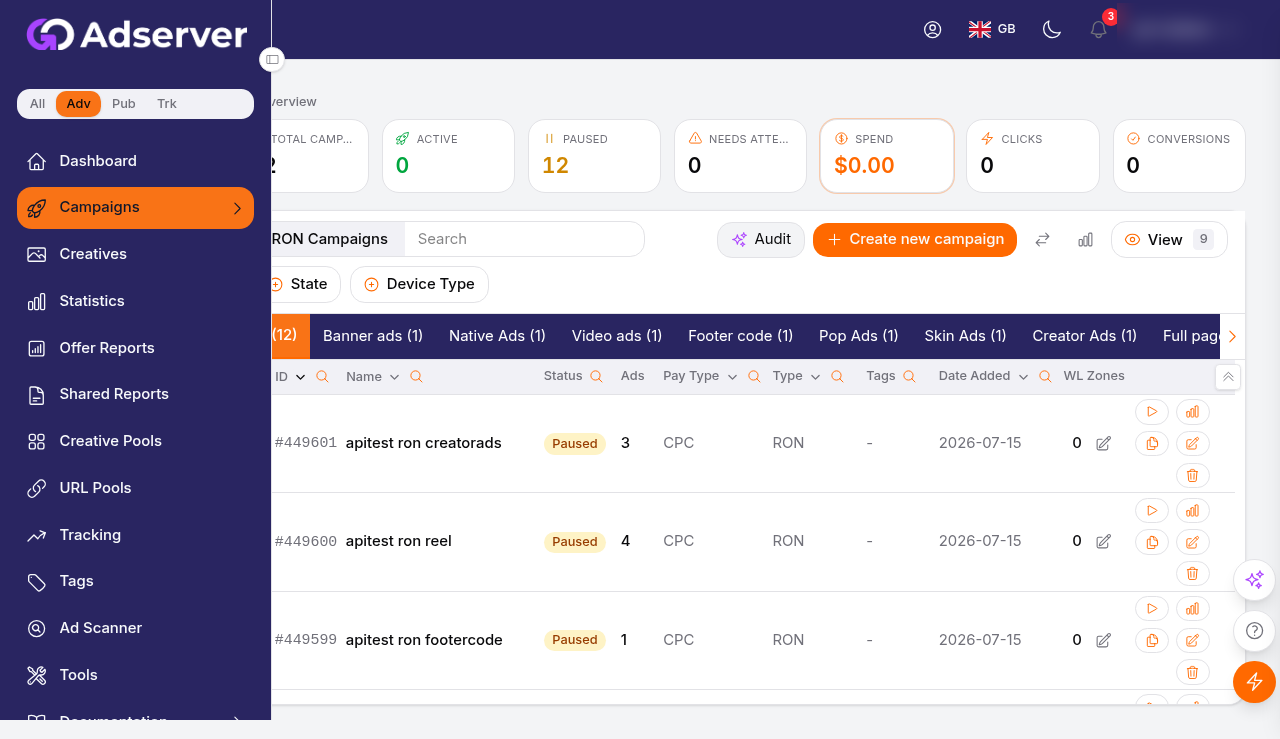
The Campaigns page: totals across the top, campaign-type tabs, and the campaign list with per-row actions.
What this is#
Everything you buy as an advertiser is organised under campaigns. A single campaign bundles together:
- One or more ads / creatives — the banners, videos, text, push or native units that actually appear on screen.
- A campaign type and pricing model — how you buy (RON, CPM, CPC/CPA, RTB, or a network-managed flat deal).
- Targeting and filters — geo, device, language, domains, schedule and more.
- Budgets, caps, and start/end dates.
Your spend and results are then reported per campaign in Advertiser Statistics.
When you'll use this#
- To see everything you're currently running at a glance.
- To pause, resume, clone, edit or delete a campaign.
- To find a specific campaign in a large account using filters and tags.
- As the jumping-off point before you drill into a campaign's ads or its stats.
Step by step#
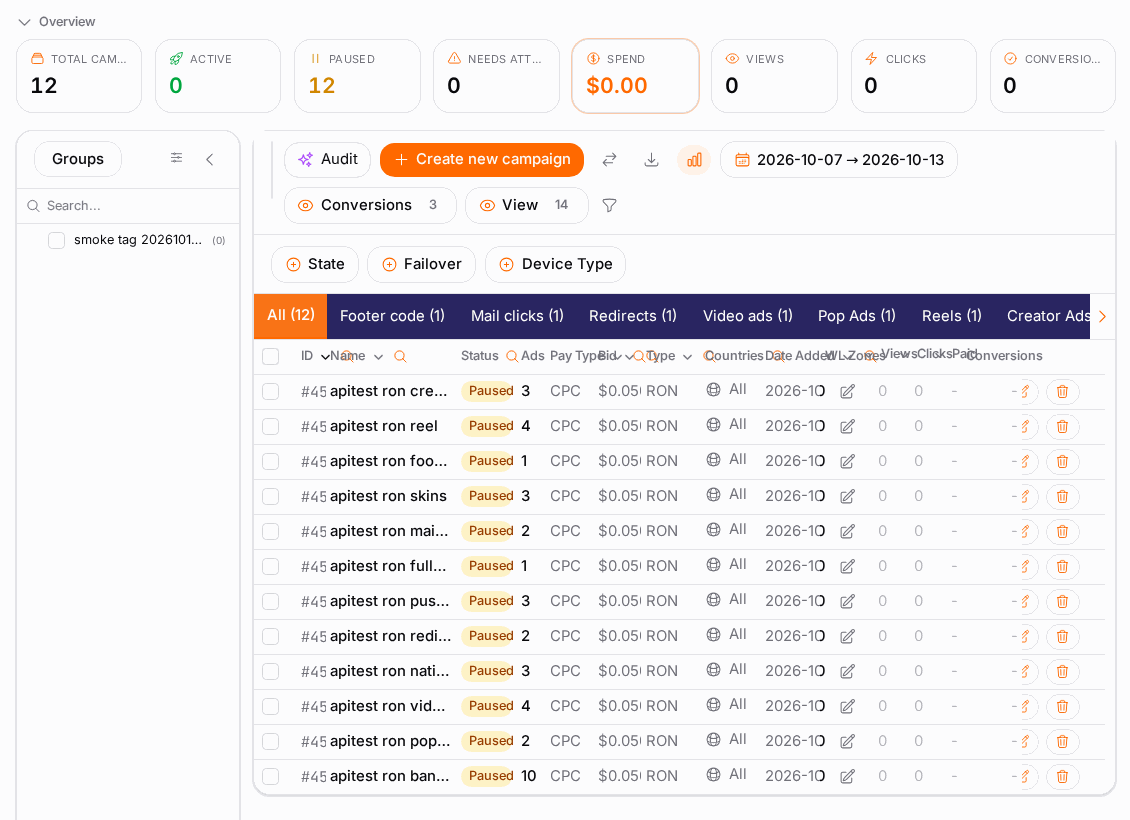
- Open Campaigns from the left-hand menu. The page loads a table with one row per campaign.
- Read the row for the campaign you care about: its status, ad type, pay type, daily budget and quick performance numbers are all on that one line.
- To narrow a long list, use the filter controls at the top of the page (campaign type, ad type, country, device, group/tag, and the paused/deleted toggles). See Filtering the list below.
- To reorder, click a sortable column header (ID, name, date added, pay type, or daily budget).
- To act on a single campaign, use its row actions (pause/resume, edit, clone, delete, manage ads). See Row actions below.
- To act on several at once, tick the checkboxes on multiple rows, then use the bulk pause/resume control (where your network supports it).
- Click a campaign's name (or Edit) to open it in the create/edit wizard; click Manage ads to jump to its creatives.
Options reference#
Columns#
| Column | What it shows |
|---|---|
| ID | The campaign's unique identifier. Handy when you report an issue. |
| Name | The name you gave the campaign. |
| Ad Type | The format (banner, video, native, push, text, skin, footer/redirect, etc.). |
| Pay Type | The pricing model (CPM, CPC, CPA/CPL/CPI/CPS). |
| Status | Active, paused, stopped, pending approval, rejected, or deleted. |
| Ads | Number of ads in the campaign. |
| Budget | The daily budget cap set for the campaign. |
| Countries | The geo targeting applied. |
| Views / Clicks / CTR / Paid | Quick performance numbers for the campaign. |
| Tags | Any groups/tags you assigned. |
| Date Added | When the campaign was created. |
Filters#
| Filter | What it does |
|---|---|
| Campaign type | Show only RON, CPM, RTB, or flat deals. |
| Ad type | Show only one ad format. |
| Group / tag | Show campaigns in a chosen group. |
| Device type | Campaigns targeting a specific device. |
| Country | Campaigns targeting a specific country. |
| Hide paused | Remove paused campaigns from the view. |
| Paused only | Show only paused campaigns. |
| Stopped only | Show campaigns switched off for the day (their on/off toggle is off, but not paused). |
| Show deleted | Include soft-deleted campaigns. |
| Saved filter | Apply a saved statistics/traffic filter you created. |
Statuses#
| State | Meaning |
|---|---|
| Active | Running and eligible to serve. |
| Paused | You paused it; it will not serve until you resume it. |
| Stopped | Switched off for the day via its on/off toggle. |
| Pending approval | Waiting for network review before it can run (only on networks that require validation). |
| Rejected | The network declined it; edit and resubmit. |
| Deleted | Soft-deleted — hidden from the normal list but recoverable via Show deleted. |
Row actions#
| Action | What it does |
|---|---|
| Pause / Resume | Toggle whether the campaign serves. |
| Edit | Open the campaign in the create/edit wizard. |
| Clone | Duplicate the campaign (settings and ads) as a new draft you can adjust. |
| Delete | Soft-delete the campaign; restore it later via Show deleted. |
| Manage ads | Jump to the campaign's ads. |
Example#
Cleaning up a busy account. You run 40 campaigns and want to work only on your paused mobile campaigns in the US:
- Set the Device type filter to Mobile and the Country filter to United States.
- Turn on Paused only.
- The list now shows just those campaigns. Tick the ones you want to relaunch and use the bulk Resume action.
- Sort by Daily budget to check none of them will overspend before you re-enable them.
Spinning up a variant fast. Your "Summer Banner — DE" campaign performs well and you want the same setup for Austria:
- Find the campaign, click Clone.
- Open the clone, change the name to "Summer Banner — AT", swap the geo to Austria on the geo step, and save. Everything else carries over.
Tips#
- Give campaigns descriptive names (format + geo + goal), e.g. "Push — US — App installs". Future-you will thank you.
- Use tags/groups to organise large accounts, then filter by group to work on one slice at a time.
- Clone is the fastest way to test a variation — duplicate, change one thing, and compare in stats.
- Pause, don't delete, when you're only stopping a campaign temporarily. Paused campaigns keep all their history and settings.
Troubleshooting#
| Symptom | Likely cause | Fix |
|---|---|---|
| A campaign shows Active but isn't spending | Targeting is too narrow, the daily budget is already used up, or the bid is below the market floor. | Widen targeting, check the daily budget in stats, and raise the bid. |
| A campaign is Stopped | Its on/off (day-active) toggle is off. | Open the campaign and switch it back on, then save. |
| A new campaign is Pending approval | Your network reviews new campaigns before they run. | Wait for the review; you'll see the status change to Active or Rejected. |
| A campaign is Rejected | The network declined it (usually a creative or landing-page issue). | Edit the campaign/ads to fix the flagged issue and resubmit. |
| A campaign vanished from the list | It was deleted, or a filter is hiding it. | Turn on Show deleted or clear your filters. |