
Browse the documentation
Creative & URL Pools
Applies to: Advertisers · Optional feature — available when your network has it switched on
A pool is a reusable set you attach to a campaign instead of building ads one by one. A creative pool holds banners, videos or native assets; a URL pool holds landing-page URLs. Attach a pool and the campaign rotates through everything in it — and every campaign using that pool updates when the pool does.
What this is#
Ordinary ads live inside one campaign. Pools live in your account and are shared:
- Creative pools (Advertiser → Creative Pools) — a library of creatives grouped by format. Attach one to a campaign and it serves every active item in the pool, rotating by the sort rule you pick.
- URL pools (Advertiser → URL Pools) — a set of destination URLs with weights. Attach one and clicks are spread across those landing pages, which is how you split-test landers without duplicating campaigns.
Both track their own stats — views, clicks, CTR, conversions, CR — per item, so you can see which banner or which lander is actually carrying the campaign.
When you'll use this#
- You run the same creatives across several campaigns and don't want to re-upload them each time.
- You want to swap a landing page everywhere at once instead of editing dozens of ads.
- You're split-testing landers and want the traffic split controlled by weight.
- You want per-creative or per-lander performance in one place rather than scattered across campaigns.
Step by step — build a creative pool#
- Open Creative Pools and click New pool.
- Give it a name, choose the pool type (banner, video or native) and save.
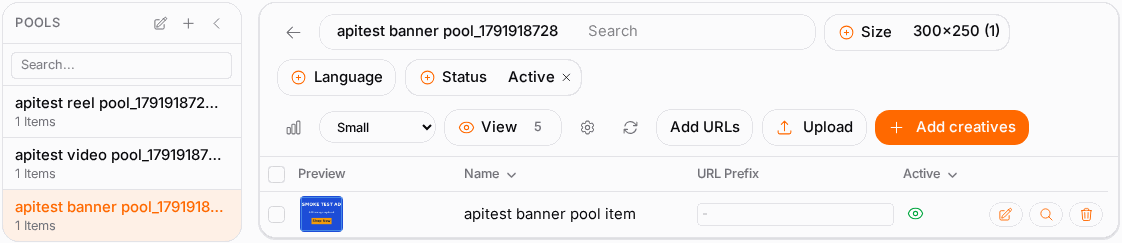
- Open the pool and add items:
- Upload individual files, or a ZIP archive that's unpacked server-side into separate creatives.
- Add URLs — paste image or HTML URLs, one per line, to reference assets you host yourself.
- Add creatives — pick from creatives already in your media bank.
- Set each item's properties if needed — size is auto-detected, and you can set language, rating and free-form properties.
- On Pool settings, choose the sort type that decides rotation order (see below).
- Attach the pool to a campaign from the campaign's ad step — see Ads & Creatives.
Step by step — build a URL pool#
- Open URL Pools and click New pool. Name it and save.
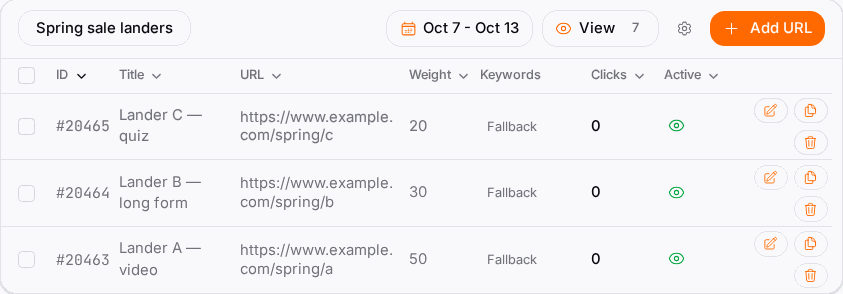
- Click into the pool and use Add URL for each landing page:
- Destination URL — the lander, with any macros you need.
- Title — optional label so the stats table is readable.
- Weight — relative share of traffic against the other URLs in the pool.
- Tracking pixel — the conversion type this URL reports against, used by conversion-based sorting.
- On Pool settings, pick the sort type.
- Attach the pool to a campaign's ads.
Options reference#
Creative pool — sort types#
| Sort type | How items are chosen |
|---|---|
| Random | Even, unweighted rotation. Right while you're still gathering data. |
| CTR (Click-Through Rate) | Favours items with the best click rate. |
| CR (Conversion Rate) | Favours items with the best conversion rate. Needs a tracking pixel selected. |
| Sort on tracking pixel | Ranks against a specific conversion type rather than all conversions. |
URL pool — sort types#
| Sort type | How URLs are chosen |
|---|---|
| Random | Even rotation, weights ignored. |
| Weighted Random | Rotation proportional to each URL's weight — the usual choice for split-testing. |
| CR (Conversion Rate) | Favours the URLs that convert best. |
| Conversion | Ranks on raw conversion count. |
Pool-level actions#
| Action | What it does |
|---|---|
| Clone | Copy the whole pool as a starting point for a variant. |
| Activate / Deactivate | Switch the pool (or one item) on and off without deleting it. |
| Reset stats | Clear the pool's accumulated statistics so a performance-based sort starts fresh. |
| Used in | Show which campaigns currently use the pool. |
| Export ZIP | (Creative pools) Download every asset in the pool as an archive. |
| Set Language | (Creative pools) Bulk-set the language on selected items. |
| Set URL Prefix | (Creative pools) A fragment appended to the destination URL at serve time — e.g. ?subid=mypool. Leave empty to clear. |
| Search & replace in URLs | (URL pools) Find text across your pool URLs and replace it. Preview the matches first; only the first match in each URL is replaced, and an empty replacement removes the text. |
Per-item fields#
| Field | Creative pools | URL pools |
|---|---|---|
| Name / Title | Item label | URL title |
| Size | Auto-detected from the file | — |
| Language | Per item, bulk-settable | — |
| Rating | Content rating of the creative | — |
| Weight | — | Share of traffic vs the other URLs |
| Tracking pixel | Used by CR sorting | Used by CR / conversion sorting |
| Active | Whether the item serves | Whether the URL serves |
Example#
Split-testing three landers. Ana has one campaign and three landing pages she wants to compare fairly, then lean into the winner.
- She creates a URL pool called "Q3 landers" and adds all three URLs with weight 10 each.
- She sets the pool's sort type to Weighted Random — equal weights means an even three-way split.
- She selects her Sale tracking pixel on each URL so conversions attribute correctly.
- She attaches the pool to the campaign's ads and lets it run for a week.
- In the pool's stats, lander B has nearly twice the conversion rate. She raises B's weight to 30 and drops the other two to 5 — the campaign shifts without touching a single ad.
- Later she switches the sort type to CR and lets the pool rank the landers by itself.
Tips#
- Start on Random or Weighted Random. A performance-based sort with almost no data will lock onto noise.
- Reset stats after a meaningful change. A pool that ranked a lander top before you rewrote it is ranking history, not the current page.
- Use "Used in" before deleting. A pool attached to a live campaign takes its creatives or landers with it.
- Set the URL prefix once instead of editing every destination URL when you just need a sub-ID or UTM tag on a whole pool.
- Keep one pool per format and purpose. "300×250 Q3 sale" is findable; "Banners" is not.
- Search & replace is account-wide. Preview the matches before confirming — it can touch URLs in pools you weren't thinking about.
Troubleshooting#
| Symptom | Likely cause | Fix |
|---|---|---|
| Pool items never serve | The pool or the item is inactive, or its size doesn't match a size the campaign allows | Check the Active toggles, then the campaign's allowed sizes |
| One URL takes all the traffic | Sort type is a performance one and that URL got an early lead | Switch to Weighted Random, or reset stats and let it re-learn |
| CR sorting does nothing | No tracking pixel is selected on the items | Select a conversion type — create one first if you have none |
| Upload rejected | Unsupported file type, or the pool type doesn't match the asset (video file into a banner pool) | Check the pool type; create a video pool for video assets |
| I deleted a pool and ads stopped | The campaigns that used it lost their creative or URL source | Restore from a clone if you have one; check Used in before deleting next time |
| Search & replace changed more than expected | It searches across every pool by default | Use the preview step; it lists each URL before and after |
Related#
- Ads & Creatives — single ads, macros, and attaching a pool to a campaign
- Creating a Campaign — where pools plug into the wizard
- Conversion Tracking & Retargeting — the tracking pixels pool sorting uses
- Advertiser Statistics — campaign-level performance
- How to build a creative pool — step-by-step guide
- How to split-test landing pages with a URL pool — step-by-step guide