
Browse the documentation
Earnings & Payouts
Applies to: Publishers · Ad network setups only — not available on ad manager setups
The finance area shows what you've earned as a publisher, pays you automatically on the schedule you choose, and stores your payment details. Availability depends on your account — some networks handle publisher payments outside the dashboard.
What this is#
This is where your ad earnings turn into money in your account. You can see your current balance, view earnings over time, set up how and how often you want to be paid, and review your full history of transactions and invoices.
When you'll use this#
- To check your current balance and total earnings.
- To set up or update your payment method (bank, PayPal, Paxum, Payoneer, USDT).
- To choose how often you're paid (monthly or weekly) and your minimum payout.
- To enter VAT/invoice details so your invoices are correct.
- To review past payouts and download invoices.
Step by step#
See your balance and earnings#
- Open the Earnings / Billing page from the publisher menu.
- Read the three headline figures (see the Options reference): Balance, Pending, and Total earned.
- Use the earnings overview to view your earnings grouped by day, week, or month across a date range, to see trends.

Set up your payment method#
- Go to Payout Settings.
- Choose your payout method (see the methods table below).
- Fill in the details that method needs:
- Bank transfer: Account Name, IBAN and BIC — or Account Number and Routing Number, depending on your region.
- PayPal: your PayPal email.
- Paxum: your Paxum email.
- Payoneer: your Payoneer email.
- USDT: your USDT wallet address.
- Set your preferred currency if the option is available.
- Add your invoice/billing address and VAT number if VAT applies to you (see VAT & invoices).
- Save.
Choose when you're paid#
There is no button to request a payout — payouts run automatically.
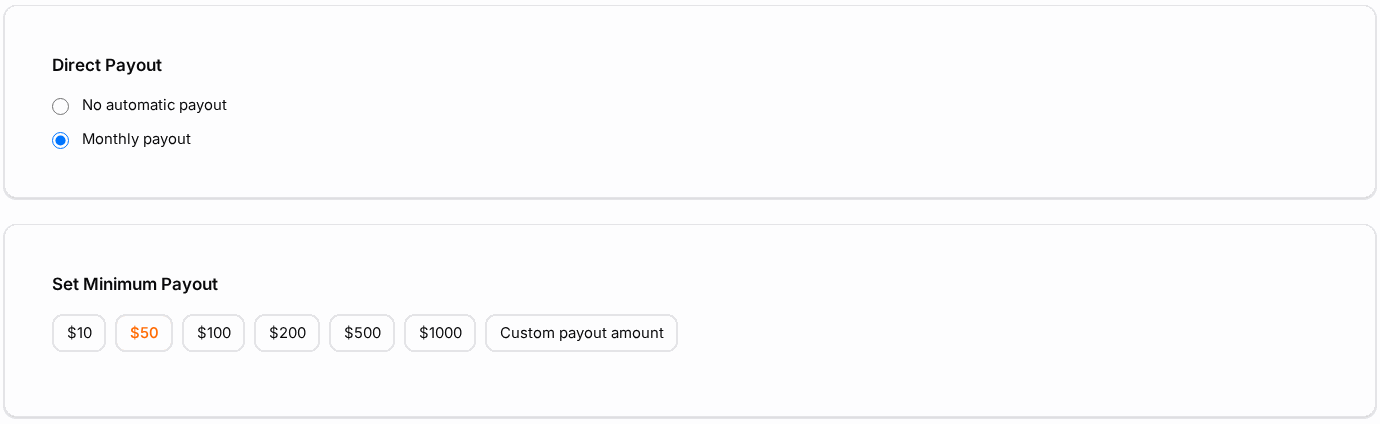
- In Payout Settings, under Direct Payout, pick Monthly payout (paid on the 1st of each month) or Weekly payout (paid every Monday). No automatic payout means you're paid manually by your network.
- Under Set Minimum Payout, choose the smallest amount you want paid out. Some payment methods have a higher floor of their own (for example bank transfer); the form won't let you go below it.
- Save.
On your payout day you're paid automatically when all of these are true: your balance is at or above your minimum, your payment details are complete, and your network has verified your banking details. If one isn't, the balance simply rolls on to the next payout day.
Some networks pay everyone manually. You'll then see "Payouts are processed manually. Please contact your account manager." — your account manager arranges each payment.
Review history and invoices#
- Open Transactions to see the full ledger of earnings and payouts.
- Filter by type, paid status, or date to find a specific entry.
- Where available, use Download Invoice to get the invoice for a payout.
Options reference#
Balance figures#
| Figure | Meaning |
|---|---|
| Balance | Earnings that will be paid on your next payout day once they reach your minimum. |
| Pending | An amount already being paid out that hasn't arrived yet. |
| Total earned | Everything you've earned/been paid to date. |
Payment methods#
| Method | Details you provide |
|---|---|
| Bank transfer | Account Name, plus IBAN + BIC/SWIFT — or Account Number + Routing Number, depending on your region. |
| PayPal | Your PayPal email address. |
| Paxum | Your Paxum email address. |
| Payoneer | Your Payoneer email address. |
| USDT (crypto) | Your USDT wallet address. |
| Currency | Your preferred payout currency, where the option is offered. |
The exact list of methods depends on your network. Only the methods your account supports will appear in the picker.
Payout rules#
| Rule | What it means |
|---|---|
| Minimum threshold | Nothing is paid until your balance reaches your minimum payout (and the payment method's own floor). |
| Verified banking | Automatic payouts wait until your network has verified your banking details. |
| Payment fee | Depending on the method, a small processing fee may be deducted from the payout. |
| Schedule | Monthly payouts run on the 1st, weekly payouts on Monday (UTC). |
VAT and invoices#
If you're in a region where VAT applies, complete your tax details so invoices are issued correctly:
- Enter your invoice/billing address.
- If you're a registered company, enter your VAT number.
This ensures your payout invoices are calculated correctly — for example reverse-charge handling for valid EU companies, versus standard VAT for individuals. Keeping these details accurate avoids delayed or incorrect invoices.
Example#
First payout. Tomas has earned steadily and his Balance now shows above the minimum. He opens Payout Settings, selects PayPal, enters his PayPal email, picks Monthly payout under Direct Payout, and saves. On the 1st his balance is paid out automatically, with a small PayPal processing fee deducted, and it shows as paid in his Transactions, where he downloads the invoice.
EU company. Lena's business is VAT-registered in Germany. She enters her company invoice address and VAT number in settings. Her payout invoice is then issued with reverse-charge handling rather than added VAT.
Tips#
- Fill in payment details before you reach the threshold, so your network can verify them before your first payout day.
- Double-check IBAN/BIC or wallet addresses — a wrong character can delay or misroute a payout.
- Watch the fee per method; for small payouts the fee is a bigger share, so waiting for a larger balance can be more efficient.
- Keep VAT/invoice details current to avoid invoice corrections later.
- See Publisher Statistics for the day-by-day detail behind your balance.
Troubleshooting#
| Symptom | Likely cause | Fix |
|---|---|---|
| Payout day passed, nothing paid | Balance below your minimum, banking details not yet verified, or No automatic payout selected. | Check Payout Settings; ask your account manager to verify your banking details. |
| "Payouts are processed manually" | Your network pays publishers by hand. | Contact your account manager. |
| Payout is less than my balance | A processing fee was deducted, or part of the balance is reserved as pending. | Check the fee for your method and any pending amount in the balance tiles. |
| Invoice looks wrong (VAT) | Missing or incorrect invoice address / VAT number. | Complete your VAT & invoice details and re-download the invoice. |
| No payout options at all | Your network handles publisher payments outside the dashboard. | Contact your network about their payment process. |
Related#
- Publisher Statistics — the earnings detail behind your balance.
- Ad Zones — where your earnings are generated.
- Websites — the properties running your ads.
- Account — your profile and contact details.
- Referral Program — commission from users you invite, paid out the same way.
- How to get paid for your traffic — step-by-step guide