
Browse the documentation
Setting Up Scan Tasks
Applies to: All users · needs the matching permission on your account
What this is#
A scan task tells the Ad Scanner what to scan, how, from where and how often. Each task has one scan type and one target, runs on its own interval while it is active, and writes one report per item per run. You manage tasks on Ad Scanner → Tasks.
When you'll use this#
- To scan an ad tag, page or VAST tag before it goes live: a Manual task.
- To keep watching the networks in your smart zones: a Smart Zones task.
- To look into a complaint for a few hours with a fast, narrow task you delete afterwards.
Step by step#
Create a task#
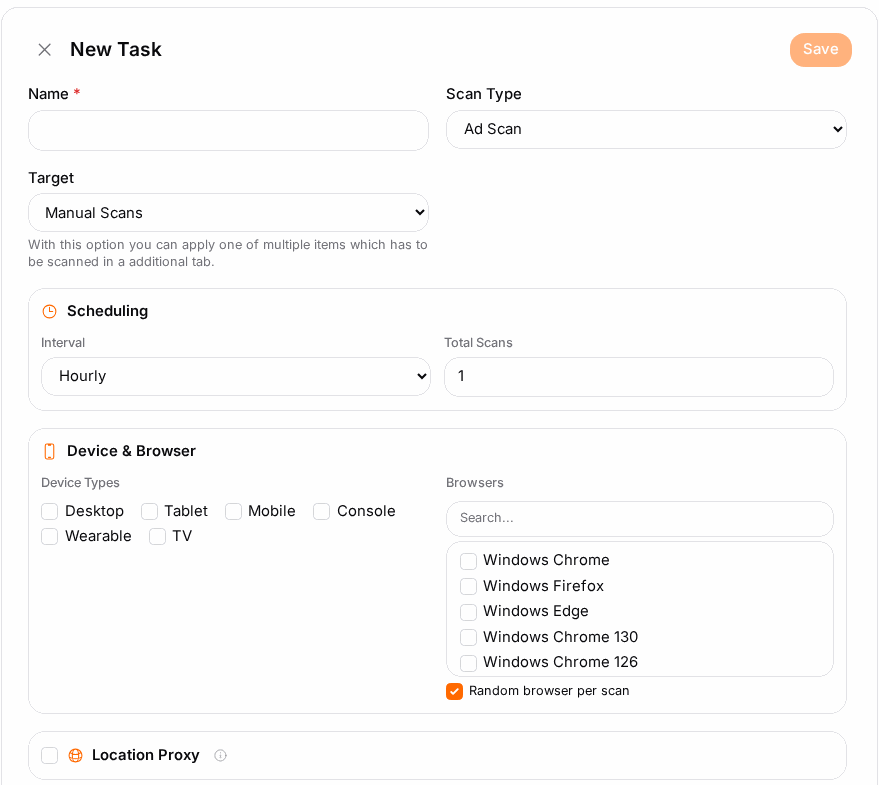
- Open Ad Scanner → Tasks and click New Task (or Create your first scan if you have none yet).
- In the general section, enter a Name and choose the Scan Type and the Target. Both are fixed once you save.
- Under Scheduling, choose the Interval and the Total Scans.
- Under Device & Browser, tick the Device Types and Browsers to scan with.
- Switch on Location Proxy and pick the Proxy Countries.
- Optionally switch on Notify me about this task.
- Check the Detection Options: the common checks are already on.
- Optionally add Tags to group your tasks.
- Save. A Manual task now gets a Manual Items tab: add what it should scan there.
Add manual items#
Open the task, go to Manual Items and click Add Item. Each row is one thing to scan:
| Field | What to enter |
|---|---|
| Description | Your own label, for example the network and placement. |
| Active | Untick to skip the item without deleting it. |
| Type | Ad Scan only: iFrame Url (an ad tag URL) or Html Code (the tag's HTML). |
| Width / Height | Ad Scan only: the size the ad is shown at, as on your site. |
| Value | The ad tag URL or HTML (Ad Scan), the page or link URL (URL Scan), or the VAST URL (VAST Scan). |
| Referrer | The site the scanner pretends the visitor came from. Leave empty for a search-engine referrer. Many ads behave differently per site, so enter the page the ad really runs on. |
Scanning your smart zones#
A Smart Zones task scans the network codes inside your smart zones, using the smart zone's website as the referrer. The target appears once you have smart zone networks. Tick the Smart Zone Networks to include; tick none to include them all.
A smart zone is only scanned when all of these are true:
- Scanning enabled is switched on for it, on the Smart Zones page or in the smart zone's form. It is off for a new smart zone.
- The smart zone is active and has served in the last five days.
- Its format fits the scan type:
| Scan type | Smart zones it picks up |
|---|---|
| Ad Scan | Banner, native, video and reel zones whose code is an ad tag URL, iframe or HTML. |
| URL Scan | Pop, redirect, push, full-page, tab, mail-click and skin zones. |
| VAST Scan | Video and reel zones whose code is a VAST tag. |
Options reference#
General and scheduling#
| Field | What it does |
|---|---|
| Name | Your label for the task. Required. |
| Scan Type | Ad Scan, URL Scan or VAST Scan. See Ad Scanner: Overview. |
| Target | Manual (items you add) or Smart Zones. |
| Interval | Daily, Hourly or Every Minute: the period the Total Scans count applies to. |
| Total Scans | How many times the task runs per period: up to 60 per hour or 300 per day. Every Minute always runs once a minute. Each run scans every active item. |
Device & Browser#
| Field | What it does |
|---|---|
| Device Types | Desktop, Tablet, Mobile, Console, Wearable, TV. |
| Browsers | The browser profiles to scan with: desktop Chrome, Firefox, Edge and others on Windows and Linux, a range of Android phones and tablets, game consoles, watches and smart TVs. Use the search box to find one. With no browser ticked, the profiles for the ticked device types are used. |
| Random browser per scan | On (the default): each run scans an item with one profile picked at random, so repeated runs cover the spread. Off: each run scans every item with every profile, which multiplies the number of scans. |
Location Proxy#
| Field | What it does |
|---|---|
| Location Proxy | Runs the scans through real IP addresses in the chosen countries, so you see what visitors there are served. |
| Proxy Countries | The countries to scan from. Tier 1, Tier 2, Tier 3, All and None are quick picks. |
Without a proxy, scans leave from the scanner's own connection in the Netherlands. If a proxy can't be reached, the scan still runs from there and the report carries a Proxy Unavailable note: read its country as unknown.
Notifications#
| Field | What it does |
|---|---|
| Notify me about this task | Sends an alert when a scan of this task has a finding. |
| Serious findings only | Malicious domains, malware, crypto miners, forced redirects, pop-ups and push prompts. |
| Any finding | Every finding type. |
| Deliver to | My notification channels, or one linked channel only. Shown once you have linked channels; see Notifications. |
New scans are checked every few minutes. A task alerts at most once every six hours, so a task that finds the same bad domain every minute does not flood you.
Detection Options#
The common checks are on for a new task:
| Option | What it flags |
|---|---|
| Report Push Notifications | The ad asks for push-notification permission. |
| Report Alerts | The ad opens browser alert or confirm dialogs. |
| Report Popups | The ad opens a new window or tab on its own. |
| Scan Cookies | Records the cookies set, shown in the report's request tree. Off by default. |
| Scan Crypto Miners | The ad runs crypto-mining code. |
Under Advanced detection:
| Option | What it flags |
|---|---|
| Scan Domains | Checks every contacted domain's reputation: Report Malicious, Report Suspicious. On by default. See Domain Reputation & Domain Check. |
| Suspicious DOM Detection | Hidden Content, Content Cover View Port, iFrame Cover View Port, Hidden iFrame: page tricks used to steal clicks. |
| Fingerprinting Detection | Canvas Fingerprint, Audio Fingerprint: scripts that try to identify the visitor. |
| Scan Obfuscated JavaScript | Deliberately scrambled code (eval, Function, timers) used to hide what an ad does. |
| Permission Request Detection | Geolocation Access, Camera Access, Microphone Access, Any Other Access. |
| Scan Landing Page Ads | On a scanned page, scrolls down, starts the video player to catch a pre-roll, clicks up to Max Landing Ad Scans ads (1 to 10, default 5) and scans where each one leads. |
Suspicious DOM Detection and Scan Landing Page Ads look at whole pages: the page a URL Scan opens, and the landing page an Ad Scan reaches after its click. They don't apply to the creative itself, which an Ad Scan renders in a frame of its own.
Example#
Tomás wants to test a VAST tag from a new video partner before it goes live. He creates "Partner X VAST": VAST Scan, Manual, Hourly with 2 Total Scans, Mobile and Desktop, Location Proxy on with Germany, Austria and Switzerland. He saves, opens Manual Items, clicks Add Item, pastes the VAST URL and enters his own site as Referrer. After a day of clean reports he pauses the task with the toggle in the list and lets the tag go live.
Tips#
- One task per question. A narrow task (one network, a few countries) gives reports you can actually compare.
- Give a manual item the real Referrer and size: many ads only misbehave on the site they were bought for.
- Pause a task with the toggle in the task list instead of deleting it: the reports stay, and you can switch it back on later.
- Scan Landing Page Ads multiplies the work of each scan. Keep Max Landing Ad Scans low.
Troubleshooting#
| Symptom | Likely cause | Fix |
|---|---|---|
| Can't change Scan Type or Target | They are fixed once a task is saved | Create a new task. |
| No Manual Items tab | The task isn't saved yet | Save the task first. |
| Save greyed out on a manual item | The value isn't a valid URL, or the HTML is too short | Enter a full URL such as https://ads.example.com/tag, or the complete HTML. |
| A Smart Zones task produces no reports | No smart zone has Scanning enabled, none served in the last five days, or none matches the scan type | Switch on Scanning enabled; check the table above for which formats each scan type picks up. |
| The Scanning enabled switch is missing on the Smart Zones page | Your account has no Ad Scanner access | Ask your account manager. |
| Reports show Proxy Unavailable | The proxy for that country couldn't be reached | The scan ran from the Netherlands; treat its country as unknown and wait for the next run. |