
Browse the documentation
Tracking Links
Applies to: Tracker & affiliate users · Optional feature — available when your network has it switched on
A tracking link is the URL you actually put in your ads. Instead of pointing an ad straight at an offer's landing page, you point it at a tracking link — it records the click, remembers which ad and placement it came from, and then redirects the visitor on to the offer. That recorded click is what lets a conversion later be matched back to the exact ad that paid for it.
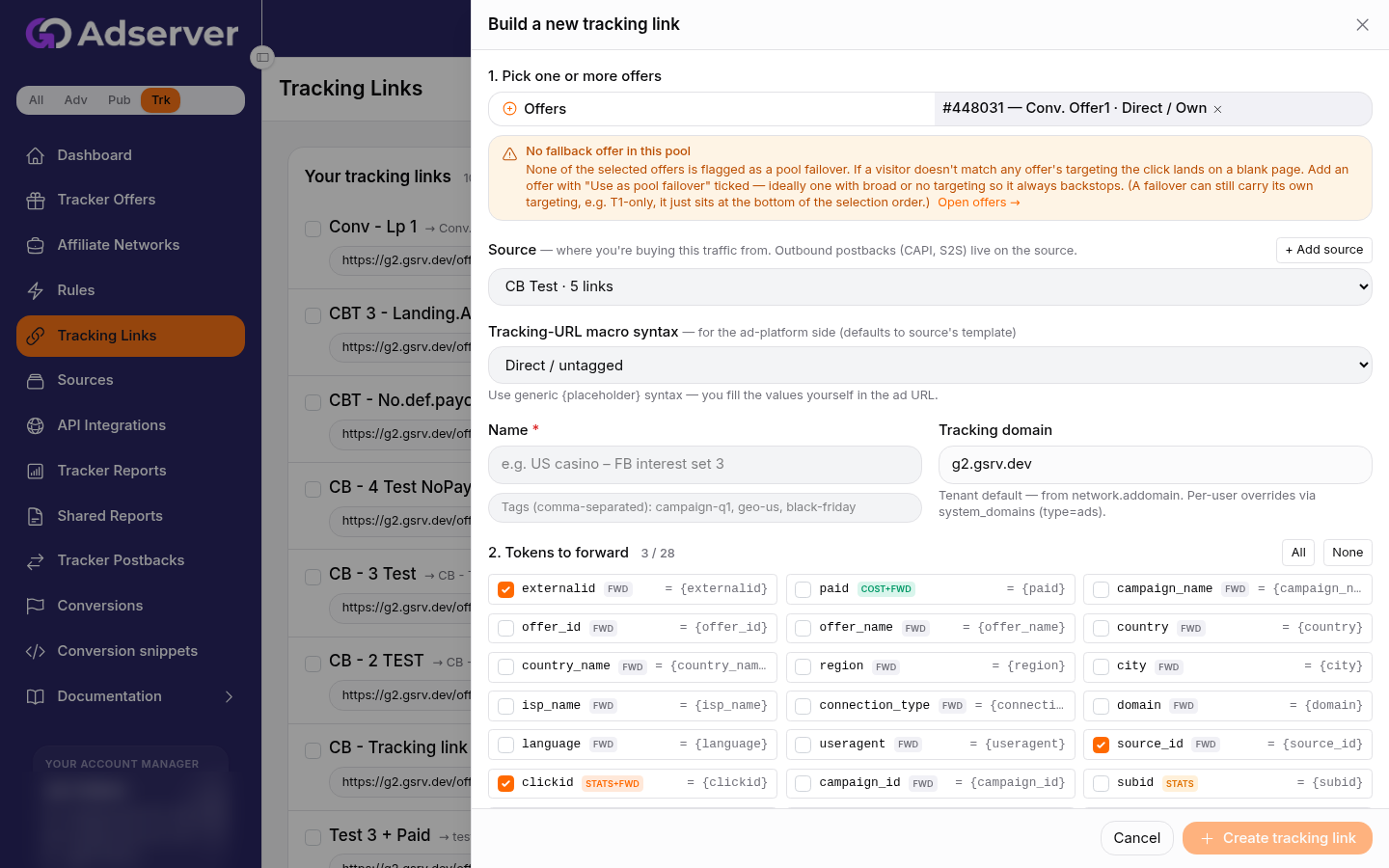
The tracking-link builder — pick offers and a source, set the macro syntax, and toggle which tokens to forward.
What this is#
The Tracking Links page is a builder plus a history list. The builder walks you through four choices — which offer(s), which traffic source, which macro syntax, and which tokens to append — and shows a live preview of the finished URL as you go. The history list holds every link you have built, each with a one-click copy button.
Every click on a tracking link is handled by the ad-serving side of the platform (not the dashboard). Your only job here is to build the URL and paste it into your ad network. The link points at your own tracking domain, so all clicks and redirects run through the platform's click pipeline automatically.
When you'll use this#
- Every time you launch a new campaign on a new offer.
- When you spin up a second link for the same offer on a different traffic source, so you can compare sources cleanly in reports.
- When you want one URL to rotate across several offers at once (a smartlink).
- When you need to bind a link to a specific campaign on the ad network so ad-spend cost lines up per campaign.
Step by step#
- Open Tracking Links from the tracker menu and choose Build a new tracking link.
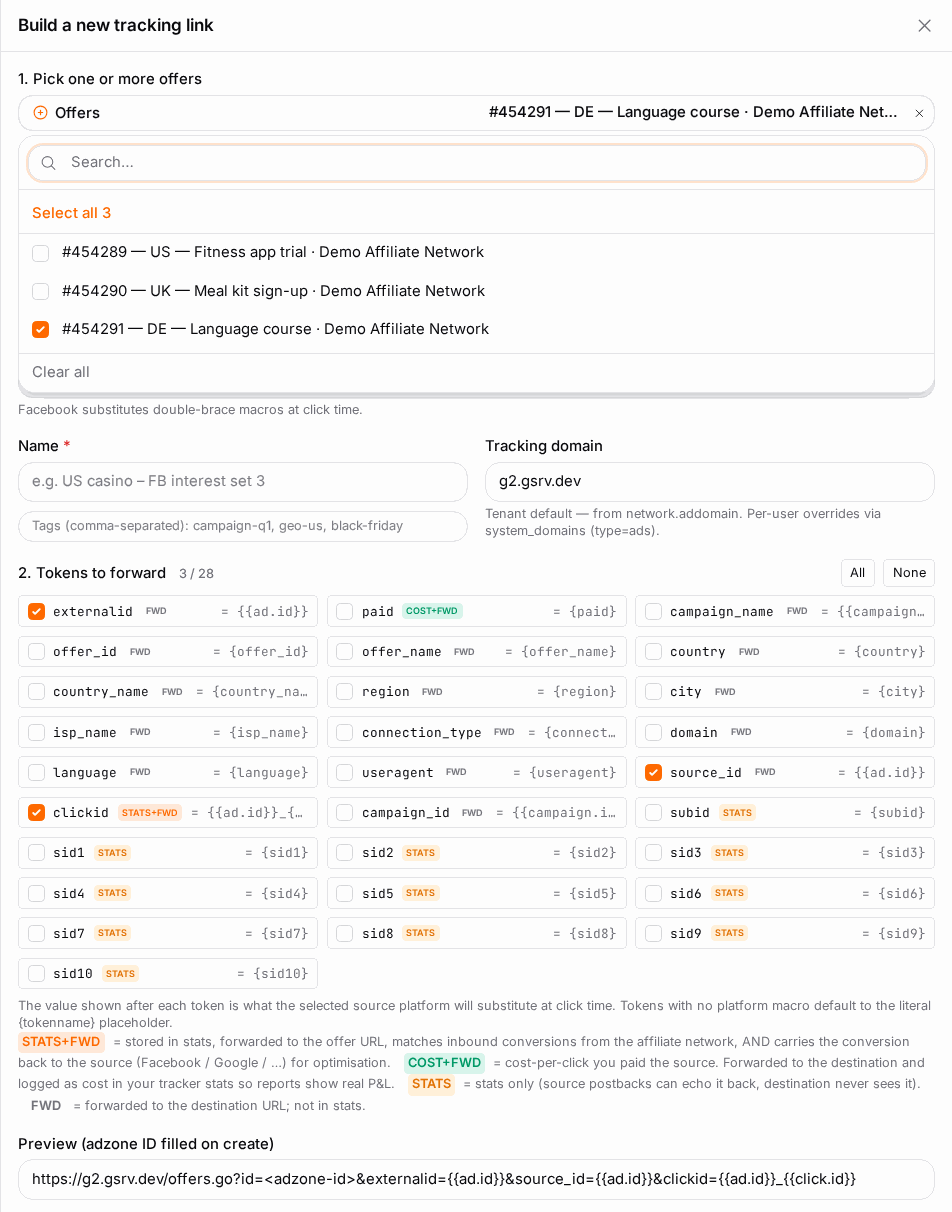
Pick an offer. Open the offer picker and select the offer this link should send traffic to. The picker labels each option
#id — name · network · countryso you can tell similar offers apart.- Select one offer for a plain direct link — every click goes to that single offer.
- Select two or more offers to build a smartlink — a pool. At click time the platform narrows the pool by each offer's own targeting (country, device, and so on) and serves the best-matching, best-earning offer automatically.
Pick a traffic source. Choose the ad network you are buying this traffic from. The source you pick decides which outbound conversion forwarding (CAPI / postback) fires when a conversion lands — see Postbacks & Conversions. If the source you need does not exist yet, use the inline Add source form: give it a name, choose its template, and it is created without leaving the builder.

- Confirm the macro syntax. Each source maps to a template that sets the default macro style for that platform (Facebook's double-brace, Google's braceless ValueTrack, TikTok's upper-snake, and so on). The builder pre-fills it. You only touch this if you run a non-standard setup — for example a Facebook link where you prefer
{{campaign.id}}over{{ad.id}}.

- Toggle tokens. Tokens are the extra parameters appended to the tracking URL. The ad platform fills them in at click time, and the platform logs them so you can pivot on them in reports. Three are on by default — Click ID, Source ID, and External ID — which covers most setups. Turn on any others you want to pass through. (See the token reference below.)
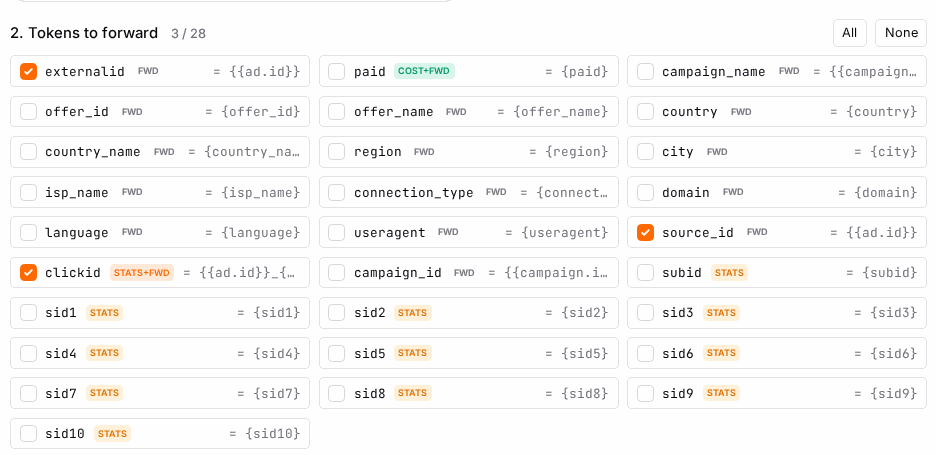
Check the live preview. As you make choices, the builder shows the finished URL with a placeholder link ID, so you can confirm its shape before committing.
Create. Choose Create. The platform builds the link under your source and hands back a ready-to-paste URL. Copy it.
Paste it into your ad network as the destination / final URL for your ad. That is the URL your traffic runs on from now on.
Options reference#
Traffic-source templates#
The source template sets the default macro style. Common built-in templates:
| Template | Typical use | Click-ID macro it fills |
|---|---|---|
| Facebook / Meta Ads | Meta ads traffic | {{ad.id}}_{{click.id}} |
| Google Ads | Google Ads traffic | {gclid} |
| TikTok Ads | TikTok ads traffic | __CTS__ |
| Microsoft Ads (Bing) | Microsoft / Bing traffic | {msclkid} |
| Taboola | Native traffic | {click_id} |
| Outbrain | Native traffic | {{ob_click_id}} |
| Push networks (generic) | Push / pop networks | ${clickid} |
| Direct / untagged | Direct traffic, no ad-platform macros | — |
Many more social, native, push/pop and search templates are available in the picker (Snapchat, Pinterest, LinkedIn, Reddit, Yandex, PropellerAds, ExoClick, Adsterra, and others). Pick the one that matches where you buy; pick Direct if none applies.
Tokens / macros#
Tokens are the values you pass through the tracking URL. On by default: Click ID, Source ID, External ID. Toggle the rest per link.
| Token | What it carries | Why you'd pass it |
|---|---|---|
| Click ID | The ad platform's own click identifier (fbclid / gclid / ttclid / msclkid, etc.) | Essential — this is what conversion matching and CAPI / postback forwarding key on. Leave it on. |
| Source ID | Which placement / ad / zone the click came from | Lets you see which placements convert. |
| External ID | An external or user identifier from your source | Extra attribution inside the destination. |
| Campaign ID | The ad platform campaign the click came from | Pivot performance by campaign. |
| Campaign name | The campaign's readable name | Nicer reports than raw IDs. |
| Country | The visitor's country | Geo breakdowns without relying on the offer's own detection. |
| User agent | The visitor's device / browser string | Device and OS analysis. |
| Payout | The payout value passed through | When the destination expects a payout parameter. |
The exact macro each token becomes depends on the source template (see the table above). If a template has no native macro for a token, the platform passes a generic {tokenname} placeholder that the click pipeline fills from the request itself.
Linking an external campaign (optional)#
You can bind a tracking link to a specific campaign on the ad network you are buying from (its external campaign ID). This lines your tracking data up with the exact remote campaign, which makes ad-spend cost attribution cleaner. Some sources offer a Browse picker so you can choose the remote campaign by name instead of typing its ID, and you can pause or activate that remote campaign from here.
Agentic Media Buying on a linked campaign#
Once a link is bound, edit it and open the Agentic Media Buying tab. It is the same tool publishers use on a buying ad zone: per placement (source zone) it sets your revenue against the exact cost the network reports, and it can block losing placements, change the bid per placement or for the campaign, manage the daily budget, exclude countries / devices / hours and IP ranges, and run a buying agent — each part Off, Advise (you approve) or Auto, and only once you switch the link on. What the network allows differs per network; the tab shows what yours supports. Report sends you a daily or weekly summary by email (and to your webhooks); see Agentic Media Buying for every setting.
Managing your links#
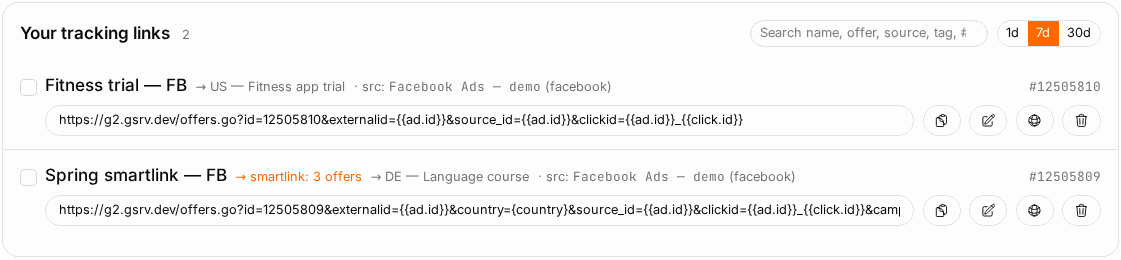
The history list shows all your tracking links — each with its offer, source, any external-campaign binding, and a copy button. You can:
- Search by name, offer, source, tag, or ID.
- Filter by source.
- Select multiple links and delete them in one action.
- Delete a single link. Deleting removes the link but keeps the clicks already recorded against it, so your historical reports stay intact.
Example#
Build a link for a Facebook campaign#
- Build a new tracking link.
- Offer: pick one dating offer, e.g.
#412 — SwipeMatch · CrakRevenue · US. One offer = a direct link. - Source: pick your Facebook source (or add it inline with the Facebook / Meta Ads template).
- Macro syntax: leave it — the Facebook template is already selected.
- Tokens: Click ID, Source ID and External ID are already on. Add Campaign ID so you can pivot reports by ad-set campaign.
- Confirm the preview, then Create and copy the URL.
- In Meta Ads Manager, paste it as your ad's website URL.
Because the Facebook template maps Click ID to {{ad.id}}_{{click.id}}, Meta substitutes the real ad and click IDs at click time — and that click ID is exactly what your Meta CAPI postback will need to attribute the conversion back.
Build a smartlink across several offers#
- Build a new tracking link.
- Offer: select three nutra offers in the picker. Two or more = a smartlink pool.
- Source: pick your push-traffic source (the Push networks (generic) template).
- Tokens: keep the defaults.
- Create and copy the single URL. Every click now enters the pool; each offer's own country/device targeting filters the pool and the best earner wins that click.
Tips#
- Build one link per source for the same offer. Comparing a Facebook link against a push link in reports is only clean if they are separate links.
- Always leave Click ID on. Without it, conversion matching and every CAPI / offline-conversion upload break.
- Use smartlinks for broad, untargeted traffic where you want the system to pick the winner. Use direct links when you are testing one specific offer.
- Give links clear names so the history list and reports stay readable at scale.
- Bind a link to its external campaign if you plan to import ad spend — it makes per-campaign cost attribution far more accurate.
Troubleshooting#
| Symptom | Likely cause | Fix |
|---|---|---|
| Conversions never match a click | The Click ID token is off, or the ad platform isn't substituting its macro | Rebuild the link with Click ID on; confirm the source template matches where you actually buy. |
| Clicks log but with no source / placement detail | Source ID / Campaign ID tokens were off | Toggle them on and rebuild; the ad platform fills them at click time. |
The preview URL looks wrong (literal {{ad.id}} in reports) |
Wrong source template for the platform, so the ad network doesn't recognise the macro | Switch to the correct template (Facebook macros won't work on a Google link, etc.). |
| Old links show "no tokens" | The link predates per-link token saving | It still works and falls back to the default token set; rebuild it if you want an explicit set. |
| Deleted a link by mistake | — | The clicks stay in your stats; just build a new link to the same offer/source. |
Related#
- Offers — what a tracking link points at
- Postbacks & Conversions — how conversions come back and forward
- Ad Spend & Cost Tracking — bind links to campaigns for cost matching
- Affiliate Networks — where the offers behind your links come from
- Performance Reports — measure each link's traffic
- How to build a tracking link — step-by-step guide
- How to create a smartlink — step-by-step guide
- How to use dynamic parameters (tokens and macros) — step-by-step guide