
Browse the documentation
Offers
Applies to: All users · Optional feature — available when your network has it switched on
An offer is a performance (CPA) campaign you promote for a payout — you send traffic to it, and you earn each time a visitor completes the action it pays for: a signup, a deposit, an install, a sale. This guide covers browsing offers, reading their payouts and countries, and turning an offer into something you can actually promote.
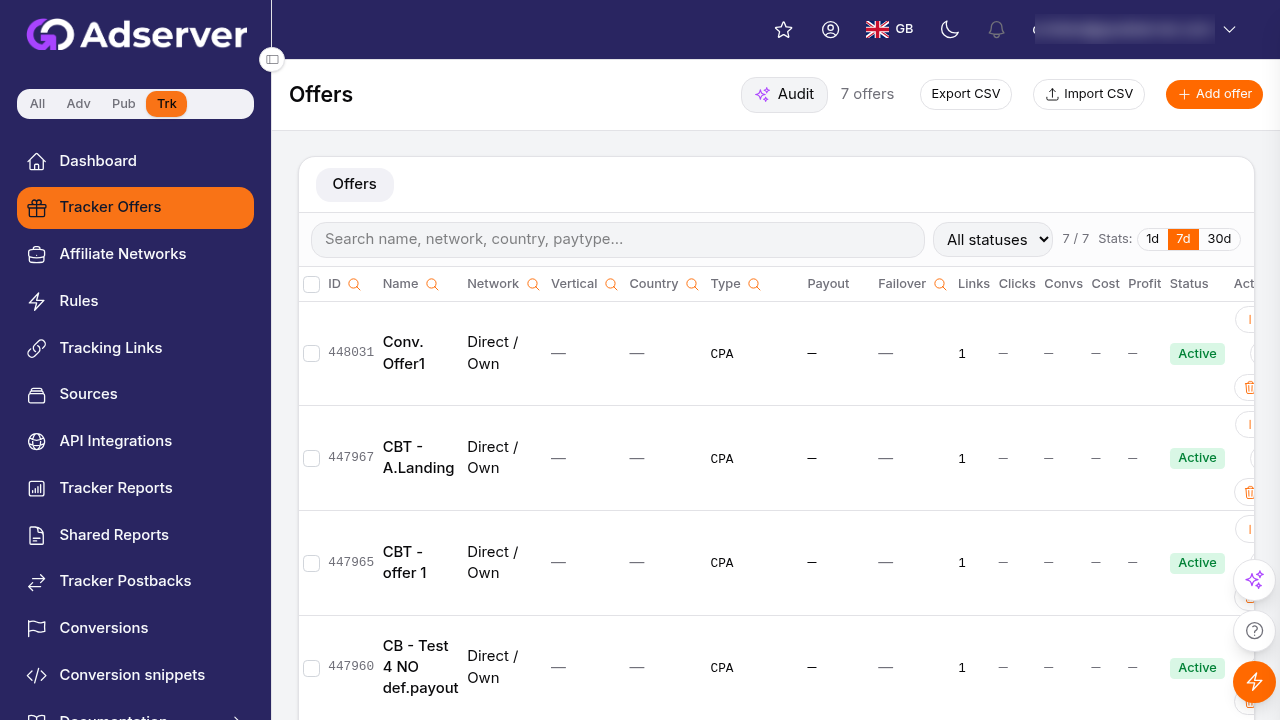
The Offers catalogue — search and filter, then read each offer's pay type, payout and status before you promote it.
What this is#
The Offers page is the catalogue of everything available for you to run. Each offer defines four things:
- The destination visitors land on (the merchant page, app store, or landing page).
- The payout you earn per successful conversion.
- The countries it accepts traffic from.
- The category / offer type it belongs to, so you can filter and group offers.
Each offer is supplied by an affiliate network you've connected. You never paste an offer's raw destination into your ads. Instead you build a Tracking Link for it, and conversions come back to you through Postbacks.
When you'll use this#
- To find offers to run in a vertical you buy traffic for.
- To compare payouts and accepted countries before committing spend.
- To grab an offer so you can start promoting it.
Step by step#
- Open Offers from the menu. The list shows every offer available to you.
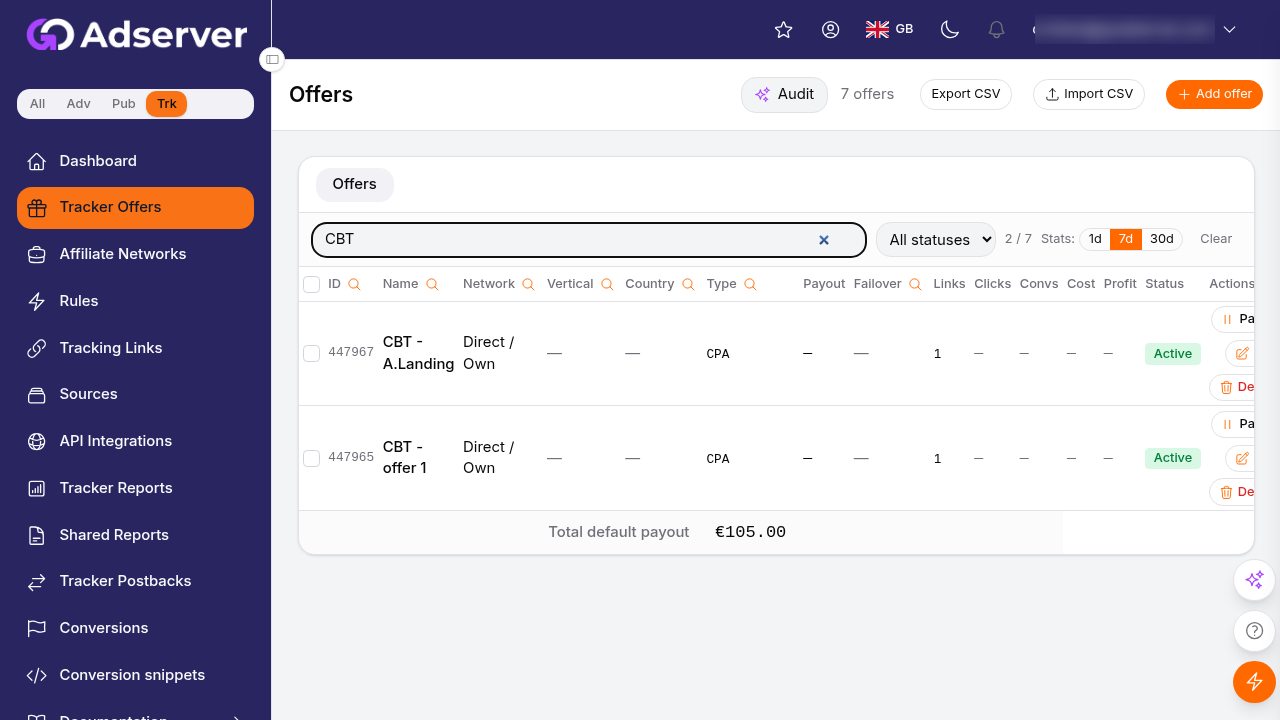
Browse offers by network, category, payout and accepted countries.
- Narrow the list. Use the search box and column filters — by network, category, or name. When a filter narrows the list to a single value, that column hides automatically to keep the table clean.
- Read the row. For each offer you see its name, network, accepted countries, pay type, payout, failover, and whether it's active or paused.
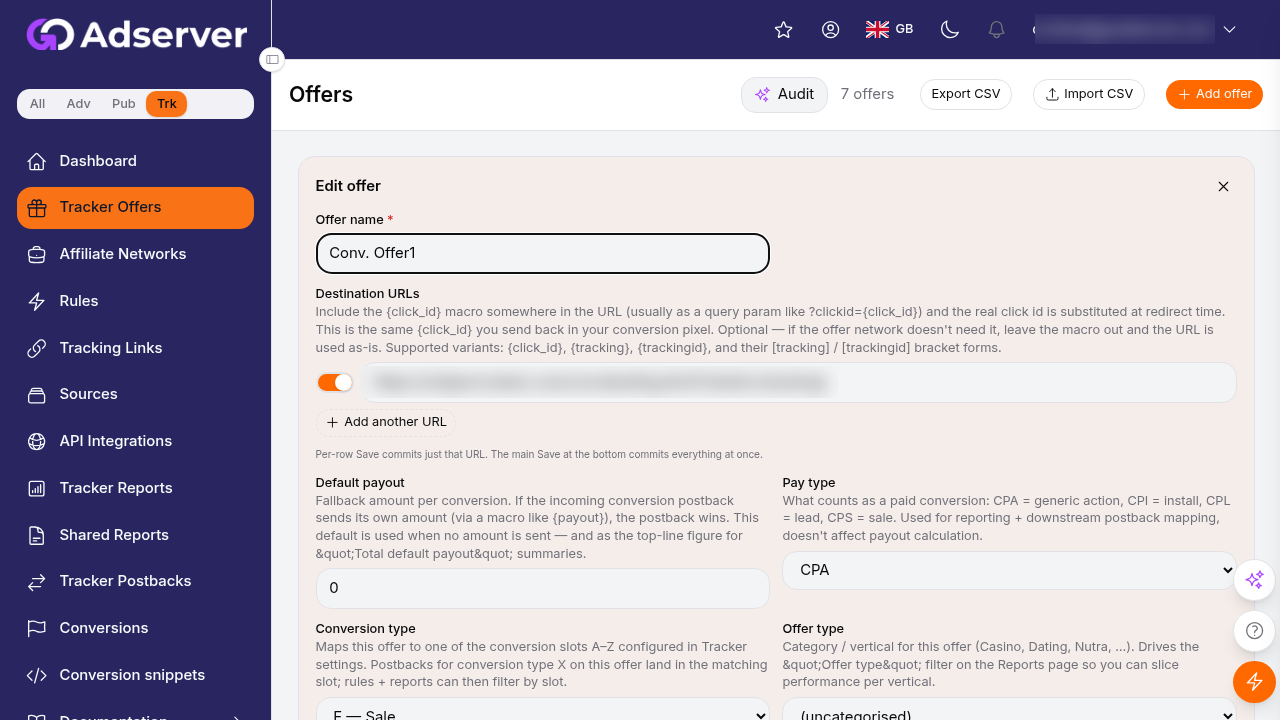
Open an offer to read its payout, pay type and terms before committing spend.
- Match your traffic. Check the accepted countries against the geo you're buying. Traffic from a country the offer doesn't accept won't convert.
- Promote it. Go to Tracking Links, pick the offer, choose your source, and copy the generated URL into your ad platform.
Options reference#
Offer status#
| Status | Meaning |
|---|---|
| Active | Live and accepting traffic. |
| Paused | Temporarily off — links still resolve but the offer won't serve until resumed. |
| Stopped | The offer has been stopped. |
| Complete | The offer has run its course (for example, its cap is reached). |
Payout concepts#
| Concept | What it means |
|---|---|
| Default payout | The standard amount you earn per conversion. |
| Per-country payout | Some offers pay different amounts by visitor country; these overrides apply automatically at conversion time — nothing to configure. |
| Pay type | How the conversion is priced (e.g. a fixed cost per action). |
| RevShare % | On revenue-share offers (common in iGaming), a deposit earns a percentage of the reported amount instead of a flat payout. Only appears where revenue-share offers are enabled. |
Categories and offer types#
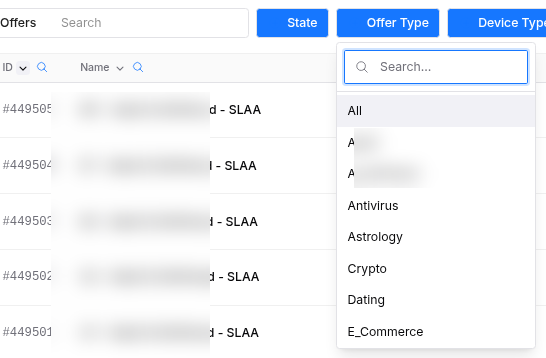
Filter to the verticals you run; when a filter narrows to a single value, that column hides itself.
Offers are grouped by category and offer type (Gaming, Finance, Dating, Nutra, and so on). Use these to filter to the verticals you run and to keep smartlinks pointed at the right kind of offer.
Failover and smartlinks#
- A failover offer is another offer that traffic redirects to when the first caps out or stops accepting traffic — so your traffic stays monetised instead of hitting a dead offer. It's shown in the offer's row.
- For rotating across several offers at once (rather than a single chained fallback), build a smartlink — a multi-offer tracking link that picks the best-matching offer per click. See Tracking Links.
Offer reports#
Offer Reports (in the menu next to your offers) shows how your offer traffic performs. Pick the date range once — every tab uses it — and narrow everything by Offer or Offer Type.
| Tab | What it shows |
|---|---|
| Overview | Totals and a daily chart: Clicks, Conversions, CR%, EPC and Earned. |
| Performance | The same metrics per offer, by Daily, Weekly or Monthly period, with Conv A, Conv B and Conv C per conversion type (switch them on under Columns). |
| Clicks | The individual clicks for the period. |
| GEO | Results per Country. |
| Devices | Results per Device Type, OS and Browser. |
Publishers and affiliates get three more tabs:
| Tab | What it shows |
|---|---|
| Smartlinks | Results per smartlink. |
| SubIDs | Results per sub-ID value (SID1–SID5) — which of your own traffic segments converts. |
| Click ID | The Click ID Report: look up what happened to one click. |
Most tabs have a chart you can hide and a CSV export of the table.
Example#
From offer to live campaign#
- On Offers, filter by network to a network you run and category to Dating.
- Find an offer that accepts your traffic geo (say, US) with a payout that works against your expected cost.
- Note its name, then open Tracking Links.
- Pick that offer, pick your traffic source, keep the default tokens, and Create.
- Paste the URL into your ad network. Watch it in Performance Reports.
Tips#
- Always match your traffic geo to the offer's accepted countries — mismatched geo simply won't convert.
- Prefer offers with a named failover for broad traffic, so caps don't waste clicks.
- Use categories to keep smartlink pools coherent (all dating, all nutra) rather than mixing verticals.
- Compare offers on EPC in reports once traffic flows, not on headline payout alone.
Troubleshooting#
| Symptom | Likely cause | Fix |
|---|---|---|
| Traffic clicks but never converts | Sending geo the offer doesn't accept | Match your traffic to the offer's accepted countries. |
| Offer won't serve | It's Paused, Stopped, or Complete | Pick an active offer, or rely on a failover / smartlink. |
| $0 payout on some conversions | The offer pays $0 for that event by design (free registrations) | Legitimate — check the conversion type before treating it as an error; don't flag it. |
| Can't find an offer's network | The supplying network isn't registered | Register it under Affiliate Networks. |
Related#
- Affiliate Networks — where offers come from
- Tracking Links — build the URL you actually promote
- Postbacks & Conversions — how conversions get counted
- Performance Reports — measure each offer