
Browse the documentation
Targeting & Filters
Applies to: Advertisers
Targeting decides who is eligible to see your ads; filters let you allow or block specific inventory. Both are set on the campaign and apply to every ad inside it. You can also save reusable filters and attach them to many campaigns at once.
What this is#
Two related controls that shape where your budget goes:
- Targeting answers "which visitors and placements qualify?" — geo, device, OS, browser, language, connection, schedule.
- Filters are allow-lists (include) and block-lists (exclude) for specific domains, ad zones, sub-IDs, ISPs and IP ranges, plus saved versions you reuse.
When you'll use this#
- At campaign creation, to point spend at the right audience.
- After the first data comes in, to cut the sources that spend without performing.
- To reuse a hard-won block list across every campaign instead of re-typing it.
Include vs exclude — the core idea#
Most dimensions work one of two ways:
- Include (allow / whitelist) — only the values you list are eligible; everything else is blocked.
- Exclude (block / blacklist) — the values you list are blocked; everything else stays eligible.
Leaving a dimension empty means "any" — no restriction on that dimension.
Why this matters for cost and reach: every include you add narrows the pool of traffic you can win. Narrow too far and the campaign starves — it can't find enough matching impressions to spend the budget, and the ones it does find are more contested (often more expensive). Excludes do the opposite: they keep your reach wide and only trim the specific bad sources you name. As a rule of thumb, start with wide targeting + a short exclude list, and only switch to include-lists once you know exactly which inventory you want.
Step by step — setting targeting on a campaign#
- In the create wizard, work through the geo, traffic/device, and advanced-targeting steps.
- For each dimension, decide: leave empty (any), include only certain values, or exclude certain values.
- Add domain / adzone / sub-ID / IP lists on the advanced and filters steps.
- Attach any saved filters you built earlier.
- Review on the final step — very narrow targeting is flagged as a delivery risk.
Step by step — building a reusable saved filter#
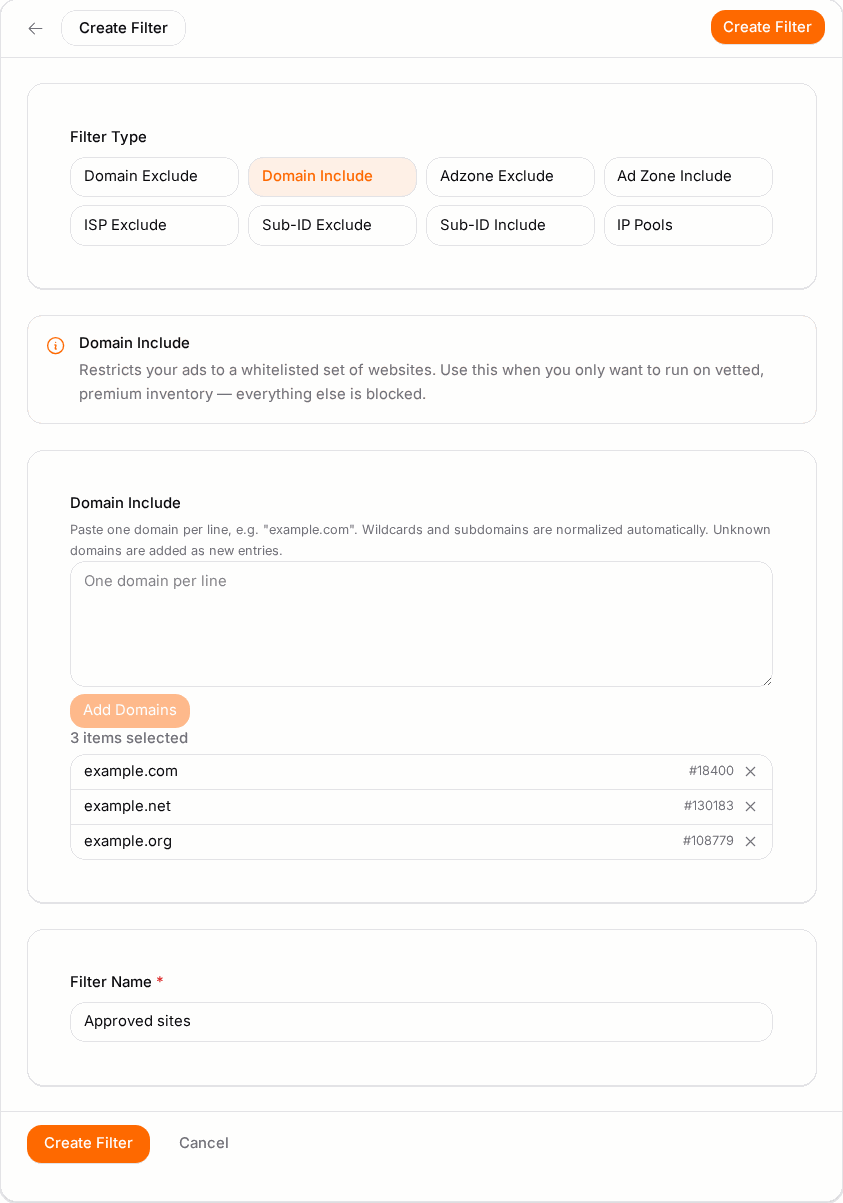
- Open Filters from the menu and click Create Filter.
- Give it a clear name (e.g. "Global bad-domain block").
- Choose the Filter Type (see the table below).
- Add items one per line, or use bulk import to paste a whole list.
- Save. The filter is now available to attach to any campaign.
Options reference#
Geo targeting#
| Option | What it does |
|---|---|
| Tiers | Quick-select common country groups (Tier 1/2/3). |
| Country | Target whole countries. |
| Region / state | Narrow to specific regions within a country. |
| City | Narrow to specific cities. |
| None / empty | No geo restriction — worldwide. |
Selecting a country matches all its regions and cities unless you drill deeper. When you target multiple countries you can set a per-geo bid on each ad.
Device, OS, browser, connection#
| Option | What it does |
|---|---|
| Device types | Desktop, mobile, tablet, etc. |
| Operating systems | Include or exclude specific OSes. |
| Browsers | Include or exclude specific browsers. |
| Connection types | Wi-Fi, cellular, etc. |
| Carriers | Specific mobile carriers. |
Language#
| Option | What it does |
|---|---|
| Browser languages | Match the visitor's browser language. |
| Site languages | Match the language of the site the ad runs on. |
Domain, adzone and sub-ID lists#
| Option | What it does |
|---|---|
| Domain include | Serve only on these domains/sites. |
| Domain exclude | Never serve on these domains/sites. |
| Adzone include | Serve only on these specific placements. |
| Adzone exclude | Never serve on these placements. |
| Sub-ID include | Serve only on these traffic sub-IDs. |
| Sub-ID exclude | Never serve on these sub-IDs. |
These are ideal for cutting non-performing sources you find in your statistics.
An adzone include list is a hard restriction, and the publisher has one too. The moment you list even one adzone, your campaign runs on those placements only — everything else becomes ineligible. And the publisher who owns a placement can separately connect campaigns to it on their side (their zone's whitelisted-campaigns list, see Ad Zones). When both lists are in play, delivery needs both to agree: the zone must be on your include list, and your campaign must be connected on the zone with a weight above zero. Neither side can see the other, so a placement you have correctly listed can still serve nothing because the connection is missing or set to weight 0 on the publisher's side. When you agree a direct placement with a publisher, confirm both halves are in place.
IP pools, categories, retargeting#
| Option | What it does |
|---|---|
| IP pools | Saved lists of IPs/ranges applied as allow or block lists. Single IPs, ranges and CIDR notation are supported. |
| IP whitelist / blacklist | Per-campaign lists on the filters step, one IP, CIDR range or address range per line. Under each list you see who owns every range and how many views and clicks the network served from it in the last few days, so you can tell what a pasted list really contains. |
| Categories | Match inventory by content category so ads run alongside relevant content. |
| Site types | Restrict to certain kinds of sites. |
| Retargeting lists | Target (or exclude) visitors on a saved audience — re-engage past visitors or suppress recent converters. |
| Keywords | Match keyword-based inventory (where supported). |
Scheduling and frequency#
| Option | What it does |
|---|---|
| Dayparting / scheduling | Serve only during chosen hours and days. |
| Frequency capping | Limit how many times the same user sees your ad in a period. |
| Conversion capping | Limit how many conversions are counted (results-based campaigns). |
Saved filter types#
| Filter type | Purpose |
|---|---|
| Domain Include | Allow only these domains. |
| Domain Exclude | Block these domains. |
| Adzone Include | Allow only these placements. |
| Adzone Exclude | Block these placements. |
| Sub-ID Include | Allow only these sub-IDs. |
| Sub-ID Exclude | Block these sub-IDs. |
| ISP Exclude | Block specific ISPs. |
| IP Pools | Allow/block IP addresses and ranges. |
Filters can be scoped to a single campaign or reused across campaigns, and you can bulk-import lists when editing them. Once saved, attach a filter instead of re-entering the same values.
Worked examples#
Example 1 — a geo + device combo that stays wide but focused#
You sell a mobile game and want quality installs, not a starved campaign:
- Geo: include United States, United Kingdom, Canada (three strong markets — wide enough to spend).
- Device: include Mobile only (this is the one hard narrowing that's justified — the product is mobile-only).
- OS / browser / language: leave empty (any) so you don't over-narrow.
- Schedule: 07:00–24:00 local (skip the dead overnight hours).
- Result: a campaign with enough reach to gather data, focused only where it truly needs to be.
Example 2 — exclude-list strategy after the first week#
The campaign above has run for a week. In stats grouped by Domain, five domains spent 30% of budget with zero installs:
- Copy those five domains from the stats table.
- Open Filters → Create Filter, type Domain Exclude, name it "Game — dead domains", and bulk-import the five.
- Attach it to the campaign.
- Reach stays wide; only the five proven-bad sources are gone. Repeat weekly — this is how you tune without starving delivery.
Example 3 — include-list for a locked-down buy#
A brand insists ads run only on three approved publisher sites:
- Create a Domain Include filter with exactly those three domains.
- Attach it. Now nothing else is eligible — expect low volume and higher competition, which is the accepted trade-off for a whitelisted buy.
Tips#
- Start broad, then use your stats to add exclusions where traffic underperforms. This is the single most effective tuning habit.
- Prefer exclude lists when you want reach but need to trim a few bad sources; use include lists only when you genuinely want a small, specific set of inventory.
- Keep reusable block lists as saved filters so every campaign benefits from what you learn once.
- Every include you stack compounds — three includes together can leave almost no eligible traffic. Add them one at a time and watch delivery.
- Chip/CSV inputs split on a semicolon (
;) — separate pasted values accordingly.
Troubleshooting#
| Symptom | Likely cause | Fix |
|---|---|---|
| Campaign barely spends / no delivery | Targeting is too narrow — often several include-lists stacked. | Remove or loosen includes, widen geo/device, and re-check the review step's warnings. |
| Campaign spends but results are poor | Too much low-quality inventory is still eligible. | Add exclude filters for the domains/sub-IDs your stats show underperforming. |
| A saved filter had no effect | It wasn't attached to the campaign, or its type doesn't match what you intended (include vs exclude). | Re-attach it and confirm you picked the right filter type. |
| Bulk import says items "not found" | The domain/adzone IDs don't exist in the catalogue. | Correct the values; get exact IDs from your advertiser reports. |
| Excluded a domain but still see spend on it | The exclude was added after the spend, or a different sub-ID/adzone on that domain is still eligible. | Confirm the exclude is live and consider excluding the sub-ID/adzone as well. |
| An amber warning under the IP blacklist, or IP filter blocks real visitors in the campaign list | A line covers a range real people browse through — iCloud Private Relay, Apple, or a company security proxy. Lists copied from the web as "bot ranges" often include them, and blocking them hides the campaign from those visitors (iPhone users in particular). | Remove that line unless you really mean to exclude those visitors. The warning never blocks anything; the choice is yours. |
| Listed an adzone but get no delivery on it | An adzone include list is a hard restriction on your side, but the publisher's zone also has to have your campaign connected with a weight above zero — both sides must agree. | Confirm the zone ID is right, then ask the publisher to check the campaign is connected on their zone and not set to weight 0. |