
Browse the documentation
How to build a tracking link
Applies to: Tracker & affiliate users · Optional feature — available when your network has it switched on
A tracking link is the URL you put in your ad instead of the offer's own landing page. It records every click with the ad and placement it came from, then sends the visitor on to the offer, so each conversion can be matched to the click that paid for it. This guide builds one link for one offer and one traffic source.
Before you start#
- You have at least one offer under Tracker Offers. The builder tells you to create one first if you have none.
- You know which ad network you buy the traffic on (Facebook, Google, PropellerAds, ExoClick, a push network…).
- On a combined account, switch the top bar to Trk to see the tracker menu.
Steps#
- Open Tracking Links and click New tracking link. The Build a new tracking link form opens.
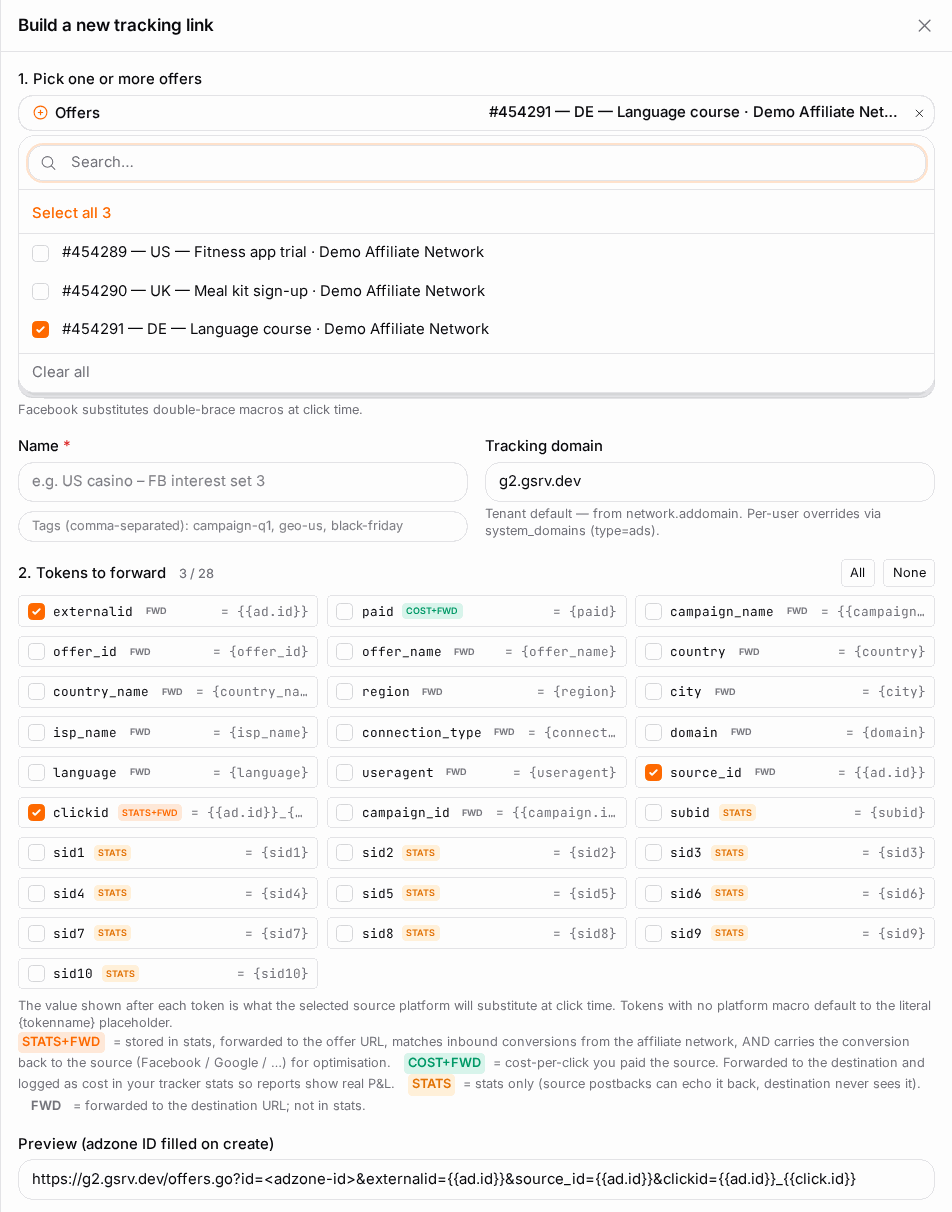
- Under 1. Pick one or more offers, tick one offer. One offer makes a direct link; two or more make a smartlink (see How to create a smartlink).
- Under Source, pick the ad network you buy on. If it isn't there, click Add source, give it a Name (for example
Facebook Ads – US), choose its Source template and save — it's created without leaving the form. - Leave Tracking-URL macro syntax as it is. It follows the source's template, so a Facebook link uses Facebook's macros, a Google link Google's, and so on. Change it only if you run a non-standard setup.
- Under 2. Tokens to forward, keep the three that are ticked by default:
clickid,source_idandexternalid. Tick others you want in your reports or at the offer, such ascampaign_id,campaign_nameorcountry. See How to use dynamic parameters for what each one carries. - If the builder offers Apply … defaults for your source (ExoClick, for example, suggests putting its zone ID into a sub-ID slot), click it. That makes the network's placement ID show up in your own reports.
- Give the link a Name you'll recognise later, for example
US casino – FB interest set 3, and optional Tags. - Check the Preview. The link ID is filled in when you create it.
- Click Create tracking link, then copy the URL from the list.
- In your ad network, paste it as the ad's destination (final) URL.
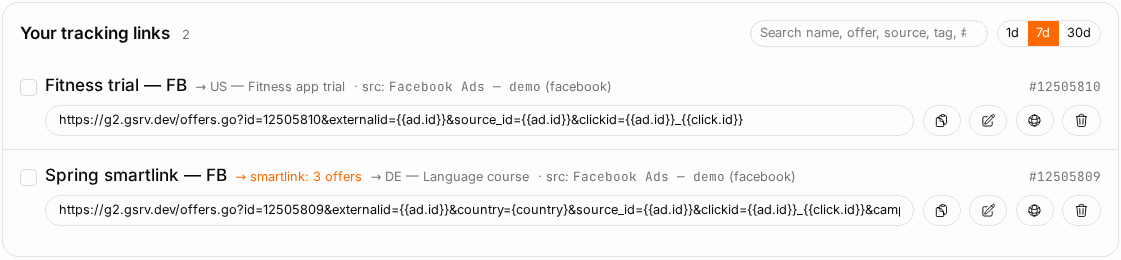
The finished link looks like this — your own tracking domain, the link ID, and one parameter per token in the network's macro syntax:
https://<your tracking domain>/offers.go?id=12345&clickid={{ad.id}}_{{click.id}}&source_id={{ad.id}}&externalid={{ad.id}}
Check it worked#
- Click your own ad (or open the link in a browser) — you should land on the offer.
- Within a few minutes the click shows on the link's row in Tracking Links and in Tracker Reports.
- Open the link's details: if a value reads literally
{{ad.id}}or{zone_id}, the network didn't fill the macro — the source template doesn't match where the traffic runs.
Troubleshooting#
| Symptom | Likely cause | Fix |
|---|---|---|
| The builder says to create an offer first | No offers yet | Add one under Tracker Offers, then come back. |
| Clicks arrive but conversions never match | clickid was unticked, or the network doesn't fill its macro |
Edit the link, tick clickid, and check the source template matches the network. |
Reports show literal macros like {zone_id} |
Wrong source template for this network | Pick the matching template for the source and rebuild the link. |
The preview shows [tracking-domain-not-configured] |
No tracking domain set for your account | Set your own under Account settings, or ask your account manager. |
Related#
- Tracking Links — every option of the builder
- How to create a smartlink
- How to receive conversions from an affiliate network
- How to use dynamic parameters