
Browse the documentation
Source Optimizer
Applies to: Advertisers · Optional feature — available when your network has it switched on
Not every traffic source is worth the same. The Source Optimizer watches your traffic sources against rules you set — cost per conversion, click-through rate, bounce rate — and automatically blocks the ones that lose money or adjusts their bids, without you sitting over the reports.
What this is#
An optimizer is a saved set of rules that runs over your campaigns' traffic sources. For each source it compares recent performance against your thresholds and then does one of two things: block the source, or change its bid.
"Source" means whichever dimension you choose: an ad zone, an ISP, or a domain. One optimizer works on one of those dimensions.
Optimizers need conversion data to work on, so set up conversion tracking first.
When you'll use this#
- You buy across many zones or domains and can't manually review them all.
- A handful of sources are burning budget with no conversions.
- You want good sources bid up and weak ones bid down automatically.
- You want to filter out traffic that clicks but immediately bounces.
Step by step#
Create a CPA optimizer#
- Open Source Optimizer from the advertiser menu.
- Click Add CPA Optimizer.
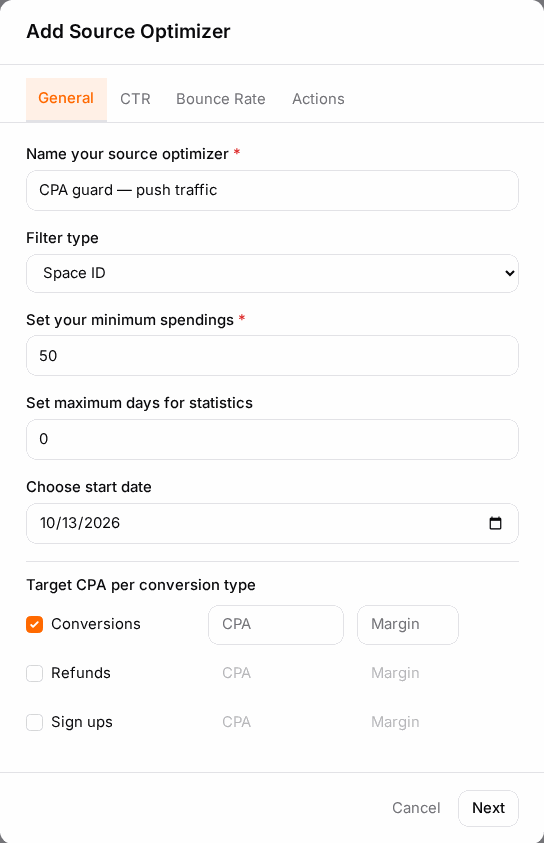
- On the General tab:
- Name — what this optimizer is for ("Block zones over $3 CPA").
- Filter type — the dimension to optimize: ad zone, ISP or domain. This cannot be changed after saving, so pick carefully.
- Minimum spendings — how much a source must have spent before it's judged. Below this, it's left alone.
- Max days for statistics — how far back to look when scoring a source.
- Start date — the earliest date to consider.
- Under Target CPA per conversion type, tick each conversion type you want to optimize on and set its target CPA (and optionally a minimum margin %).
- Choose the CPA action — block the source, or change its bid.
- If you chose to change bids, set how much to raise or lower them and the cap on how often that may happen.
- Optionally add CTR and Bounce Rate rules on their tabs (below).
- Save. The optimizer starts applying on its next run.
Add a CTR rule#
On the CTR Optimizer tab, set a minimum CTR and the minimum impressions a source needs before that rule counts — plus, optionally, a maximum CTR and its impression floor. Sources outside the band are acted on.
CTR rules only make sense on clickable ad formats. The dialog says so, and a CTR rule on a non-clickable format will do nothing useful.
Add a bounce-rate rule#
On the Bounce Rate tab:
- Pick the conversion pixel that records a real visit (or Don't use this to skip bounce checking).
- Set minimum hits — how many visits before the rule applies.
- Set maximum bounce rate % — above this, the source is acted on.
- Choose the bounce check type — auto, views, or clicks.
Manage existing optimizers#
From the list you can edit, delete, or select several and delete them together. Deleting an optimizer stops future action; it doesn't un-block sources it already blocked — leave Keep spots blocked off if you want blocks released when the rule no longer applies.
Options reference#
General#
| Field | What it does |
|---|---|
| Name | Your label for the optimizer. |
| Filter type | The dimension optimized: ad zone, ISP, or domain. Fixed after saving. |
| Minimum spendings | A source is only judged once it has spent at least this much — protects new sources from being cut on one bad click. |
| Max days for statistics | The lookback window used to score sources. |
| Start date | The earliest date included in that window. |
| Optimize with | Whether to rank on conversion count or conversion earnings. |
| Target CPA per conversion type | Your maximum acceptable cost per conversion, set separately for each conversion type you tick. |
| Margin % | An optional minimum margin a source must keep, per conversion type. |
Actions#
| Action | What happens to a failing source |
|---|---|
| Block | The source stops receiving your ads. |
| Change bid | The bid on that source is raised or lowered rather than cutting it off. |
| Bid option | What it does |
|---|---|
| Increase bids / Increase with | Raise the bid on sources that beat your target, by the chosen percentage. |
| Decrease bids / Decrease with | Lower the bid on sources that miss it. |
| Bid cap (hours) | The minimum number of hours between two adjustments of the same source, so bids don't oscillate. |
| Keep spots blocked | Leave blocked sources blocked even after they'd otherwise qualify again. |
CTR rules#
| Field | What it does |
|---|---|
| Minimum CTR | Sources below this click-through rate are acted on. |
| Minimum impressions | Impressions a source needs before the minimum-CTR rule applies. |
| Maximum CTR | An upper band — unusually high CTR is often invalid traffic. |
| Maximum impressions | Impressions needed before the maximum-CTR rule applies. |
Bounce-rate rules#
| Field | What it does |
|---|---|
| Conversion pixel | The pixel that marks a genuine visit. Don't use this disables bounce checking. |
| Minimum hits | Visits needed before the rule applies. |
| Maximum bounce rate % | Above this, the source is acted on. |
| Bounce check type | Whether bounce rate is measured against views, clicks, or chosen automatically. |
Example#
Cutting the zones that don't pay back. Sam runs a CPA offer at $4 payout and doesn't want to pay more than $3 per conversion.
- He creates a CPA optimizer named "Zones over $3 CPA".
- Filter type: ad zone. Minimum spendings: $15 — a zone must have had a real chance before it's judged.
- Max days for statistics: 14, so recent behaviour decides rather than ancient history.
- He ticks his Sale conversion type and sets target CPA $3.00.
- CPA action: block.
- On the CTR tab he adds a maximum CTR band with a 2,000-impression floor, to catch zones whose click rate is implausibly high.
- After a week, the worst zones are blocked automatically and his blended CPA falls — and he checks advertiser statistics grouped by ad zone to confirm the right ones were cut.
Tips#
- Set a realistic minimum spend. Judging a zone on $0.30 of spend blocks good inventory on noise.
- Start with block, not bid changes. Blocking is easy to reason about; bid automation on top of a rule you haven't validated is hard to debug.
- Use a lookback window that matches your conversion delay. If conversions take three days to report, a 2-day window will condemn sources that were actually fine.
- Check the maximum CTR band. A source with a 30% click rate is almost never good news.
- Review what got blocked in your statistics before widening the rules — an optimizer that blocks nearly everything is set too tight.
- The filter type can't be changed. If you need the same rules on a different dimension, create a second optimizer.
Troubleshooting#
| Symptom | Likely cause | Fix |
|---|---|---|
| The optimizer never does anything | No conversion data, or no source has reached the minimum spend | Confirm conversion tracking is reporting, then lower the minimum spendings |
| It blocked almost every source | Target CPA is below what your traffic can deliver, or the lookback is too short | Raise the target, widen the window, and raise the minimum spend |
| Blocked sources stay blocked after I fixed the rule | Keep spots blocked is on | Switch it off, or edit the rule and let the next run re-evaluate |
| CTR rules seem ignored | The campaign's format isn't clickable | Use CPA or bounce rules for those formats |
| I can't change the filter type | It's fixed once the optimizer is saved | Create a new optimizer with the right dimension |
| Bids keep jumping up and down | The bid cap is too short | Raise the bid-cap hours so adjustments settle |
Related#
- Conversion Tracking & Retargeting — the conversion data optimizers act on
- Targeting & Filters — manual include/exclude lists for zones, domains and sub-IDs
- Advertiser Statistics — checking what an optimizer did
- Bid Rules — scheduled bid changes, as opposed to performance-driven ones