
Browse the documentation
Ads & Creatives
Applies to: Advertisers
Ads (also called creatives) are what actually gets shown to visitors. Each ad belongs to a campaign and inherits that campaign's targeting, while carrying its own destination, bid and weight.
What this is#
An ad is a single creative unit — a banner, video, native card, text line, push notification, or full-page format — plus the link it points to and how often it runs. A campaign can hold many ads; the auction picks which one to show, weighted by the settings you give each ad.
When you'll use this#
- When you first build a campaign and need to add the creatives.
- To upload new banners (one at a time or in bulk).
- To tune which ads run more often, adjust bids, or swap destination URLs.
- To pause a weak creative without deleting it, or clone a good one to test a variant.
Step by step — adding an ad#
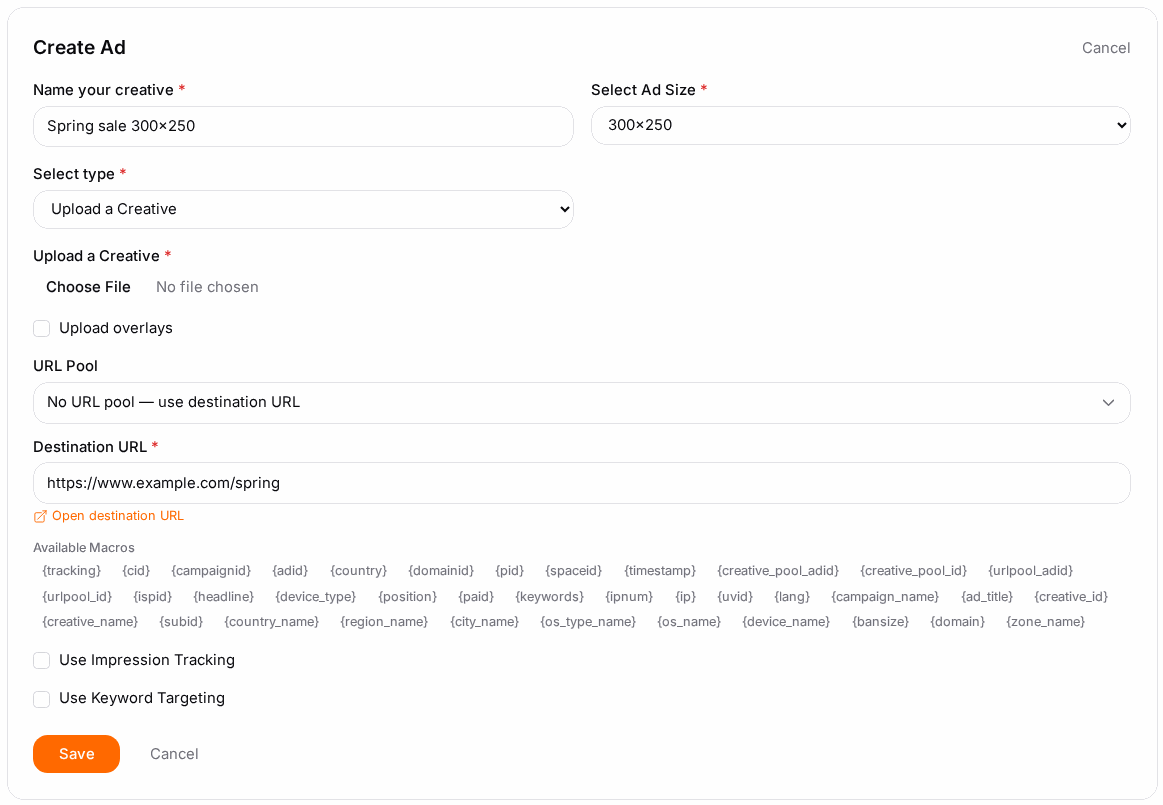
- Open the campaign, then go to its Ads page (or the creatives step in the wizard).
- Click Add ad and pick the creative type your campaign's ad format allows.
- Fill in the copy fields the format uses (title / description for native, text and push).
- Enter the Destination URL — where a click sends the visitor. You can include tracking macros (see below).
- Choose the banner size (must match a size the campaign allows) and upload the creative file, or pick one from a creative pool.
- Optionally set a per-ad bid (overrides the campaign default) and a weight (how often this ad runs vs the others).
- Optionally add an impression tracking URL (a third-party pixel).
- Make sure Active is on, then Save.
Step by step — bulk uploading banners#
- On the Ads page, choose Multi-upload.
- Select several banner files at once.
- Each file becomes its own ad, matched to the right size automatically.
- Fill in the shared destination URL (and any per-ad tweaks), then save them all together.
Organising the media bank#
Everything you upload lands in your media bank, and it can be organised two
ways at once. They are not alternatives you have to choose between, and neither
is required.
| Groups | Folders | |
|---|---|---|
| How many | A creative can be in several groups. | A creative is in exactly one folder. |
| Best for | Cross-cutting labels — a brand, a promotion, a price point. | Where a file lives, decided when you upload it. |
| Set it | Any time, on a creative or a whole selection. | At upload time, or by moving creatives later. |
On the media bank page the left sidebar switches between the two with the
Groups / Folders tabs. It remembers which one you were using. Folders can be
nested up to three levels, and picking a folder also shows what is in its
subfolders unless you turn Include subfolders off.
Filing creatives as you upload them#
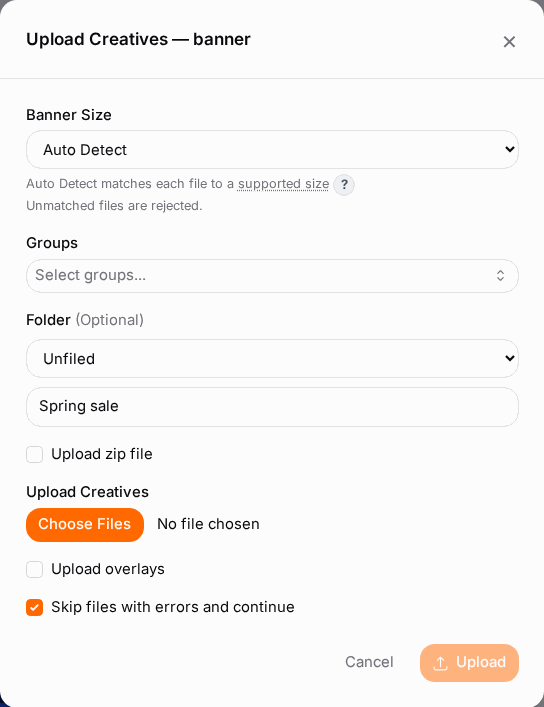
In the upload dialog you can:
- pick an existing folder, or
- type a new folder name — it is created for you (inside the folder above it, if you picked one), or
- upload a ZIP file and tick Use the ZIP file name as the folder name, so
Summer Promo.zipfiles everything under Summer Promo without you typing anything.
If the archive itself has folders inside it, tick Recreate the folders inside
the archive and those become subfolders here too.
Leave all of it alone and your upload is simply Unfiled, exactly as before.
Moving creatives you already uploaded#
Click Move to folder and choose what to move. The dialog always starts on
your ticked selection, so nothing large happens by accident:
- the creatives you ticked, or
- everything in the current view — every creative the filters match, not just
the ones on screen. This is the one to use for filing a large library in one go,
and you have to pick it deliberately.
A creative is in one folder at a time, so moving something that is already filed
moves it — you never end up with copies. Groups are untouched by a move.
Deleting a folder never deletes creatives: they become Unfiled, and any
subfolders move up one level.
Options reference#
Creative types#
| Type | What it is |
|---|---|
| Banner | An image (or HTML5) creative in a standard size. |
| Video | A video creative, optionally with instant-impression behaviour. |
| Native | Title, description, image and brand shown in the site's native style. |
| Text | Headline plus description, no image. |
| Push | A push-notification-style creative (title, message, icon/image). |
| Skin / footer / redirect | Full-page or wrapper formats for supported placements. |
Ad fields#
| Field | What it does | Notes |
|---|---|---|
| Title / description | The ad copy, where the format uses it. | Native, text and push use these. |
| Destination URL | Where a click sends the visitor. | Supports tracking macros. |
| Preview URL | The landing page shown in previews. | Offer campaigns. |
| Banner size | The creative dimensions. | Must match a size the campaign allows. |
| Creative file | The image, HTML5 or video asset. | Upload directly or pick from a pool. |
| Weight / sort weight | Relative share of traffic vs other ads in the campaign. | Higher weight = shown more often. |
| Bid / per-creative bid | Optional bid for this ad. | Overrides the campaign default. |
| Impression tracking URL | A third-party pixel fired on impression. | Optional. |
| Active | Whether the ad is eligible to serve. | Paused ads stay in the campaign but don't run. |
Managing existing ads#
| Action | What it does |
|---|---|
| Edit | Change any field on the ad. |
| Pause / Resume | Toggle whether the ad serves, without deleting it. |
| Clone | Duplicate an ad as a starting point for a variant. |
| Delete | Soft-delete the ad. |
| Restore | Bring back a deleted ad. |
| Update bid / weight / URL | Quick inline edits without opening the full editor. |
| Mass pause / resume | Toggle a batch of ads together. |
| Mass delete | Remove a batch of ads. |
Destination URLs and macros#
The destination URL supports macros — tokens in curly braces that are replaced with the real value at the moment the ad is clicked. Use them so your own tracker can attribute every click back to the right campaign, creative and placement.
You do not have to type them from memory: on every ad form, the available macros appear as clickable chips directly under the Destination URL field. Clicking a chip appends it to the URL, and hovering one explains what it carries. The same chips are available on URL pools and on the impression tracking URL.
Add them as ordinary query-string parameters, using whatever parameter names your tracker expects:
https://your-tracker.com/click?cid={tracking}&zone={spaceid}&sub={subid}&geo={country}
Macro reference#
| Macro | Value passed |
|---|---|
{tracking} |
Our click ID. Pass it through if you want conversions and postbacks to attribute back to this click. |
{cid} |
An external click ID received on the click-through (an upstream network's own click ID). Not the campaign ID. |
{campaignid} |
Campaign ID. |
{adid} |
Ad / creative ID. |
{creative_id} |
ID of the creative that was shown. Empty for ads without an uploaded creative. |
{creative_name} |
Filename of the creative that was shown, as you uploaded it. Spaces and special characters are URL-encoded. Empty for ads without an uploaded creative. |
{ad_title} · {headline} · {campaign_name} |
Ad title, ad text and campaign name. |
{subid} |
The sub-ID of the traffic source the click came from. |
{spaceid} |
Ad zone / placement ID. |
{pid} |
Publisher account ID. |
{domain} · {domainid} |
The website the ad ran on, by name and by ID. |
{siteid} |
ID of the publisher's site the ad zone belongs to. |
{page} |
The page the ad was shown on (URL-encoded). |
{country} · {country_name} · {region_name} · {city_name} |
Visitor location. |
{ip} · {ipnum} · {ispid} · {lang} |
Visitor IP (plain and as a number), ISP ID, browser language. |
{device_type} · {device_name} · {os_name} · {os_type_name} |
Visitor device and operating system. |
{bansize} |
Creative size, as WIDTHxHEIGHT. |
{position} |
Position of the ad in the rotation. |
{keywords} |
Matched keywords. |
{paid} |
What you paid for this click or impression. |
{timestamp} |
Unix timestamp of the click. |
{uvid} |
Unique visitor ID. |
{creative_pool_id} · {creative_pool_adid} · {urlpool_id} · {urlpool_adid} |
Pool IDs, when the ad draws its creative or its URL from a pool. |
Two things worth knowing about the sub-ID#
It may arrive encoded. Networks that treat their traffic sources as commercially sensitive switch sub-ID encoding on, and then {subid} delivers a scrambled string rather than the publisher's raw value. That string is stable — the same source always produces the same token — so it still works perfectly as a segmentation key in your reports, and your account manager can decode any one of them on request. If encoding is off on your network, the value is passed through as-is.
Publisher sub-IDs come through separately. {sid1} to {sid10} carry the ten sub-ID slots a publisher's ad tag can put on the request, so you can forward one downstream with e.g. ?sub={sid1}. These are not among the clickable chips — type them by hand. They also resolve in the iframe URL, the banner URL and the impression tracking URL. They are a different family from the {sub_id1}–{sub_id5} macros on the Postbacks page, which fire on the conversion leg rather than on the click.
Not every macro is meaningful for every ad format, and an unmatched token is simply left in place — so test one click through your own tracker before scaling a campaign.
Counting clicks on HTML creatives#
On an image or video ad, the ad server catches the click itself. An HTML creative (an HTML banner, or a whole-spot HTML native ad) handles its own clicks, so if it opens your landing page directly, the click never reaches the ad server: you see impressions and 0 clicks. Send the click through the {click_url} macro instead:
<div onclick="window.open('{click_url}https://your-tracker.com/click?zone={spaceid}&site={domain}&cid={tracking}', '_blank')">…</div>
<a href="{click_url}https://your-landing.com/offer" target="_blank">…</a>
{click_url}followed by a URL: the click is counted, then the visitor is sent to that URL. Each link in the creative can have its own landing page.{click_url}on its own: the click is counted and the visitor goes to the ad's Destination URL.- The macros in the table above also work inside the HTML, including in the landing URL after
{click_url}.{tracking}(our click ID) is filled in at the moment of the click, so you can use it in the landing URL for your conversion postback. - Coming from Revive? Its
{clickurl}is not our click macro. It is passed on to your landing page unchanged, so replace it with{click_url}wherever you want the click counted. - Clicks inside an
<iframe>that loads another site can't be seen by the creative, so they can't be counted this way.
Per-geo bids#
If your campaign targets several countries, you can set a separate bid per country on an ad. Different geos are worth very different amounts, so this lets you bid up on your best markets and down on the rest without splitting the campaign into several.
Weight#
When a campaign has multiple ads, weight controls how often each is chosen relative to the others. Use it to favour your best-performing creatives, or set every ad to the same weight for an even rotation while you A/B test.
Creative pools and URL pools#
- Creative pools keep a reusable library of creatives you can add to any campaign — no re-uploading. Adding "from pool" creates ads in the campaign from the pooled creatives.
- URL pools manage a set of destination URLs centrally and attach them to ads, so you can rotate or update landing pages in one place instead of editing every ad.
Example#
Testing three banners fairly, then favouring the winner. You have three 300×250 banners for one campaign:
- Multi-upload all three; each becomes an ad at the same size.
- Set every ad's weight to the same value (say 10) so they rotate evenly.
- After a few days, open stats grouped by Ad and compare CTR and spend.
- Banner B wins. Raise its weight to 30, drop the others to 5, and let the auction lean on the winner.
Bidding up your best country. Your banner campaign targets the US, UK and India. US clicks convert far better:
- Open the ad and enable per-geo bids.
- Set the US bid high, the UK bid moderate, and the India bid low.
- You now compete hardest where it pays off, without three separate campaigns.
Tips#
- Give each creative a clear reason to exist (offer, angle, size) so your stats breakdown by Ad is meaningful.
- Use pause, not delete, to bench a weak ad — you keep its history and can bring it back.
- Keep winning creatives in a creative pool so future campaigns can reuse them instantly.
- Always include tracking macros in the destination URL if you attribute clicks in an external tracker.
Troubleshooting#
| Symptom | Likely cause | Fix |
|---|---|---|
| Upload rejected — wrong size | The creative's dimensions don't match a size the campaign allows. | Resize the file, or add the size to the campaign in Step 1. |
| Ad shows Pending and won't serve | Your network reviews creatives before they run. | Wait for approval; the status becomes valid or rejected. |
| Ad Rejected | The creative or landing page broke a network rule. | Fix the flagged issue, edit the ad, and resubmit. |
| One ad hogs all the traffic | Its weight is much higher than the others. | Even out the weights, or lower the dominant ad's weight. |
| Clicks aren't showing in my tracker | The destination URL is missing the tracking macros. | Add the correct macros to the URL. |
| An HTML ad has impressions but 0 clicks | The HTML opens the landing page directly, so the click never reaches the ad server. | Put {click_url} in front of the landing URL — see Counting clicks on HTML creatives. |
| An ad disappeared | It was deleted, or paused and filtered from view. | Use Restore for deleted ads, or clear the paused filter. |
Related#
- Creating a Campaign
- Targeting & Filters
- Advertiser Statistics
- Offers
- Campaigns Overview
- Creative & URL Pools
- Conversion Tracking & Retargeting
- How to create a video campaign — step-by-step guide
- How to add an impression tracking pixel — step-by-step guide
- XML Feeds — native ads generated from a feed