
Browse the documentation
How to connect your AI assistant to your account
Applies to: All users
You can let an AI assistant such as Claude work with your account directly: ask it for yesterday's performance, which campaigns are losing money, or to pause a campaign — in plain language. The assistant connects with an API key you create, and it can only do what that key allows.
Before you start#
- API access must be switched on for your account (Account → Settings → Enable API access, then Save). See How to create an API key.
- You need an assistant that can connect to a remote tool server and send a bearer token with it — for example Claude Code, or an app built on the Anthropic API's connector option. One-click connectors in the claude.ai and ChatGPT apps that ask you to sign in are not supported yet; they need a sign-in flow the platform doesn't offer for this today.
- Decide what the assistant may do. Reading everything but changing nothing is the safe start.
Steps#
Create a key for the assistant#
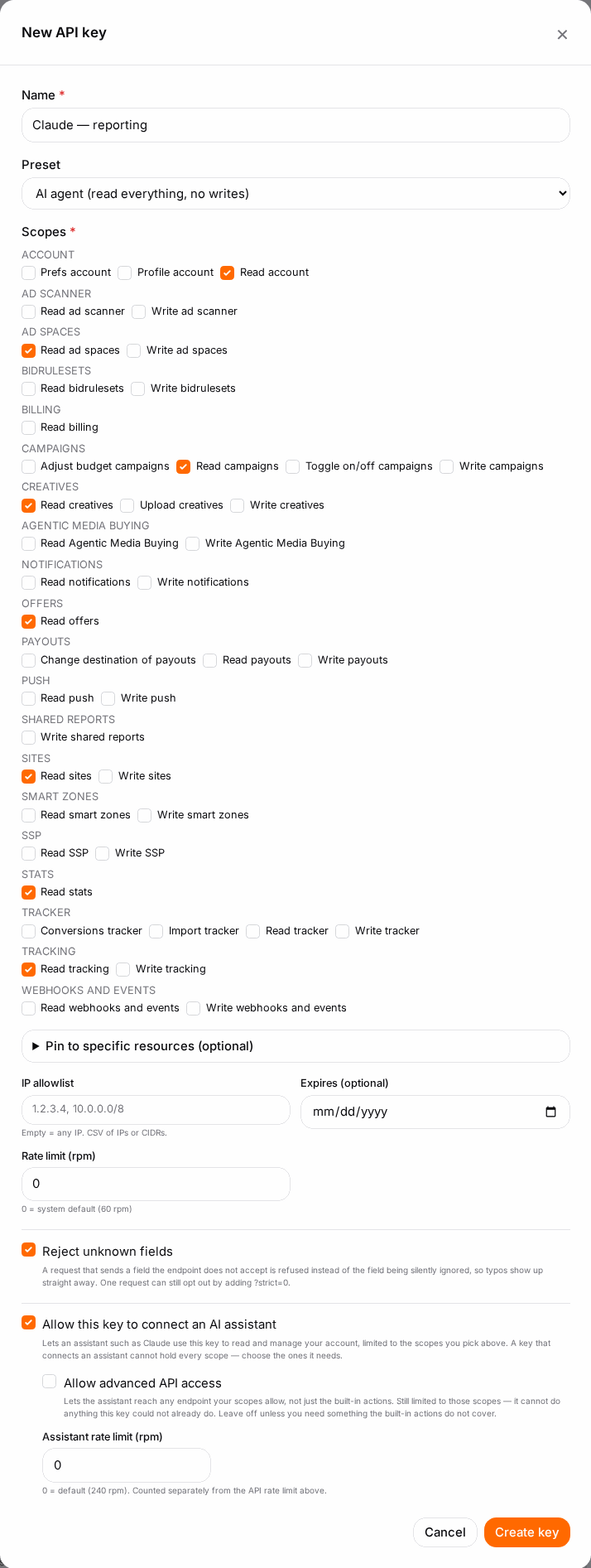
- Open Account → Settings → Security & API, and click New API key.
- Name it after the assistant, e.g. "Claude — reporting".
- Preset — choose AI agent (read everything, no writes). This also ticks Allow this key to connect an AI assistant for you.
- Want it to act as well (pause campaigns, change budgets)? Choose Custom (choose scopes) instead, tick only the scopes it needs, and tick Allow this key to connect an AI assistant yourself. A key that connects an assistant can't hold every scope — Full access isn't offered while the box is ticked.
- Optional: pin the key to specific campaigns or ad zones, add an IP allowlist, or set Expires (optional). The assistant is held to all of these.
- Leave Allow advanced API access off unless you know you need endpoints beyond the built-in actions.
- Click Create key.
Copy the connection details#
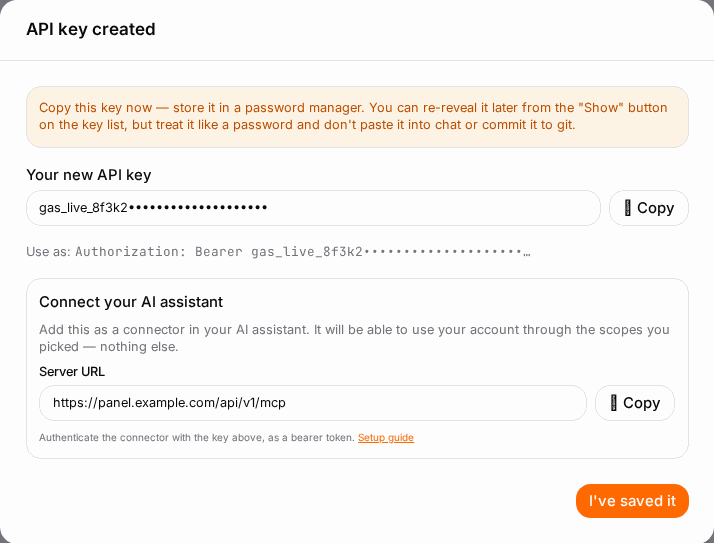
The key box now shows two things — copy both:
- Your new API key — the bearer token.
- Connect your AI assistant → Server URL — your panel's address followed by
/api/v1/mcp.
The Setup guide link opens the same instructions in the API reference.
Add the connection in your assistant#
In Claude Code, run (with your own server URL and key):
claude mcp add --transport http goadserver https://your-panel-host/api/v1/mcp \
  --header "Authorization: Bearer gas_live_YOUR_KEY"
In other clients, add a remote (HTTP) server with the Server URL and set the header Authorization: Bearer <your key>.
Check it worked#
- Ask the assistant: "What was my spend yesterday, per campaign?" — it should answer with your real campaigns.
- In the key list, Last used and Calls go up for the assistant's key.
- With a read-only key, ask it to pause a campaign: it should tell you it can't. That's the key doing its job.
Troubleshooting#
| Symptom | Likely cause | Fix |
|---|---|---|
| No AI agent preset and no connect option | The assistant connection is switched off on your network | Ask your account manager |
| Assistant reports "unauthorized" | Key mistyped, revoked or expired, or sent without Bearer |
Re-copy the key; check its status in the list |
| Assistant says the key can't connect | Allow this key to connect an AI assistant isn't ticked | Edit the key and tick it |
| It can read but not change anything | The key has read scopes only | Expected — add only the write scopes you want via Edit |
| It can't see a campaign | The key is pinned to other campaigns | Edit the key's pins |
| The claude.ai or ChatGPT app asks you to sign in | One-click sign-in connectors aren't supported yet | Use a client that accepts a bearer token, such as Claude Code |
| Assistant slows down or reports rate limits | Over Assistant rate limit (rpm) (default 240 a minute) | Wait a moment, or raise the limit on the key |
Related#
- How to create an API key — scopes, pins, IP allowlist and expiry explained step by step
- API Keys — rotating and protecting keys
- Team Members & Roles — who may create keys on a shared account