
Browse the documentation
How to create a smartlink
Applies to: Tracker & affiliate users · Optional feature — available when your network has it switched on
A smartlink is one tracking link that rotates across several offers. On every click the platform keeps only the offers whose targeting matches the visitor (country, device and so on) and sends them to the best earner among those. Use it for broad traffic where you want the platform to pick the winner, instead of testing one offer at a time.
Before you start#
- You have two or more offers under Tracker Offers that suit the same traffic.
- One of them should be a fallback: an offer with broad or no targeting, ticked as Use as pool failover (catch-all) in the offer's form. It catches visitors no other offer accepts.
- You have a traffic source for the network you buy on (or add one in the builder).
Steps#
- Open Tracker Offers, edit your broadest offer and tick Use as pool failover (catch-all). Save. The offer now shows a failover badge.
- Open Tracking Links and click New tracking link.
- Under 1. Pick one or more offers, tick every offer for the pool. As soon as two are ticked the link becomes a smartlink: "smartlink pool: winner picked per click from each offer's targeting + ecpm".
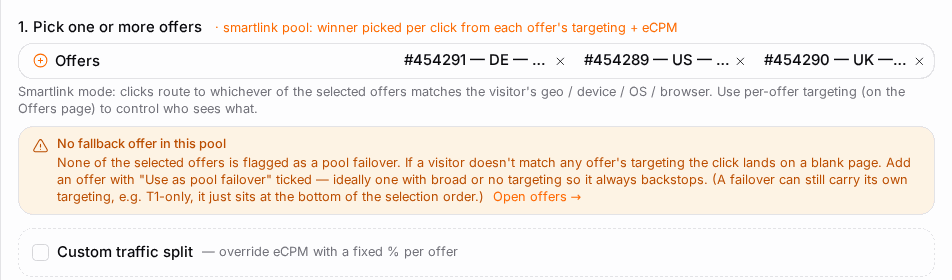
- If the builder shows No fallback offer in this pool, add your failover offer to the selection. Without one, a visitor who matches no offer lands on a blank page.
- Optional: tick Custom traffic split to replace the automatic choice with a fixed share per offer, and set each Offer weight. Do this only for a planned split test — it turns off the best-earner selection.
- Pick the Source, keep the default tokens (
clickid,source_id,externalid) and give the link a Name. - Click Create tracking link, copy the URL and use it as the destination of your ad.

How the offer is chosen per click#
- Offers whose targeting doesn't match the visitor are dropped.
- Of the rest, the one that earns most per visit (eCPM) wins — unless you set a Custom traffic split, in which case the weights decide.
- The failover offer sits at the bottom: it is used only when nothing else matches.
- An offer that is capped can chain to another offer of its own, set as Failover offer ID in the offer's form.
Check it worked#
- Open the link from different countries or devices (a VPN, a phone) — you should land on different offers where their targeting differs.
- In Tracker Reports, filter by each Offer: every offer in the pool receives clicks.
- The list row reads smartlink: N offers (and split … if you set weights).
Troubleshooting#
| Symptom | Likely cause | Fix |
|---|---|---|
| Some visitors get a blank page | No offer matches them and the pool has no failover | Add an offer ticked Use as pool failover (catch-all) to the link. |
| One offer gets all the traffic | It earns most per visit for that traffic, or its weight is highest | Normal without a split; set a Custom traffic split for a fixed test. |
| An offer never gets clicks | Its targeting excludes your traffic | Check the offer's countries and devices. |