
Browse the documentation
Ad Zones
Applies to: Publishers
An ad zone is a single ad placement inside one of your websites — for example a header banner, a pop, an in-content native block, or a video slot. Zones are where ads are actually served and where your earnings are generated. This is the page where you spend most of your time as a publisher.
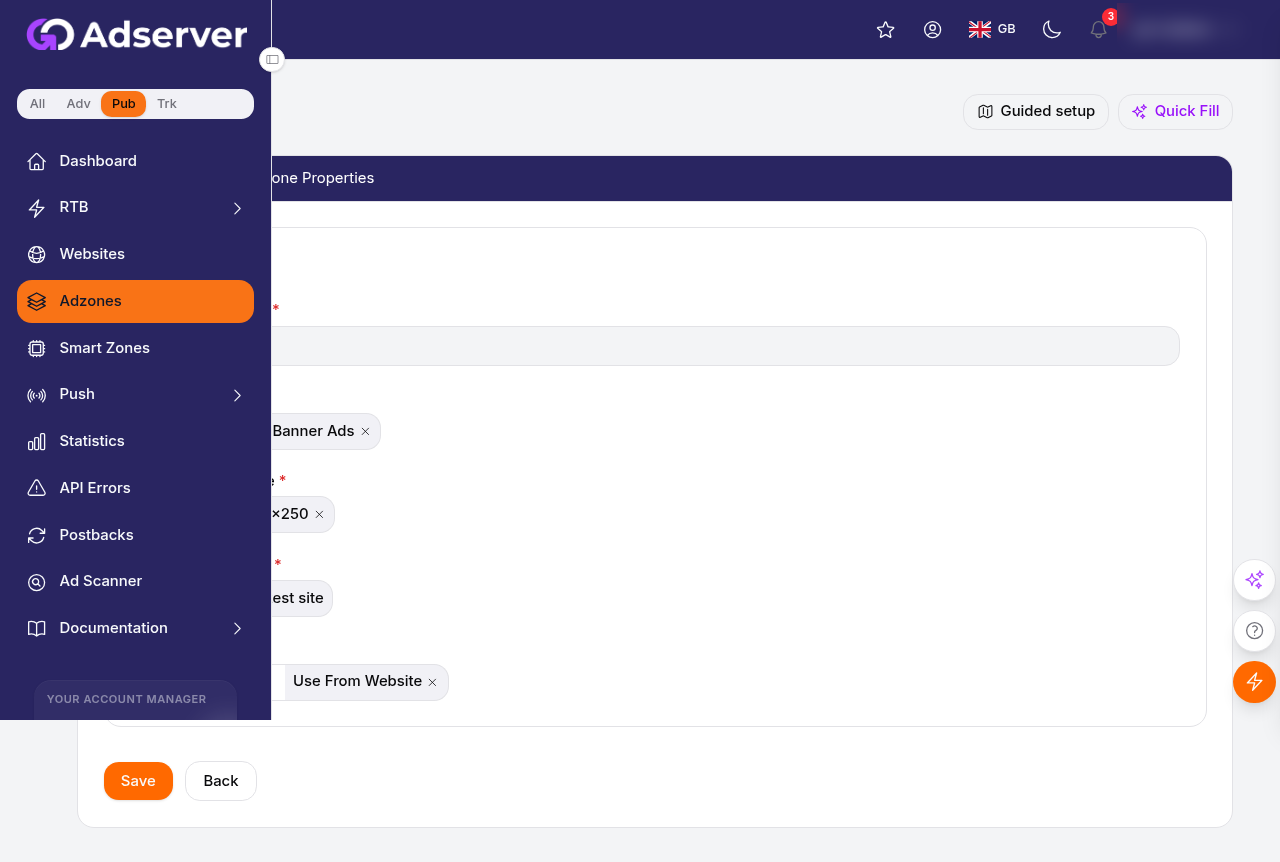
Creating an ad zone — pick the type and size, attach it to a website, and set its properties.
What this is#
Every zone belongs to one website and has a fixed type (see Ad Zone Types) that decides what kind of ads it serves. Once a zone exists, you copy its embed code onto your site (see Getting Your Ad Code) and it starts filling with ads. Each zone tracks its own views, clicks, and earnings, and has its own settings for size, targeting, pricing, and fallback behaviour.
Zones can also be organised into a parent/child hierarchy, so one container zone can hold several sub-zones — handy for grouping related placements.
When you'll use this#
- Right after adding a website, to create your first placement.
- Every time you add a new ad slot to a page.
- To turn a placement on or off, change its floor prices, or connect specific advertisers.
- To grab or refresh the embed code for a placement.
- To recover a placement you deleted by mistake.
Step by step#
Create an ad zone#
- Open the Ad Zones page (or open a website and use its zones view).
- Click New Ad Zone.
- Choose the essentials:
- Name — a label for the placement (e.g. "Homepage header").
- Website — which of your websites it belongs to.
- Type — the ad format (banner, native, pop, video, …). See Ad Zone Types to pick.
- Size — for banner-style zones, the banner dimensions (e.g. 728×90).
- Fill in any other settings your account offers (rating, category, targeting toggles — see below).
- Click Save. The zone is created and you land on its editor with all its tabs.
Two choices are permanent. The type cannot be changed after creation, and for banner zones the banner size cannot be changed after creation. If either turns out wrong, create a new zone instead.
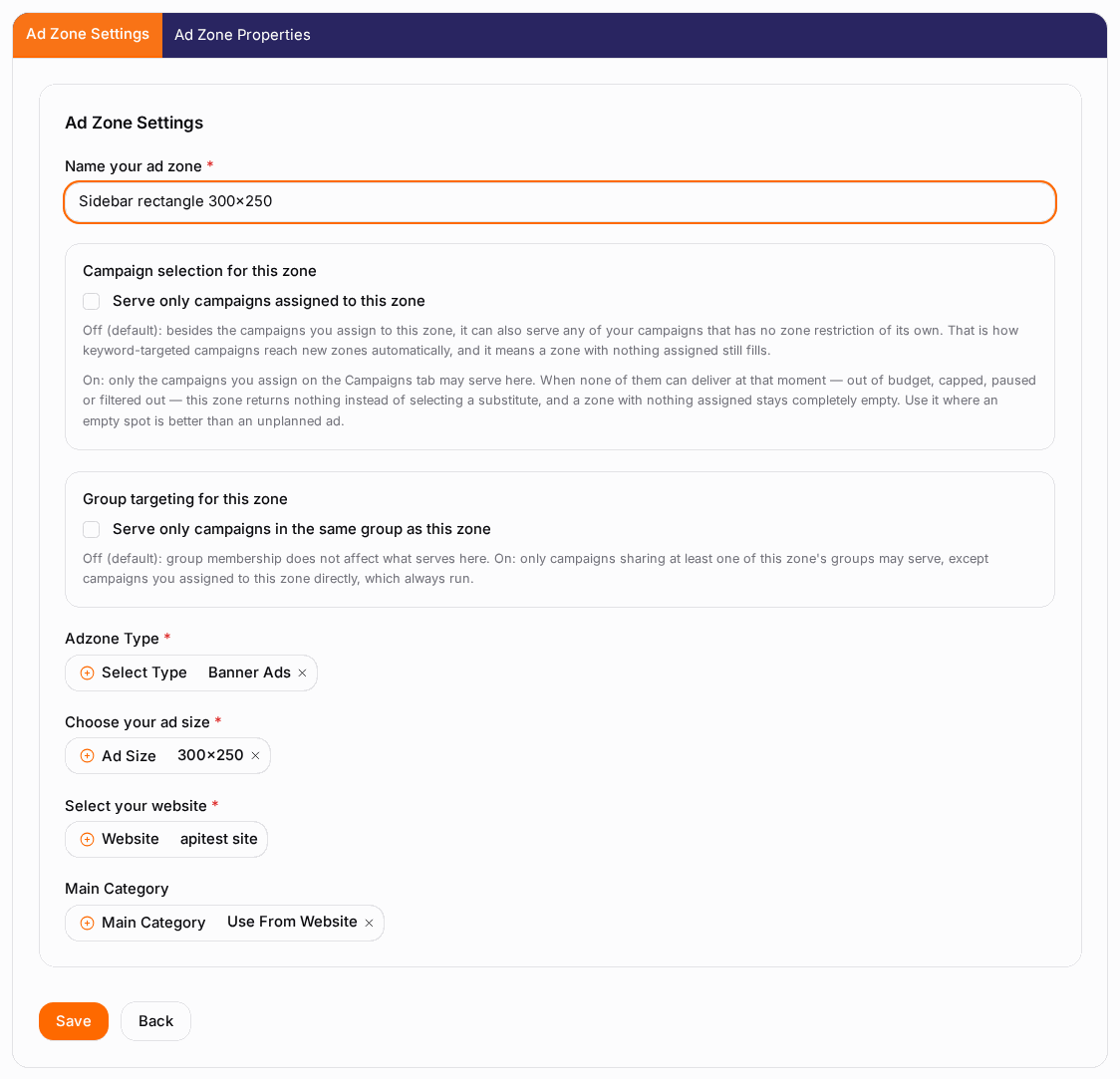
Move through the zone editor tabs#
Once a zone exists, its editor is split into tabs across the top. Click each to configure that aspect, and Save within the tab.

Get the embed code#
- Open the zone and click the Ad Zone Code tab.
- Copy the snippet with the Copy button.
- Paste it onto your site where the ad should appear. Full guidance is in Getting Your Ad Code.
Turn a zone on or off#
- In the Ad Zones list, find the zone's on/off toggle.
- Click it to switch serving off (or back on). The zone keeps all its settings and history — nothing is deleted.
Delete and recover a zone#
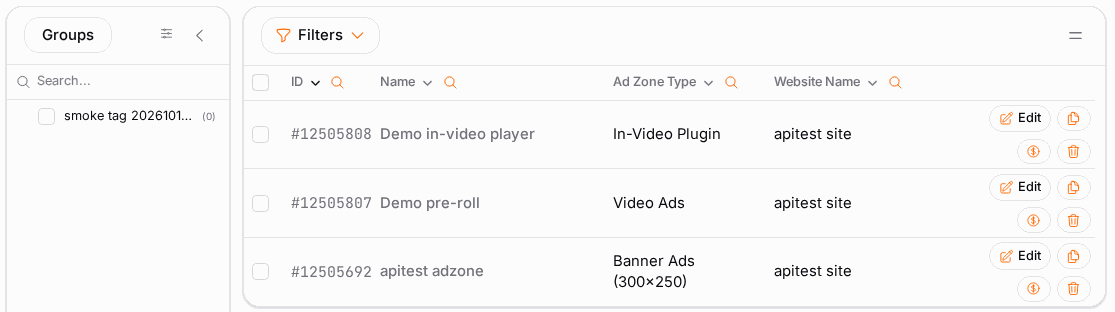
- To delete: use the zone's Delete action, or tick several zones and choose Delete together.
- Deleting is a soft delete — the zone's data and reports are kept.
- To bring one back: switch the list's State filter to show deleted zones, find it, and click Recover (single or in bulk). It returns exactly as it was.
A zone cannot be deleted while it has an active direct/flat-rate deal running on it. Cancel or complete the deal first.
Options reference#
Editor tabs#
| Tab | Purpose |
|---|---|
| Settings | Core configuration: name, type, size, rating, targeting, and serving toggles. |
| Properties | Advanced options such as costs logging, fixed payouts, and a fallback campaign (availability depends on your account). |
| Whitelisted Campaigns | Connect specific campaigns directly to the zone for priority delivery, each with a weight. |
| Own Ads | Your own fallback creatives, shown when no paid ad is available. |
| Prices | Minimum (floor) price per country — bids below your floor are not served. |
| Ad Zone Code | The embed code to place on your site. See Getting Your Ad Code. |
Settings-tab options#
Which options appear depends on the zone type and your account. Common ones:
| Option | What it does |
|---|---|
| Name | Label used in the zone list and reports. |
| Type | The kind of ads served. Fixed after creation. |
| Size | Banner dimensions for banner-style zones. Advertisers match creatives to this size. Fixed after creation for banners. |
| Rating | The content rating of the placement, so only suitable ads show. |
| Category | The topic/category of the placement, used for targeting. |
| Location | Where on the page the zone sits (header, sidebar, …), when locations are enabled. |
| Auto-approve | Automatically approve advertiser requests to run on this zone. |
| Visible to advertisers | Whether advertisers can discover and target this zone. |
| Accept CPM buys | Allow CPM-priced campaigns to run on the zone. |
| Skip RON if CPM | Prefer CPM buys and skip run-of-network fill when a CPM ad is available. |
| Allow animation | Permit animated creatives. |
| Allow iframes | Permit ads that load inside an iframe. |
| Domain list | Restrict the zone to a specific list of domains it may run on. |
| Tags | Your own labels for grouping and filtering zones (and reporting on them together). |
Boolean toggles (visibility, animation, iframes, and similar) can be flipped directly from the Settings tab and save on the spot.
Properties-tab options#
| Option | What it does |
|---|---|
| Costs logging | Record your traffic-acquisition costs per period, so you can measure return on investment. |
| Dynamic costs | Vary the logged cost over time instead of a single fixed figure. |
| Fixed payouts | Override the default earnings with fixed amounts per country. |
| Quality rank | A quality score you assign to the placement. |
| Fallback campaign | A specific campaign to serve when nothing else matches, so the zone always fills. |
Whitelisted-campaigns options#
| Option | What it does |
|---|---|
| Connect campaign | Link a specific advertiser campaign so it runs directly on this zone. |
| Weight | How strongly a connected campaign is favoured (higher = more delivery). |
| Force whitelist only | When enabled, only your connected campaigns can serve — nothing else. |
Both sides have to agree. Connecting a campaign here is only half of the link. The advertiser's campaign can carry its own adzone include list (see Targeting & Filters), and when it does, that campaign runs only on the zones it names. So a campaign delivers on this zone when both are true: you have connected it here with a weight above zero, and the campaign's own adzone list either names this zone or is empty. Either side alone is enough to stop delivery — and neither side can see the other, which is why a connection that looks correct on your screen can still show zero impressions. If you connected a campaign and nothing is serving, ask the advertiser to confirm this zone's ID is on their side too.
List filters#
| Filter | What it narrows to |
|---|---|
| Website | Only zones for one site. |
| Type | Only a given zone type. |
| State | Active or deleted zones. |
| Tags | Zones carrying one of your labels. |
| Name | Search by zone name. |
Smart column hiding: when a filter narrows the list to a single value (e.g. one website or one type), the matching column may hide itself automatically to keep the table clean.
Parent and child zones#
Zones can be nested: a parent zone can contain child (sub) zones. In the list, expand a parent row to see its children. This is useful for grouping related placements — for example several sub-zones under one section of your site, or variants of one slot. Child zones have their own settings and code, and roll up under the parent for easier management.
Example#
A simple banner. Ben creates a zone named "Article top", picks his blog as the website, chooses Banner as the type and 728×90 as the size, and saves. On the Prices tab he sets a $1.50 CPM floor for the US. On the Ad Zone Code tab he copies the script and pastes it into his article template. Within a day the placement starts filling and appears in Publisher Statistics.
Direct advertiser priority. For a sponsor he wants first dibs, Ben opens the same zone's Whitelisted Campaigns tab, connects the sponsor's campaign with a high weight, and enables force whitelist only for a launch week so only that campaign serves — then turns it back off afterwards.
Tips#
- Create one zone per placement. Reusing a zone's code in two spots muddies your reports; a separate zone per slot keeps stats accurate.
- Get the type and banner size right up front — they can't be changed later.
- Use Own Ads so a placement never shows blank space when paid demand is low.
- Set sensible floor prices per country on the Prices tab to protect your inventory value without over-blocking fill.
- Use tags to group related zones so you can filter and report on them together.
- Toggle a zone off instead of deleting it when you only want to pause serving.
Troubleshooting#
| Symptom | Likely cause | Fix |
|---|---|---|
| Zone shows no ads | Website not verified, zone toggled off, or floor price set too high. | Verify the website, switch the zone on, and lower the Prices floor if it's blocking all bids. |
| Can't change the type or size | Both are locked after creation. | Create a new zone with the correct type/size and swap the code. |
| Can't delete the zone | An active direct/flat-rate deal is running on it. | Cancel or complete the deal, then delete. |
| Deleted a zone by accident | It was soft-deleted, not erased. | Switch the State filter to deleted, find it, and click Recover. |
| A column disappeared from the list | Smart column hiding kicked in after a filter narrowed to one value. | Clear the filter to bring the column back. |
| Earnings look low on a zone | Floors too high, animation/iframes disabled, or narrow domain list. | Loosen those Settings-tab restrictions and re-check fill in statistics. |
| Connected a campaign but it shows no impressions | The link only works if both sides agree: the connection needs a weight above zero here, and the campaign's own adzone include list must name this zone (or be empty). A size, type or floor-price mismatch stops it too. | Check the weight is not 0, then ask the advertiser to confirm this zone's ID is on their campaign's adzone list. |
Related#
- Websites — the container each zone belongs to.
- Ad Zone Types — choosing the right format.
- Getting Your Ad Code — placing the snippet on your site.
- Publisher Statistics — measuring zone performance.
- Earnings & Payouts — what you've earned.
- Smart Zones — routing part of a zone's traffic to outside networks.
- Agentic Media Buying — buying traffic for a zone on another network: cost per source zone, blocking, bids.
- Controlling Which Ads Run — blocking domains and the Better Ads filter.
- How to create an ad zone and put it on your site — step-by-step guide
- How to set up a video preroll zone and get its VAST URL — step-by-step guide