
Browse the documentation
How to send account events to Slack or your own system
Applies to: All users
Get told the moment something happens on your account — an ad is reviewed, a campaign stops, the balance runs low, a payout is paid — in a Slack channel your team watches, or straight into your own software through a webhook.
There are two ways, and you can use both:
- Slack (and Telegram) — set up on the Notifications tab. Messages for people.
- Webhooks — set up next to your API keys. Signed messages for your own tools, scripts or AI agents.
Microsoft Teams and Google Sheets connections are run by your network's administrators, not from your account — ask your account manager if you need one.
Before you start#
- For Slack, you need permission in your Slack workspace to create an app.
- For webhooks, you need an
https://address that accepts POST requests, and API access switched on for your account (Account → Settings → Enable API access → Save). Only the account owner and Admin members can manage webhooks.
Steps#
Send events to a Slack channel#
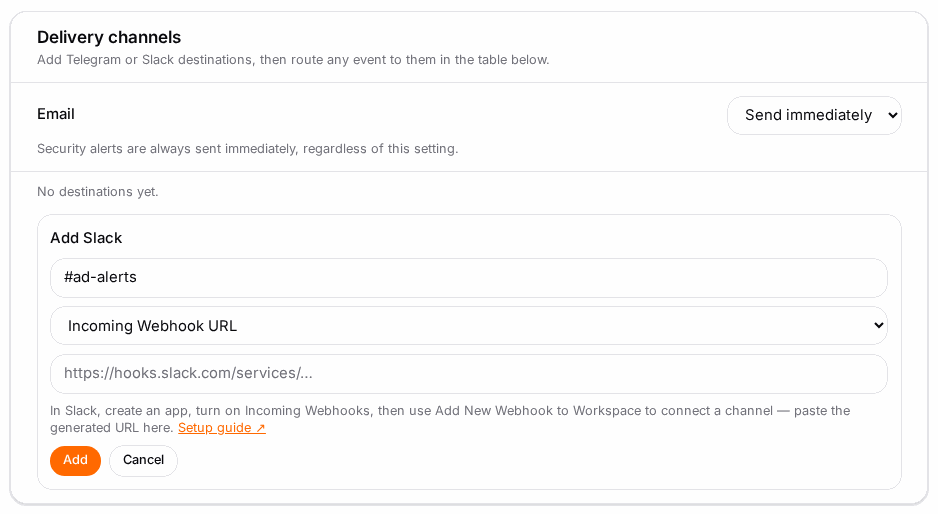
- In Slack, create an app, turn on Incoming Webhooks, then use Add New Webhook to Workspace to pick a channel. Copy the URL (
https://hooks.slack.com/services/…). - In the panel, click your name → Account → Notifications tab.
- Under Delivery channels, click Add Slack, keep Incoming Webhook URL, give it a name (e.g. "#adops") and paste the URL. Click Add.
- Click Test on the new destination; check the message arrives in Slack.
- A new column appears in the event table. Tick the events for that channel — for example Payout could not be paid, Conversion postbacks being rejected, Daily budget almost reached — and click Save.
If your workspace doesn't allow incoming webhooks, choose Bot token (Web API) instead and paste the app's bot token (xoxb-…) and the Channel ID (e.g. C0123ABCD); the app needs the chat:write scope and must be invited to the channel.
Send events to your own system with a webhook#
- Click your name → Account → Settings tab, and scroll to Webhooks below your API keys.
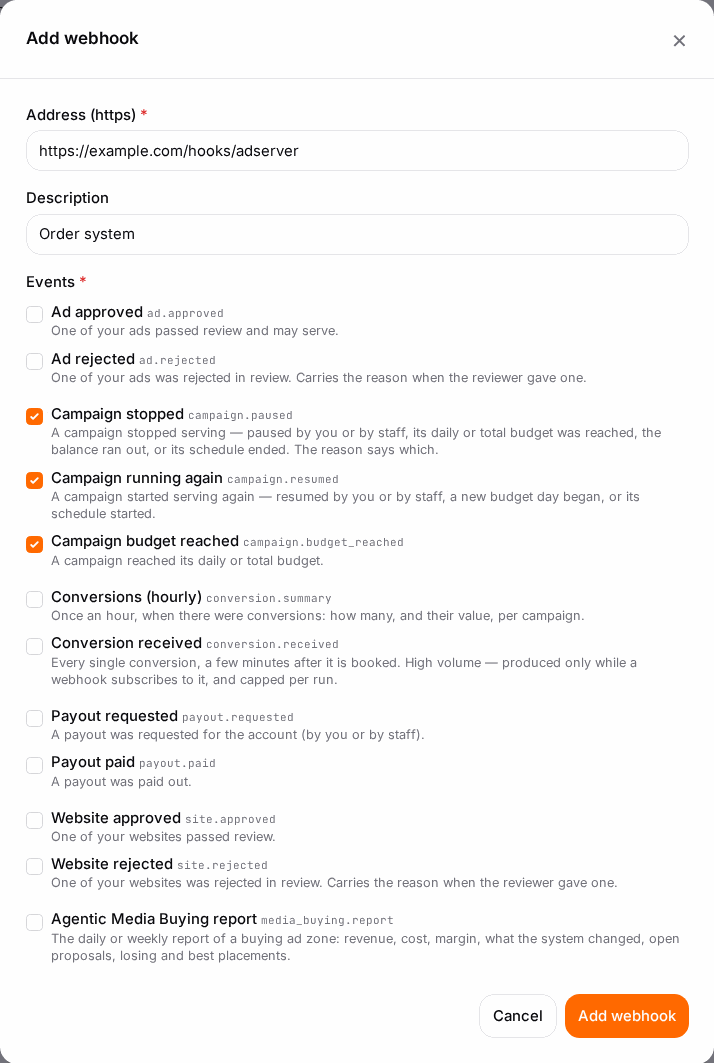
- Click Add webhook.
- Enter Address (https) — the endpoint that should receive the events — and an optional Description.
- Under Events, tick the events you want. Only events that can happen on your account are listed.
- Click Save. The Signing secret is shown once — click Copy and store it. Your receiver checks the
X-Integration-Signatureheader of every delivery with it, so it can trust the message came from us. - Click Send test. Test queued — it goes out within a minute. — then Test delivered (HTTP 200). once your endpoint answered.
Can't receive webhooks (for example a tool behind a firewall)? It can read the same events from GET /api/v1/events (kept 7 days) with an API key that has the webhooks.read scope — see How to create an API key.
Check it worked#
- Slack: the Test message arrives, and the destination shows Linked.
- Webhook: the test shows as delivered; Deliveries lists each event with its HTTP status and number of attempts.
Troubleshooting#
| Symptom | Likely cause | Fix |
|---|---|---|
| Slack test fails | The Slack webhook was removed, or (bot token) the app isn't in the channel | Create a new webhook, or invite the app into the channel |
| No Webhooks section | API access is off, or you're a member without the Admin role | Enable API access; or ask the owner |
| Add webhook greyed out | The account has reached its webhook limit (20) | Remove one you no longer use |
| Test not delivered: … | Your endpoint was unreachable or didn't answer with a 2xx status | Fix the endpoint, then Send again from Deliveries |
| Status Paused — kept failing | Deliveries failed repeatedly | Fix the endpoint and click Resume; waiting events are sent |
| The signing secret may have leaked | — | Issue new secret; choose an Overlap so both secrets work while you update your receiver, or 0 to retire the old one at once |
Related#
- How to choose which alerts you get, and where — email, in-app, Telegram and digests
- Notifications & Alerts — the full list of events
- How to create an API key — API access and the events feed