
Browse the documentation
How to share a report
Applies to: Advertisers · Optional feature — available when your network has it switched on
At the end of this guide you'll have a private link that shows the statistics of the campaigns you choose to anyone you send it to — a client, a partner, your manager — without giving them a login to your account. You decide which campaigns, which numbers and which breakdowns they can see, and you can switch the link off at any time.
Before you start#
- An advertiser account with Shared Reports in the menu.
- The campaigns you want to share. Grouping them first (see Campaign Groups) lets the report pick up new campaigns automatically.
Steps#
Start the report#
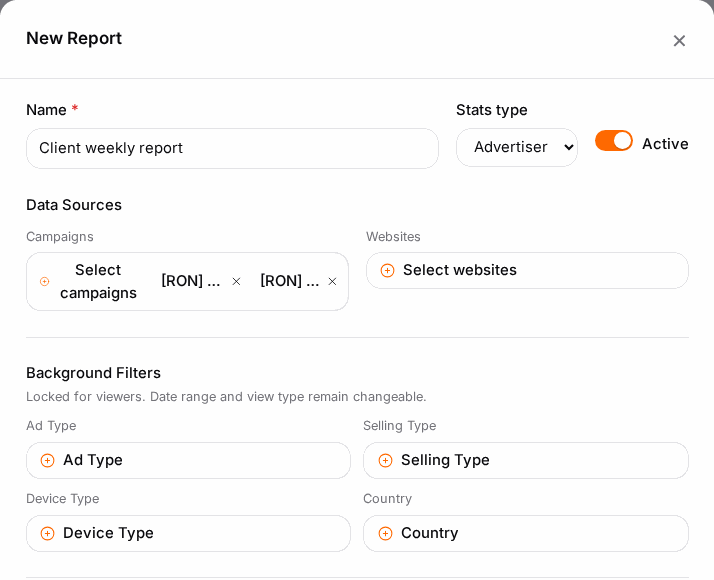
- Open Shared Reports and click New Report. Or, in Statistics, set up the report you want and click Share — the dialog opens with your current filters filled in.
- Enter a Report name the viewer will recognise, e.g. "Acme — spring campaign".
Choose what's in it#
- Under Data Sources, open Campaigns and tick the campaigns to include.
- Optionally pick Groups and turn on Include every campaign in these groups: campaigns you add to those groups later appear in the report by themselves.
- Optionally set Background Filters — ad type, selling type, device type or country. The viewer can't change these; they can still change the date range.
Choose what the viewer can do#
- Under Allowed Group By, tick the breakdowns the viewer may use (e.g. date and country), and set the Default Group By they see first.
- Under Allowed View Types, tick which time groupings they may switch between (day, week, month…).
- Under Conversion Types, pick the conversions they may see. Leave it empty to hide conversions.
- Make sure Active is on, and save.
Send the link#
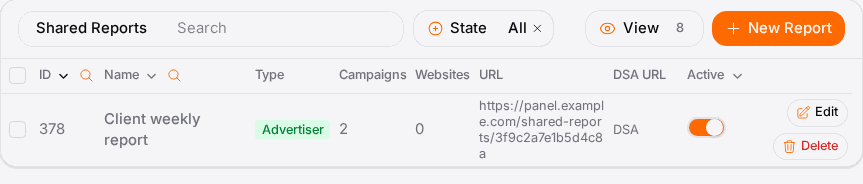
- In the Shared Reports list, copy the report's URL (or open the report and use Copy URL next to Report URL).
- Send it to your viewer. They open it in any browser — no account needed.
Check it worked#
- Open the link in a private browser window: you should see exactly the campaigns, breakdowns and conversions you allowed, and nothing else.
- To stop sharing, switch the report's Active toggle off in the list. The link then shows nothing (a "not found" page) until you switch it back on.
Troubleshooting#
| Symptom | Likely cause | Fix |
|---|---|---|
| The link shows "not found" | The report is inactive or was deleted | Switch Active on, or create it again |
| A new campaign is missing from the report | It isn't in the report's campaigns or followed groups | Add it, or add it to a group the report follows |
| The viewer sees no conversions | Conversion Types is empty | Pick the conversion types they may see |
| The viewer can't break down by country | Country isn't in Allowed Group By | Edit the report and allow it |
| Numbers differ from your own Statistics | Background Filters limit what the report counts | Check the background filters |