
Browse the documentation
Adding Funds
Applies to: Advertisers · Ad networks where advertisers pre-pay a balance — ad manager setups have no advertiser balance
Your advertising balance is the money your campaigns spend from. When it runs out, your ads stop serving — so this page is where you top up, watch what you've spent, and set an alert so you never get caught out.
What this is#
Advertiser → Funds holds three things: your current balance, the form that adds money to it, and the history of every payment you've made. Deposits are made with whichever payment methods your network offers — card, PayPal, bank transfer, crypto and others — and each one becomes a transaction you can track and download an invoice for.
Money you deposit is prepaid credit: it sits on your balance until campaigns spend it. It is not a subscription and there is nothing to cancel.
When you'll use this#
- Before launching your first campaign — an empty balance means nothing serves.
- Whenever the balance gets low, or the low-balance alert emails you.
- To redeem a coupon or bonus code your account manager sent you.
- To download an invoice for your accountant.
- To cancel a payment you started but never completed.
Step by step#
Add funds#
- Open Funds from the advertiser menu.
- Under Select Payment Method, pick a method. Each tile shows its badge — Fastest, Crypto, Large deposits — and its minimum deposit.
- Choose an amount: click one of the preset tiles, or Custom and type your own.
- Check the Payment summary — deposit amount, any fees, bonus, and the estimated balance afterwards.
- Click Proceed to payment. The payment window opens for the method you chose (a card form, a PayPal button, a crypto address and QR code, or bank details to transfer to).
- Complete the payment. Instant methods credit your balance within moments; bank transfers take 1–3 business days.
Bank transfers need the reference number. The payment window shows a reference; put it in your transfer description so the payment can be matched to your account. Without it, crediting is manual and slow.
Save a card for future billing#
- If your network has card payments enabled, a Billing card box appears at the top of the page.
- Click Save a card for future billing and enter your card details.
- The card is stored with the payment provider — we never see the number — and future invoices can be charged automatically.
- Use Replace card to swap it, or Remove card to delete it.
Removing the saved card stops automatic charging. Add another one before your next invoice or payment will be interrupted.
Redeem a coupon or bonus code#
- Scroll to the Redeem Code box (shown when your network issues coupons).
- Paste the code and click Redeem.
- Valid codes credit your balance immediately and appear in the transaction list.
Some networks also show an Available Bonuses box — deposit bonuses you qualify for right now. The bonus is added on top of the deposit and is shown in the payment summary before you pay.
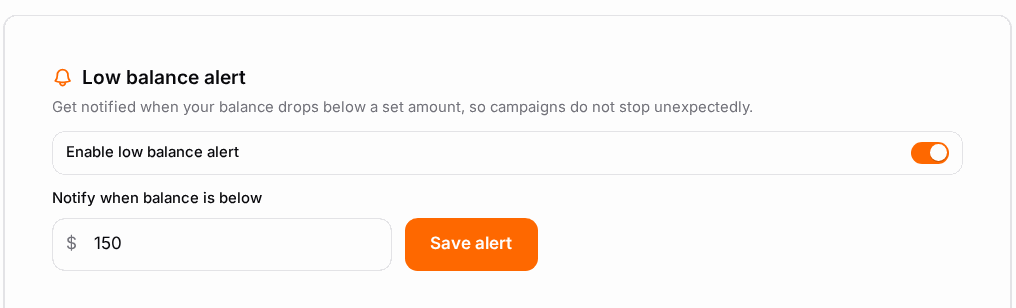
Set a low-balance alert#
- Find the Low balance alert box.
- Switch on Enable low balance alert.
- Set Notify when balance is below to an amount that gives you time to react — a few days of typical spend is a good rule.
- Click Save alert.
Cancel a payment you didn't finish#
- Find the transaction in the list — it will show Pending.
- Use its Cancel payment action.
- The pending record disappears. Nothing was charged.
Only pending payments can be cancelled. Once a payment is completed it can't be reversed from here — contact support.
Download an invoice#
- Open the Invoices (transaction) list at the bottom of the page.
- Find the transaction and use Download PDF.
Options reference#
Balance figures#
| Figure | What it means |
|---|---|
| Advertising Balance | Money available to spend right now. Campaigns stop when this reaches zero (unless you have a credit line). |
| Total deposited | Everything you have ever added, across all methods. |
| Total spent | Everything your campaigns have spent. |
| Last deposit | Amount and date of your most recent top-up. |
| Credit Line | A spending limit agreed with your account manager — not money in your wallet. Campaigns keep serving until your balance drops to minus that amount, and it's settled on invoice, so it doesn't decrease as you spend. Not every account has one. |
Payment method properties#
| Property | What it tells you |
|---|---|
| Minimum deposit | The smallest amount this method accepts. Deposits below it are rejected. |
| Speed | Instant, Fast, or 1–3 business days — how long before the money lands on your balance. |
| Fees | Whether the provider adds a transaction cost. "May apply" means it depends on the amount and your country. |
| Badges | Fastest, Crypto, Large deposits — a hint about what the method is best suited to. |
Which methods you see is set by your network. If the page says payments are disabled for your account, contact support.
Transaction statuses#
| Status | What it means | What to do |
|---|---|---|
| Pending | The payment was started but not completed. | Finish it from the payment window, or cancel it. |
| Processing | The provider has the payment and is confirming it. | Wait — it moves to Completed on its own. |
| Completed | The money is on your balance. | Nothing. Download the invoice if you need one. |
Transaction list filters#
| Filter | What it narrows to |
|---|---|
| Search | Match on the transaction description or reference. |
| Payment method | Only deposits made with one method. |
| Status | Pending, processing or completed only. |
| Date range | Transactions within a period. |
Example#
Topping up before a launch. Maria is about to start a campaign that should spend about $80 a day.
- She opens Funds and sees a balance of $12 — nowhere near enough.
- She picks Card payment (marked Instant), chooses the $500 preset, and checks the summary: $500 deposit, no fee, estimated balance $512.
- She clicks Proceed to payment, enters her card, and the balance updates within a minute.
- She switches on the low balance alert at $150 — roughly two days of spend — so she gets an email with time to top up again.
- She goes back to Campaigns and activates the campaign.
Tips#
- Fund before you launch, not after. A campaign with an empty balance simply doesn't serve, and you lose the hours you spent waiting.
- Set the alert threshold to several days of spend, not to a token amount — bank transfers take days to arrive, so a $5 threshold warns you far too late.
- Watch the payment summary, not just the amount you typed. Fees and bonuses both change what actually lands on your balance.
- Keep the reference number on bank transfers. It is the only thing tying your transfer to your account.
- Check the "campaigns waiting for funds" panel. When your balance is empty the page lists exactly which campaigns are stalled, so you know what restarts when you top up.
Troubleshooting#
| Symptom | Likely cause | Fix |
|---|---|---|
| My campaigns stopped overnight | The balance ran out | Top up; the "campaigns waiting for funds" panel lists what resumes |
| The deposit was rejected as too small | Below the method's minimum deposit | Check the Min. figure on the method tile and raise the amount |
| I paid by bank transfer and nothing arrived | Transfers take 1–3 business days, or the reference was missing | Wait the full window, then contact support with your transfer receipt |
| The payment window closed before I finished | The transaction stays Pending | Reopen it from the list to finish, or cancel it and start again |
| My coupon code is rejected | Expired, already used, or issued for a different account | Ask whoever sent it for a fresh code |
| No payment methods are shown | Payments are switched off for your account | Contact support |
| The balance didn't change after a card payment | The provider is still confirming it | Give it a few minutes; if your card was charged and the balance is still wrong, contact support with the transaction ID |
| I can't cancel a transaction | Only Pending payments can be cancelled | Contact support for anything already completed |
Related#
- Campaigns Overview — what your balance is being spent on
- Campaign Types & Pricing — how each type charges
- Account & Profile — invoice address and VAT details that appear on invoices
- Advertiser Statistics — where the spend went
- Notifications & Alerts — how the low-balance and payment emails reach you
- How to add funds to your advertising balance — step-by-step guide