
Browse the documentation
How to create a video campaign
Applies to: Advertisers
At the end of this guide you'll have a campaign serving video ads into publishers' video players (pre-roll, mid-roll or post-roll) and video formats such as sliders and in-page video — either from a video file you upload or from a VAST tag you already have. The wizard is the same one as for any campaign; this guide covers what's different for video.
Before you start#
- An advertiser account, with the Video ad type enabled on your network. If the Video card doesn't appear on the first step, ask your account manager.
- One of:
- an MP4 file (up to 100 MB), or
- a public link to a video file you host, or
- a VAST URL from your own ad server.
- The landing page a click should open (not needed for VAST — the VAST document carries its own click-through).
Steps#
- Open Campaigns → RON and click Create new campaign.
- On Basic, enter a Campaign Name, pick the Video ad type card and choose the Payment Type.
- Want to use a VAST URL? Don't pick CPC — VAST ads are offered on CPM and conversion-based payment types only.
- Work through Budget, Geo and Traffic as for any campaign (see How to create your first campaign), then click Launch Campaign on Review.
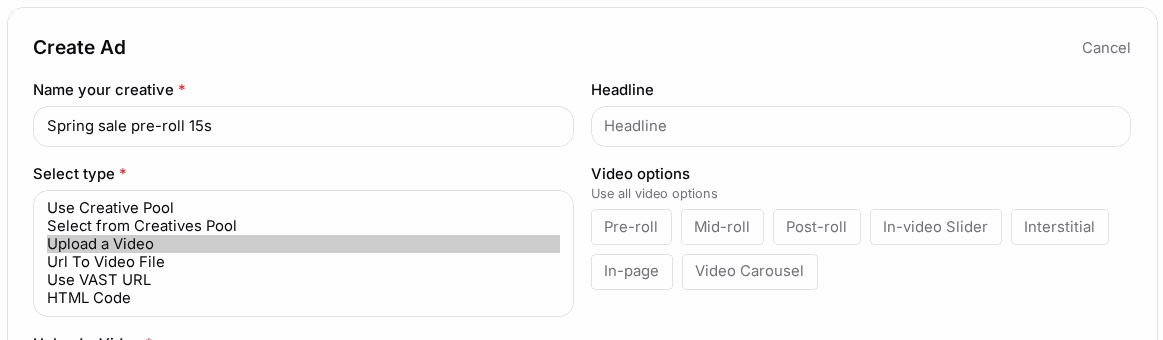
- On the Ads step, click New Ad.
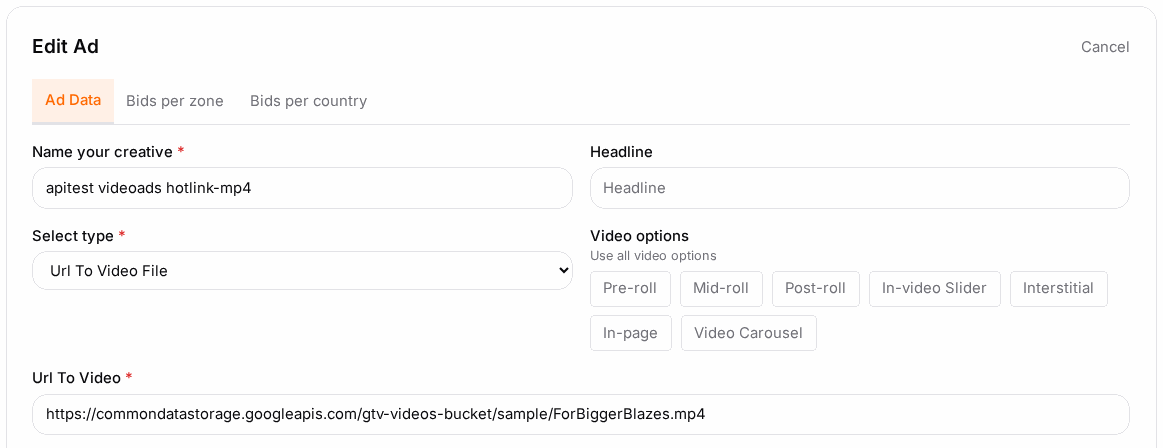
- Under Select type, choose where the video comes from:
- Upload a Video — upload your MP4.
- Hotlink Video URL — paste the link to your hosted video file.
- Use VAST URL — paste your VAST tag. The panel checks the tag and warns you if it only contains VPAID media, which many players can't play.
- Select from Creatives or Use Creative Pool — reuse a video already in your media bank or a video pool.
- Unless you chose VAST, enter the Destination URL.
- Under Video options, tick where the ad may run — Pre-roll, Mid-roll, Post-roll, and on networks that have them In-video Slider, Interstitial, In-page or Video Carousel. Leave it empty to allow all of them.
- Optionally turn on Impression Tracking URL to fire your own pixel on every view (see How to add an impression tracking pixel).
- Click Save.
Check it worked#
- The ad shows in the Ads list with a preview. A VAST ad shows the tag rather than a preview.
- The campaign shows Active in the campaign list (or Pending approval if your network reviews campaigns first).
- After it has run for a while, open Statistics: views and clicks are counted like any other ad.
Troubleshooting#
| Symptom | Likely cause | Fix |
|---|---|---|
| Use VAST URL isn't in the list | The payment type is CPC, or VAST isn't enabled on your network | Use CPM or a conversion-based type; otherwise ask your account manager |
| Upload rejected | Not an MP4 file, or over 100 MB | Re-encode to MP4 and keep it under 100 MB |
| VAST warning about VPAID | The tag only offers VPAID media | Ask your ad server for a tag with an MP4 media file |
| Video ads get no views | Video options limited to a placement your targeted publishers don't have | Clear Video options to allow every placement |
| No Video ad type card | Video isn't enabled for your account | Ask your account manager |
Related#
- Ads & Creatives — every ad field and macro
- Creating a Campaign
- How to build a creative pool — reuse videos across campaigns
- How to create your first campaign