
Browse the documentation
How to start Agentic Media Buying on an ad zone
Applies to: Publishers · Ad manager setups
You buy traffic on another network (ExoClick, Adsterra, PropellerAds, one of our partner networks…) and send it to your ad zone, where your campaigns earn from it. Agentic Media Buying shows per source zone of that network what you earned and what it cost, and blocks the ones that lose money. This guide connects one ad zone and switches it on safely.
Before you start#
- An API key or token from your account at the traffic network (for Adsterra: Settings → API → Generate new token in its advertiser panel).
- A campaign at that network that sends traffic to your ad zone, and its campaign ID. On Adsterra, ExoClick and our partner networks you can also create it from the ad zone — see Agentic Media Buying.
- Campaigns with budget on the ad zone, so the traffic has somewhere to earn.
Steps#
1. Connect your network account#
- Open Ad Networks and click Add Network.
- Pick the network, enter your API key and save. One account serves all your ad zones on that network.
2. Connect the ad zone to the network campaign#
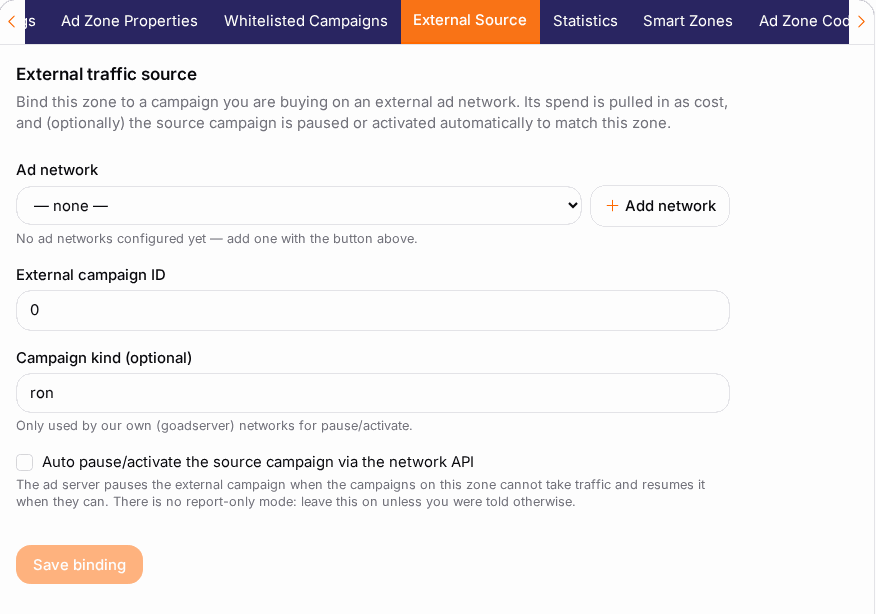
- Open Adzones, edit the ad zone and open the tab External Source.
- Ad network: pick the account from step 1.
- External campaign ID: the ID of the campaign at the network.
- Leave Auto pause/activate the source campaign via the network API ticked, so the network campaign pauses when your campaigns can't use more traffic.
- Click Save binding. The Agentic Media Buying section appears below.
3. Pass the source zone on the URL#
- Under Source zone capture, click Copy. You get a short suffix such as
&sid6={zone_id}(ExoClick) or&sid6=##PLACEMENT_ID##(Adsterra). - At the network, add it to the end of your campaign's target URL and save there.
4. Read the source zones#
After a day of traffic, the Source zones tab lists every zone the network sent visitors from, with traffic, Revenue, Cost, Profit, Margin and CPA. Tick Losing only to see the zones that cost more than they earned. A cost marked * is estimated, because that network only reports the campaign total.
5. Block a losing zone#
Click Block on its row. The zone is excluded at the network straight away; Unblock undoes it. To buy only your best zones instead, use Zone targeting → Build allow-list; Back to all zones returns to normal.
6. Switch on the buying policy#
- Click Switch on at the top of the section. Until you do, nothing happens automatically.
- The zone starts with settings suggested from its own traffic, all in Advise: the policy only proposes. On the Automation tab, Suggest settings shows the suggestion again with the reason for each value.
- Click Save policy.
- When the Activity tab shows a count, open To approve and Approve or Reject each proposal.
- Once you trust the proposals, set the mode to Auto: blocks are then carried out within the daily maximum.
Check it worked#
- Source zones fills up the day after you add the capture suffix.
- Activity → History lists every block with who did it and why.
- At the network, the blocked zones appear on the campaign's blacklist.
Troubleshooting#
| Symptom | Likely cause | Fix |
|---|---|---|
| Source zones stays empty | The capture suffix isn't on the campaign URL at the network | Copy it again from Source zone capture and add it at the network. |
| Every cost has a * | The network reports only the campaign total | Normal for that network; cost is split by traffic share. |
| Block fails | The API key lacks write access, or the network has no block API | Create a key with full access; otherwise block in the network's own panel. |
| Nothing is blocked automatically | The zone is not switched on, or the mode is Advise | Switch on; approve proposals or set Auto. |
Related#
- Agentic Media Buying — every setting and network
- Ad Zones