
Browse the documentation
Affiliate Networks
Applies to: Tracker & affiliate users · Optional feature — available when your network has it switched on
An affiliate network is the CPA / offer source that supplies your offers and pays you per conversion — CrakRevenue, MaxBounty, and the like. Registering a network here tells the platform which offers come from where and, just as important, which macro style to use when it generates that network's postback URLs for you.
What this is#
Each network you add is a small configuration record. It is referenced in two places:
- On the Offers page — which network an offer comes from (the Network column).
- On the Postbacks & Conversions page — the inbound postback URL you hand back to the network is generated from this record, already written in that network's macro dialect.
Networks all speak slightly different macro dialects — single-brace {clickid}, dollar-brace ${SUBID}, double-square, and so on. Picking the right template here means the platform writes each postback URL correctly and you never have to look the syntax up by hand.
When you'll use this#
- Before you start promoting offers from a network you haven't registered yet.
- When a network's payouts are in a currency other than your default.
- When you need the correctly-formatted inbound postback URL to paste into a network's callback settings.
Step by step#
- Open Affiliate Networks from the tracker menu.
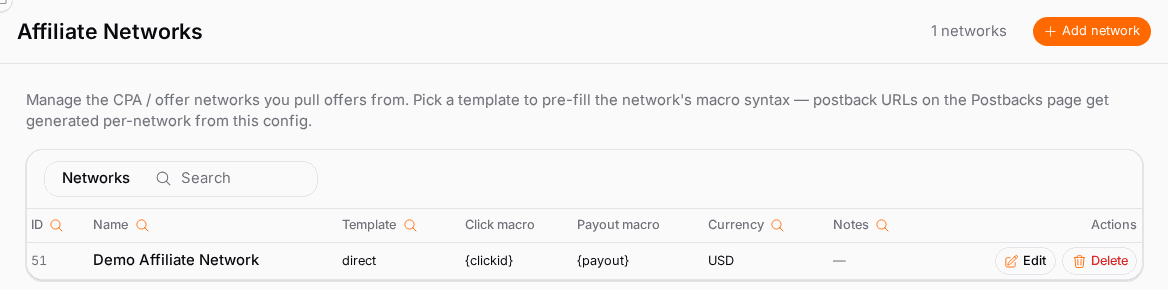
- Choose Add network.
- Enter a Name (required) — this is the label shown on offers and in the postback generator.
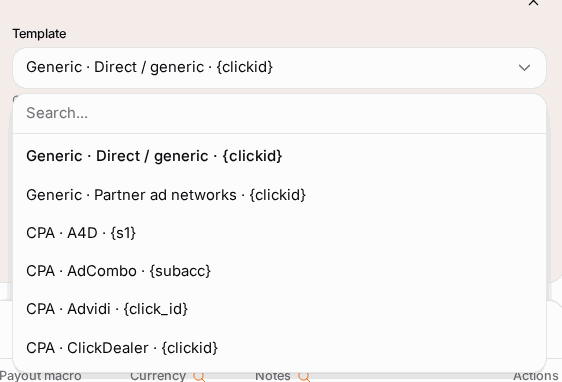
- Pick a Template using the searchable picker. Choosing one pre-fills the correct macro syntax for that network's postback URLs. Pick a generic template if your network isn't listed.
- Set the Payout currency — the currency the network reports your payouts in (defaults to your tenant's main currency; most networks pay USD, a few EUR).
- Add Notes for your own reference if you want.
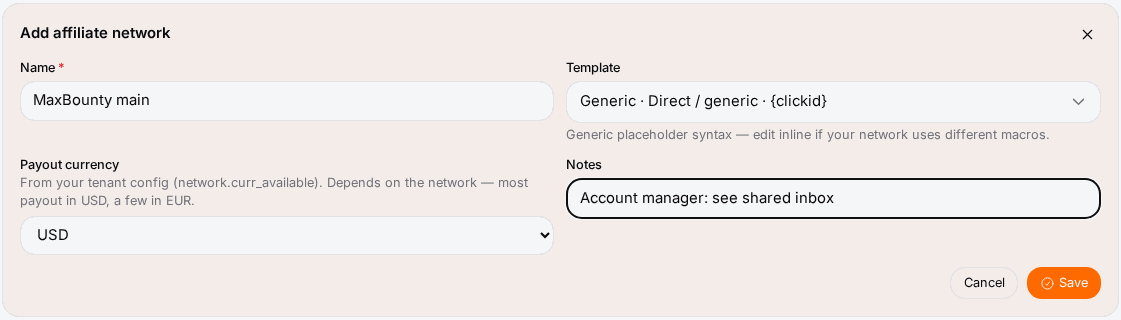
- Save. The network now appears in the list and is selectable on offers and in the postback generator.
Options reference#
Fields#
| Field | What it does |
|---|---|
| Name | Required label. Appears on offers and in the postback generator. |
| Template | One of 55+ built-in network templates. Sets the macro syntax the postback URLs use. |
| Payout currency | The currency the network reports payouts in. |
| Notes | Free-text, for your own reference. |
Template categories#
The picker groups templates so you can find yours fast:
| Category | Examples |
|---|---|
| Generic | Catch-all when your network isn't listed |
| CPA | Mainstream CPA networks |
| Affiliate / e-commerce | Product and store affiliate programs |
| Adult | Adult-vertical networks |
| Nutra | Nutraceutical / supplements |
| Dating | Dating offers |
| Mobile | Mobile-first CPA |
| Push / Pop | Push and pop-traffic networks |
| Native | Native-ad networks |
| Content Locker | Content-locking networks |
| Digital Products | Digital-goods programs |
| iGaming | Casino / betting networks |
| MMP (mobile attribution) | AppsFlyer, Branch, Adjust, Singular, and similar partners |
| Sweeps | Sweepstakes offers |
Postback macro reference#
When you add a network, its template decides how the platform writes the inbound postback URL. The one macro every postback must carry is the click ID — the identifier returned when your tracking link first fired, which ties the conversion back to the original click. Common dialects:
| Dialect | Click-ID macro looks like | Typical networks |
|---|---|---|
| Single-brace | {clickid} / {subid} |
Many CPA networks |
| Dollar-brace | ${SUBID} / ${clickid} |
Push / pop networks |
| Double-square | [[clickid]] |
Some native networks |
| Named parameter | ?s2= / ?aff_sub= |
Network-specific slots |
You don't type these — the template fills them. Depending on the network, additional macros (subids, payout amount, transaction ID) are also pre-filled in that network's syntax on the Postbacks page.
Track parameters#
Some networks require extra fixed parameters on the postback — an API key, a security token, or a fixed subid slot. The network's template pre-fills the expected shape; you fill in any network-specific values. These travel with every postback that network fires. If a network rejects your postbacks, a missing or wrong track parameter is a common cause.
Editing and removing networks#
- Edit a network to change its name, template, payout currency, or notes. Changing the template re-generates that network's postback URL syntax — re-copy the URL from the Postbacks page afterwards.
- Delete a network to remove the record. Offers that reference it by ID keep working, but their Network column goes blank, and any existing postback data keeps functioning — only the configuration entry is removed.
Example#
Register CrakRevenue and grab its postback URL#
- Affiliate Networks → Add network.
- Name:
CrakRevenue. - Template: search the picker and pick the CrakRevenue (or nearest iGaming/Adult CPA) template so the macro syntax matches what CrakRevenue expects.
- Payout currency:
USD. - Save.
- Go to Postbacks & Conversions. The inbound URL for CrakRevenue is now generated in CrakRevenue's macro dialect — copy it and paste it into CrakRevenue's postback settings.
Now when a conversion fires on a CrakRevenue offer, CrakRevenue calls that URL, the click ID matches your original click, and the conversion lands in your reports.
Tips#
- Register the network before you build tracking links for its offers, so the offer's Network column is populated from the start.
- If your exact network isn't in the picker, choose the closest template with the same macro dialect — the click-ID macro shown in the picker entry tells you the style.
- Double-check the payout currency; a wrong currency skews revenue and ROI.
- Changed the template? Re-copy the postback URL — the old one may use the wrong macro syntax.
Troubleshooting#
| Symptom | Likely cause | Fix |
|---|---|---|
| Offer's Network column is blank | No network registered, or the network was deleted | Add the network and select it on the offer. |
| Network rejects your postback URL | Wrong macro dialect or a missing track parameter | Re-pick the correct template; fill any required API key / token track parameter. |
| Conversions arrive but don't match a click | The postback URL is missing the click-ID macro | Re-copy the generated URL from the Postbacks page — it includes the right macro. |
| Payout amounts look wrong in reports | Wrong payout currency on the network | Edit the network and set the correct currency. |
Related#
- Offers — offers reference the network that supplies them
- Postbacks & Conversions — where per-network postback URLs are generated
- Tracking Links — the links you promote
- Performance Reports — measure each network's offers