
Browse the documentation
Mini Network
Applies to: Publishers · Ad manager setups only, when the network has the module switched on; needs the matching permission on your account
Trade traffic directly with other users on the same platform. A publisher lets one specific advertiser's campaigns run on their ad zones — at a CPM floor they choose — and both sides see exactly what traffic passed between them.
What this is#
The Mini Network page connects two accounts on this platform: a publisher who owns ad zones and an advertiser who wants to buy on them. Either side can propose the connection; the other accepts or rejects it. Once a connection is active:
- the publisher decides which zones the advertiser may use (All zones or Selected zones) and an optional CPM floor for this advertiser;
- the advertiser adds those zones to a campaign as peer inventory, and the campaign serves there like on any other zone;
- both sides get a Statement of the impressions, clicks and amount between them.
It is a private deal between two accounts, not a marketplace: nobody else sees the shared zones, and ending the connection stops serving within about a minute.
Money is reported, not moved. The statement shows what the advertiser's campaigns would have paid on your zones, but the platform does not transfer money between the two accounts. Settle it between yourselves.
The Mini Network is available on ad manager setups where the network has switched it on, and only to accounts with the Mini Network permission.
When you'll use this#
- You are a publisher and a partner advertiser on the same platform wants to buy your inventory directly.
- You are an advertiser and know a publisher on the platform whose zones fit your campaign.
- You run several accounts for different sites and want campaigns from one to fill zones of another, with a clear record of who earned what.
Step by step#
Propose a connection#
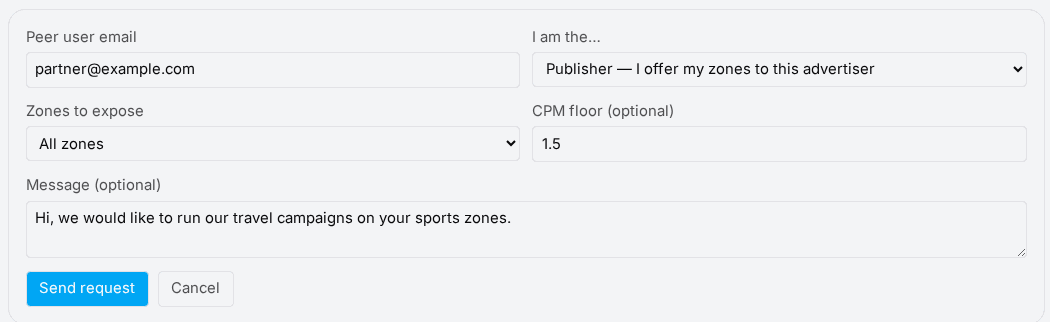
- Open Mini Network from the menu and click New connection.
- Enter the Peer user email of the other account.
- Under I am the…, choose your side:
- Publisher — I offer my zones to this advertiser, or
- Advertiser — I want to bid on their zones.
- If you are the publisher, set Zones to expose (All zones or Selected zones, then tick the zones) and, if you want, a CPM floor (optional).
- Add a Message (optional) and click Send request.
The request waits under the peer's Incoming requests; you see outgoing request(s) awaiting the peer's response until they answer. The peer is notified if they have Mini Network notifications switched on.
Answer a request#
Requests sent to you appear under Incoming requests — "… wants to bid on your zones" or "… offers you their zones".
- Accept as the advertiser: the connection becomes active straight away, with the terms the publisher set.
- Accept as the publisher: a panel Accept {name} — set your terms opens first. Choose the zones to expose and the CPM floor, then confirm.
- Reject declines the request.
Use peer zones in a campaign (advertiser)#
- Create or edit a campaign and go to its ad zone selection.
- Click Add peer zones. The Peer inventory list shows every zone your active connections expose to you.
- Pick the zones and set your bid as usual, then save.
If nobody has shared zones with you yet, the list says so and points you back to the Mini Network page.
Change or end a connection#
Active connections are listed under Active connections with the Peer, Your role, Terms and Since date.
- Edit terms (publisher only) changes the exposed zones or the CPM floor. Narrowing the zones takes those zones out of the advertiser's campaigns.
- Statement shows the traffic between you over the last 30 days, per Campaign and Zone: Impressions, Clicks and Amount, with a Total.
- End connection asks you to confirm — Serving on the shared zones stops within a minute. The peer is notified.
Options reference#
| Setting | Who sets it | What it does |
|---|---|---|
| Zones to expose | Publisher | All zones shares every ad zone you own with this advertiser; Selected zones shares only the ones you tick. |
| CPM floor (optional) | Publisher | The lowest CPM this advertiser pays on your shared zones. A lower bid is raised to the floor, never dropped. Empty means the zone's normal pricing applies. |
| Message (optional) | Either side | A note shown with the request. |
Example#
Anna runs two cooking sites; Ben sells kitchen tools. Ben asks Anna for a connection as the advertiser. Anna accepts, exposes only her two recipe-page zones and sets a CPM floor of 2.00. Ben adds those two zones to his "Knives — EU" campaign as peer inventory with a 1.50 bid; because of the floor, his impressions there are priced at 2.00. At month end both open Statement, see the same impressions and amount, and Ben pays Anna directly.
Tips#
- Set a CPM floor if you are the publisher — it is the only price protection on shared zones.
- Share Selected zones rather than All zones when you have premium placements you don't want to open up.
- Use the statement as the agreed number between you; both sides see the same figures.
Troubleshooting#
| Symptom | Likely cause | Fix |
|---|---|---|
| The peer can't be found | Wrong email, or the account is on a different network | Use the exact login email of an account on this platform. |
| Peer inventory is empty | No active connection exposes zones to you yet, or the publisher chose Selected zones without the one you want | Ask the publisher to accept your request or edit the terms. |
| The campaign doesn't serve on a peer zone | The connection was ended or the zone was taken out of the terms | Check Active connections; serving stops within a minute of a change. |
| The statement shows less than expected | It covers the last 30 days only | Compare like-for-like periods; older traffic is in your normal statistics. |
Related#
- Ad Zones — the zones you expose
- Creating a Campaign — where the advertiser adds peer zones
- Publisher Statistics — your full earnings
- Notifications & Alerts — get told about new requests