
Browse the documentation
Welcome & Getting Started
Applies to: All users
Welcome aboard. This platform is an ad network and ad manager rolled into one: a single place to buy traffic, sell your ad space, or promote offers and track the results. This guide gets you oriented so you know what everything is, which role you're operating in, and where to click next.
What this is#
The platform brings together three kinds of people — the ones who buy ads, the ones who show ads, and the ones who promote offers — and gives each of them the tools they need in one dashboard. Your account may be set up for one of those roles, or several at once. Nothing here requires any technical knowledge: everything is done through buttons, forms, and dropdowns in your browser.
When you'll use this#
Read this page first, before diving into any other guide. It explains the vocabulary (advertiser, publisher, tracker), how the sidebar decides what to show you, and how to move between the different parts of the app. Once you know your role and can find your way around, jump to the guide for the specific task you want to do.
The three roles#
At its heart the platform connects three types of user. Depending on how your account is set up, you may act as one of them — or wear several "hats" at once.
| Role | What you do | Where you spend your time |
|---|---|---|
| Advertiser | Buy traffic — create campaigns, upload ads, target the right audience, and pay for impressions, clicks, or conversions. | Campaigns, Ads & Creatives, Targeting, Statistics |
| Publisher | Sell your ad space — register your websites, place ad zones on them, and earn from the ads shown. | Websites, Ad Zones, Embed Codes, Earnings & Payouts |
| Tracker / Affiliate | Promote offers — grab tracking links, send traffic to them, and measure conversions with postbacks. | Offers, Tracking Links, Postbacks, Performance Reports |
Many accounts are a mix. An advertiser who also owns a website is both an advertiser and a publisher, and the platform lets you switch between those two "hats" without logging out.
Which account type to sign up as#
The sign-up page asks what you want to do. You can tick more than one, and each network shows only the options it offers — if the page shows no choice at all, the network has a single account type.
| Choose | If you want to… |
|---|---|
| Advertiser | Promote your products: run campaigns, buy traffic and pay for results. |
| Publisher | Earn from your websites or apps by showing ads on them. |
| Affiliate | Earn commissions by promoting the network's offers with your own links. |
| Tracker | Track clicks and conversions for campaigns you run elsewhere, manage offers and optimise your traffic. |
| AdManager | Both sides at once for your own business: run campaigns and monetise your own inventory, with CPM and CPA. |
| Smart Zones | Ad zones that combine several ad networks and pick the best-paying one automatically. |
| Ad Scanner | Automatic safety scans of creatives and landing pages. |
| RTB / SSP | Programmatic connections: networks, exchanges and header bidding. |
Smart Zones, Ad Scanner and RTB / SSP switch those features on from the start; on ad manager networks you can also enable them later under Account → Features. Not sure? Start with the role closest to what you do — advertiser or publisher — and add the rest when you need it.
Step by step#
1. Find out which role(s) you have#
- Log in and look at the left-hand sidebar. The sections it lists tell you what your account can do.
- If you see campaign tools (Campaigns, Ads), you're an advertiser.
- If you see website tools (Websites, Ad Zones), you're a publisher.
- If you see offer tools (Offers, Tracking Links), you have the tracker / affiliate role.
- To confirm or change roles, open your account menu (top corner) and go to Settings — see Account & Profile.
2. Orient yourself with the sidebar#
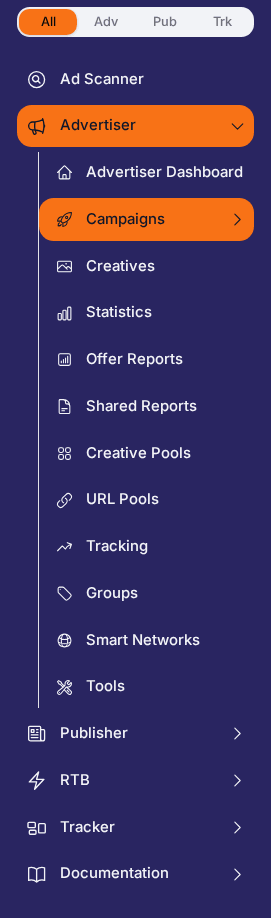
- The sidebar on the left is your main map. It only shows sections your roles and account features allow.
- Sections are grouped by area — dashboard, advertising, publishing, offers, account, and help.
- Click any item to open that screen. Your current location is highlighted.
3. Switch between advertiser and publisher (combined accounts only)#
- If your account is both an advertiser and a publisher, look for the view-mode switch near the top of the app.
- Click it to flip between your advertiser view (spending, campaigns) and your publisher view (earnings, ad zones).
- Each view keeps its own dashboard and menu so the two never crowd each other.
4. Use the account menu#
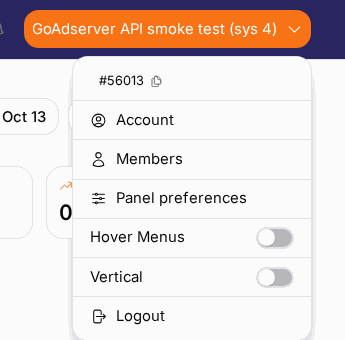
- Click your name or avatar in the top corner to open the account menu.
- From here you can reach your profile and settings, security options, sign out, and — if you belong to more than one account — switch between them.
Options reference#
Sidebar sections you may see#
| Section | Role | What it's for |
|---|---|---|
| Dashboard | All | Your customizable home screen of panels. See Your Dashboard. |
| Campaigns | Advertiser | Create and manage ad campaigns. See Campaigns Overview. |
| Ads & Creatives | Advertiser | Upload and manage the ads themselves. See Ads & Creatives. |
| Creative / URL Pools | Advertiser | Reusable sets of creatives and landing pages. See Creative & URL Pools. |
| Targeting & Filters | Advertiser / Publisher | Decide who sees ads (or which ads a zone shows). See Targeting & Filters. |
| Tracking | Advertiser | Conversion types and retargeting pixels. See Conversion Tracking & Retargeting. |
| Source Optimizer | Advertiser | Automatic rules that block or re-bid weak traffic sources. See Source Optimizer. |
| Groups | Advertiser | Your own labels for organising everything. See Campaign Groups. |
| Funds | Advertiser | Top up the balance your campaigns spend. See Adding Funds. |
| Ad Shop | Advertiser | Buy traffic by targeting rather than by placement. See Ad Shop. |
| Statistics | Advertiser / Publisher | Detailed performance reports. See Advertiser Statistics / Publisher Statistics. |
| Websites | Publisher | Register the sites where you'll show ads. See Websites. |
| Ad Zones | Publisher | Define the ad slots on your sites. See Ad Zones. |
| Embed Codes | Publisher | Copy the snippet to place on your pages. See Getting Your Ad Code. |
| Smart Zones | Publisher | Let outside networks compete for part of a placement. See Smart Zones. |
| Push | Publisher | Collect web-push subscribers and earn from notifications. See Push Ads. |
| Visitor Analytics | Publisher | Pageviews and unique visitors per site. See Visitor Analytics. |
| Blocked Domains / Better Ads | Publisher | Control what may run on your sites. See Controlling Which Ads Run. |
| Earnings & Payouts | Publisher | Track earnings and request payment. See Earnings & Payouts. |
| Referral | Publisher | Earn commission for inviting others. See Referral Program. |
| Offers | Tracker / Affiliate | Browse offers you can promote. See Offers. |
| Tracking Links | Tracker | Generate links that measure your traffic. See Tracking Links. |
| Postbacks | Tracker | Set up conversion notifications. See Postbacks & Conversions. |
| Account | All | Profile, security, team, API keys, notifications. See Account & Profile. |
| Documentation | All | This help centre, the API reference, and the integration guides. |
Not every section is on every account: the sidebar only lists what your roles and your network's features allow, and this guide's index does the same. A guide you can't see is a guide for a feature you don't have.
Roles you can hold#
| Role | Unlocks |
|---|---|
| Advertiser | The campaign-building tools (campaigns, ads, targeting, advertiser stats). |
| Publisher | The website and ad-zone tools (websites, zones, embed codes, earnings). |
| Tracker / Affiliate | The offers and conversion-tracking tools (offers, tracking links, postbacks, reports). |
If a section you expect isn't in your sidebar, it usually means that role or feature isn't enabled for your account yet — an administrator can turn it on.
Example#
"I signed up to advertise, but I also want to earn from my blog."
- Open your account menu → Settings.
- Turn on the Publisher role (if your network allows self-service — otherwise ask an administrator).
- A new set of publishing sections appears in your sidebar.
- Use the view-mode switch at the top to flip to your publisher view.
- Follow Websites to register your blog, then Ad Zones and Getting Your Ad Code to start earning.
Tips#
- You don't have to use every feature. A pure publisher can happily ignore all the campaign tools, and vice versa.
- Secure your login early. Turn on two-factor authentication before you put real money or traffic through the account — see Password & Two-Factor Security.
- The help centre is searchable. Use the search box to jump straight to a term or task, and use the "On this page" outline on each guide to skip to the exact section.
- Look up jargon in one place. If a word is unfamiliar, the Glossary has a plain-language definition.
Troubleshooting#
| Symptom | Likely cause | Fix |
|---|---|---|
| A whole section is missing from the sidebar | That role or feature isn't enabled for your account | Check Settings under Account & Profile; ask an administrator to enable it |
| I only see publisher tools but expected advertiser tools | You're in the wrong view mode, or the advertiser role isn't on | Use the view-mode switch at the top; check your roles in Settings |
| The dashboard looks empty | Brand-new account with no data yet | Follow the get-started checklist on your dashboard, or the guide for your role |
| I can't tell which role I'm using | Combined account, view mode is set to the other side | The view-mode switch at the top shows and changes your current side |
Related#
- Your Dashboard — get familiar with the home screen
- Account & Profile — roles, profile, and preferences
- Password & Two-Factor Security — lock down your login
- Team Members & Roles — share access with colleagues safely
- Glossary — look up any unfamiliar term
- FAQ & Troubleshooting — quick answers to common questions
- Notifications & Alerts — decide what the platform tells you, and how