
Browse the documentation
How to serve ads from your own domain
Applies to: Publishers · Optional feature — available when your network has it switched on
By default your ad codes load from the platform's ad-serving domain. You can serve them from a subdomain of your own instead, such as ads.example.com: the scripts, iframes and links in your ad codes then use your domain. That keeps your pages free of third-party ad domains and helps against blocklists that target well-known ad hosts.
Before you start#
- You need access to the DNS settings of your domain (at your registrar or DNS provider).
- Pick a subdomain you do not use for anything else, for example
ads.example.comorgo.example.com. - The Domains tab is only in your account when your platform offers custom domains. If you don't see it, ask your account manager.
Steps#
1. Point the subdomain at the ad server#
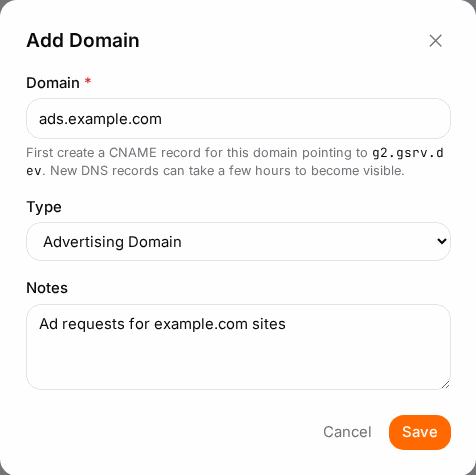
- Find the CNAME target: open Account → Domains and click to add a domain — the form shows "First create a CNAME record for this domain pointing to …" with the host to use. (It is your network's ad-serving domain, the same host your ad codes load from now.)
- At your DNS provider, create a CNAME record for your subdomain that points to that host. For example:
ads.example.com→ CNAME → the host from step 1. - Wait until the record is live. Most providers take minutes, some up to a few hours. You can check with an online DNS lookup: your subdomain should resolve to the same addresses as the ad-serving domain.
Use a subdomain, not the root of your domain (example.com): most DNS providers do not allow a CNAME on the root.
2. Add the domain#
- Open the account menu at the top right and click Account, then the Domains tab.
- Click Add Domain.
- Enter the Domain without
https://, for exampleads.example.com, and leave Type on Advertising Domain. Notes is optional. - Click Save. The domain is checked: it must resolve, and it must point at the ad servers.
- The domain appears in the list with the state Adding or Pending while a security certificate is issued and the domain is synchronised across all data centres. This usually takes 10 to 15 minutes.
- Wait until State shows Valid, and make sure the domain is switched Active.
3. Use the domain for your ads#
- For one website: open Websites, edit the site, and choose your domain under Ad Request Domain. Save.
- For all your websites: in Account, open the Settings tab and choose it as Default Ad Domain.
Then copy the ad codes again from each zone's Ad Zone Code tab and replace the old codes on your site. Codes you copied before still use the old domain.
Check it worked#
- The Ad Zone Code tab of a zone on that website shows your own domain in the code.
- On your site, open the browser's developer tools (Network tab) and reload: the ad requests go to your subdomain over
https://. - Ads show as before.
Troubleshooting#
| Symptom | Likely cause | Fix |
|---|---|---|
| "This domain does not resolve to any IP address yet." | The DNS record is missing or not live yet. | Create the CNAME and wait until a DNS lookup returns an address. |
| "This domain resolves, but not to our system yet." | The CNAME points elsewhere, or old DNS is still cached. | Point the CNAME at the host shown under the domain field (step 1); wait a few hours for DNS to update. |
| "This domain has already been added." | The domain is on your list or on another account. | Use a different subdomain, or contact support if it should be yours. |
| State shows Error | The certificate could not be issued, usually because the DNS changed or broke. | Fix the CNAME, then click Redo on the domain. |
| Ads stopped showing after switching | Your pages still carry old copies of the code, or the domain is not Active. | Switch the domain Active and paste the fresh codes. |