
Browse the documentation
Billing & Usage
Applies to: All users · Ad manager setups
The Billing & Usage area of your account shows what your account is consuming, what it costs, and your invoice history. It's a read-only, self-serve view — you look at your terms, usage, and invoices here; you don't change your plan from this page.
Availability depends on how your account is set up — the Billing and Usage tabs appear on managed (AdManager) accounts. If you don't see them, your account isn't billed this way and there's nothing to configure here.
What this is#
Two tabs on your account page:
- Usage — how much billable activity your account generated over a period, plus a snapshot of your active resources.
- Billing — the plan you're on, your balance, any overcharges, and your invoice history to download.
Your plan itself is set by the provider; these tabs are there for you to see and reconcile, not to edit.
When you'll use this#
- To check consumption before an invoice arrives.
- To download an invoice PDF for accounting.
- To confirm which plan and currency you're billed in.
- To see payments earned from accounts you referred.
Step by step#
- Open your account page (see Account & Profile).
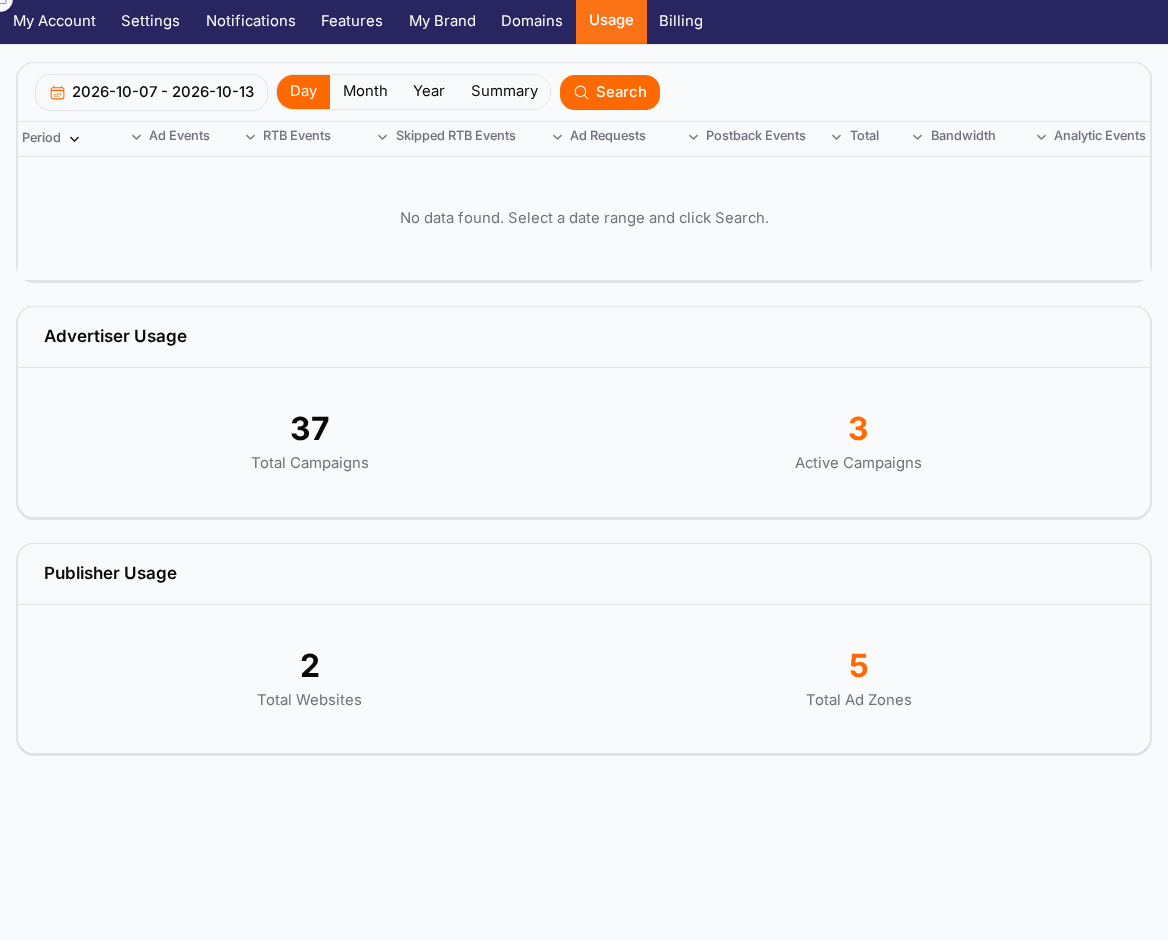
- Choose the Usage tab to review consumption for a period. Pick the period and how it's grouped (day, month, year, or a single total).
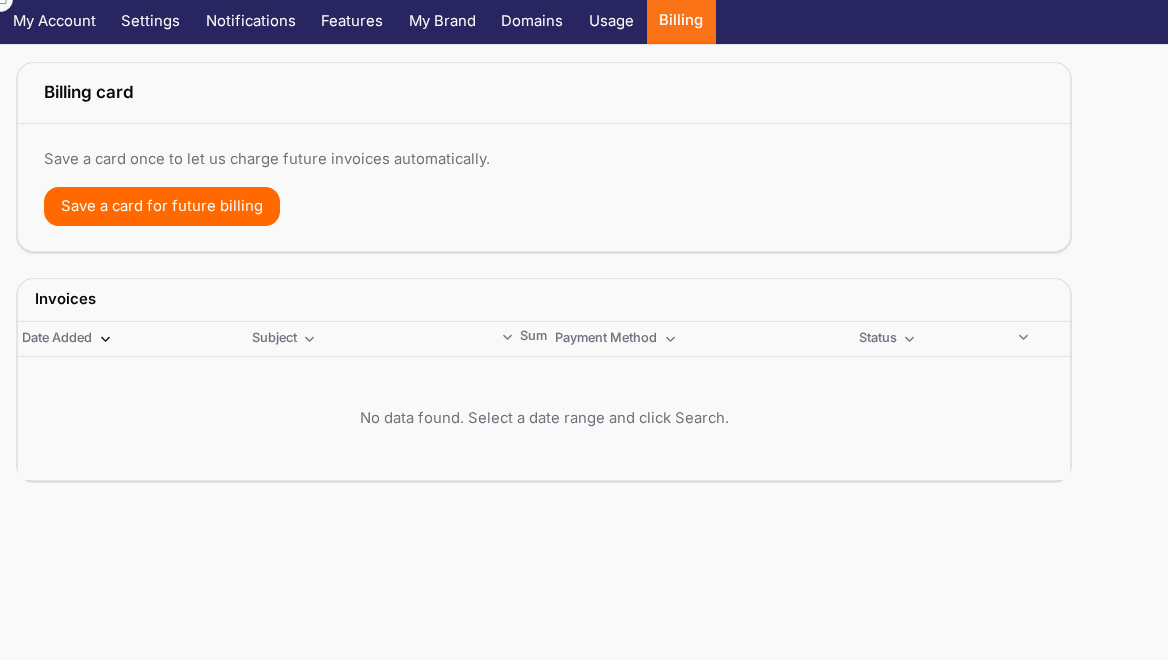
- Choose the Billing tab to see your plan, balance, overcharges, and invoices.
- Download any invoice as a PDF from its row.
Options reference#
Usage metrics#
| Metric | What it counts |
|---|---|
| Ad events | The core billable activity your account generated. |
| RTB events | Real-time-bidding activity, where applicable. |
| Postback events | Inbound and outbound conversion postbacks. |
| Bandwidth | Data served. |
| Total | The combined event count for the period. |
A quick summary of active resources — how many campaigns, websites, and ad zones you currently have — sits alongside.
Billing fields#
| Field | What it shows |
|---|---|
| Plan | Its title, type, billing currency, and whether it's active. |
| Balance | Your current account balance, where applicable. |
| Averages | Cost averages for the period. |
| Overcharges | Usage above what your plan includes, broken down by event type. |
Invoice list#
| Field | Meaning |
|---|---|
| Date | When the invoice was raised. |
| Subject | What the charge is for. |
| Amount | The total, in your billing currency. |
| Payment method | How it was or will be paid. |
| Status | Paid or outstanding. |
Affiliated payments#
If you refer other users, the Billing area also lists payments earned from your referred / affiliated accounts, with the date and amount for each.
Example#
Reconcile a month and file the invoice#
- Usage tab → set the period to the closed month, group by month.
- Note the Total events and any event type that ran high.
- Switch to Billing → check Overcharges for that period to see if usage went over plan.
- Find the month's invoice in the list, confirm Status = Paid, and Download the PDF for your records.
Tips#
- Group Usage by month to line it up cleanly with an invoice period.
- Watch Overcharges during the period, not after — it's your early warning before the invoice.
- The plan is set by the provider; contact support to change tiers rather than looking for an edit control here.
- Keep in mind this is your platform billing — your external ad-buy costs live under Ad Spend & Cost Tracking.
Troubleshooting#
| Symptom | Likely cause | Fix |
|---|---|---|
| No Billing / Usage tabs | Your account isn't billed this way | Nothing to do — these tabs only appear on managed (AdManager) accounts. |
| Usage looks higher than expected | A high-volume event type, or a wide grouping | Group by day to find the spike; check the per-event breakdown. |
| Invoice shows outstanding | Payment not yet processed | Check the payment method on the invoice; contact support if it should be paid. |
| Can't change the plan | This view is read-only by design | Contact your provider / support to change tiers. |
Related#
- Account & Profile — where the Billing and Usage tabs live
- Performance Reports — your traffic and revenue side
- Ad Spend & Cost Tracking — your external ad-buy costs