
Browse the documentation
Getting Your Ad Code
Applies to: Publishers
Once you've created an ad zone, you place a small snippet of code on your website at the exact spot where the ad should appear. This page explains where to find that code, which format to use, where to paste it, and how to confirm it's working.
What this is#
The code (or "embed code" / "ad tag") is a short piece of HTML or a URL that connects a spot on your page to a specific ad zone. It already contains the zone's unique ID, so every zone has its own snippet — you never share one snippet between two placements. When a visitor loads your page, the snippet fetches and shows the best available ad for that zone.
When you'll use this#
- Right after creating a zone, to put it live on your site.
- When you add the same zone to a new page or template.
- After changing certain zone options, to re-copy the updated snippet.
- When integrating with a video player, an app, or a custom build (VAST/JSON).
Step by step#
Find and copy the code#
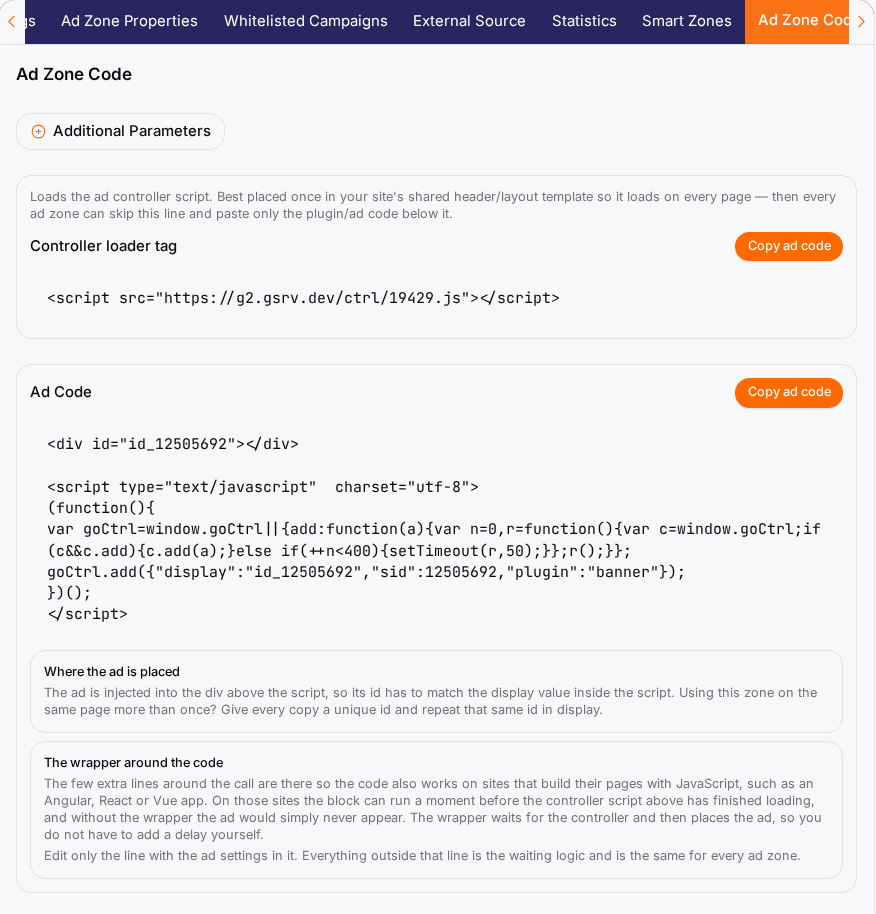
- Open the ad zone and click the Ad Zone Code tab.
- The tab shows the ready-to-use snippet for that zone. If several formats apply to the zone type, you'll see options (script, iframe, pop URL, VAST, JSON — see below).
- Adjust any additional parameters if offered (e.g. a responsive flag) — the snippet updates as you do.
- Click Copy to put the final snippet on your clipboard.
Paste it into your page#
- Open your site's HTML where you want the ad, at the exact spot it should appear.
- Paste the snippet once, inside the container that reserves the ad's space.
- Save and publish the page.
- If your site uses templates, add the snippet to the template so every page that should carry the ad gets it automatically (rather than pasting it page by page).
Test the integration#
- Open the page in a normal browser with any ad blocker turned off.
- Confirm the placement fills (it can take a short while and some traffic before a paid ad appears).
- If nothing shows, run through the Troubleshooting table below.
Code formats#
Depending on the zone type, the Ad Zone Code tab offers one or more of these formats. Use the one that matches how you want to integrate.
| Format | What it is | Where to paste it | When to use it |
|---|---|---|---|
| JavaScript (script tag) | A <script> that loads and renders the ad in place. |
Directly in your page HTML at the ad's spot. | The default for most zones. |
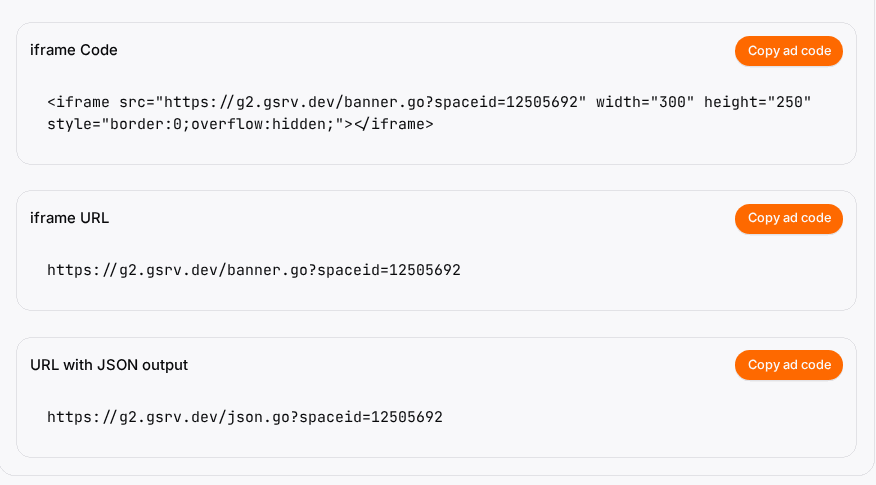
| Iframe | The ad isolated inside its own frame. | In your page HTML at the ad's spot. | Banner-style zones where you want the ad sandboxed from your page. |
| Pop URL | A URL that opens the pop-under / pop-up. | Wired into the click/trigger that should fire the pop. | Pop zones. |
| VAST tag | A VAST ad-tag URL for video players. | Set as the ad tag URL in your video player. | In-stream video via a player that speaks VAST. |
| Linear VAST | The linear (skippable / non-skippable in-stream) variant of the VAST tag. | Set as the ad tag URL in your player. | Linear in-stream video slots. |
| JSON | A URL that returns the ad's data as JSON. | Requested from your own code, then rendered by you. | Custom rendering in your own app or site. |
JavaScript (script tag)#
The standard choice. Paste it exactly where the ad should render. It loads asynchronously, so it won't block the rest of your page from loading. Keep it at the ad's location in the page — don't move it into a JavaScript bundler or defer it in ways that change where it runs.
Iframe#
An alternative for banner-style zones. The ad renders inside its own frame, isolated from your page's CSS and scripts. Handy when you want a clean sandbox, though it's slightly less flexible for responsive sizing than the script tag.
Pop URL#
For Pop zones, you get a URL rather than a visible element. You attach it to the interaction that should trigger the pop (for example a click handler). The pop opens the ad in a separate window/tab according to the zone's settings.
VAST and Linear VAST#
For video placements served through a player, you get a VAST tag URL. You paste this URL into your video player's configuration as the ad tag — you don't put it in your page HTML. Use Linear VAST for in-stream linear spots (the ones that play before/within/after your content). Your player handles requesting the tag and playing the returned ad.
JSON#
For fully custom builds, the JSON URL returns the ad's data (creative, links, tracking) as structured data. Your own code requests it and renders the ad however you like. This gives maximum control but means you're responsible for displaying the ad and firing its tracking correctly.
Options reference#
| Option on the Ad Zone Code tab | What it does |
|---|---|
| Format selector | Switches between script / iframe / pop URL / VAST / linear VAST / JSON, where the zone type supports them. |
| Copy button | Copies the currently shown snippet to your clipboard. |
| Additional parameters | Optional flags (e.g. a responsive toggle or tracking values) that are appended to the snippet; the generated code updates as you change them. |
| Note / hints | Format-specific guidance shown alongside the snippet where relevant. |
Only the formats and parameters relevant to your zone and configuration are shown.
Async loading and reserving space#
- Async is the default. The standard script loads without blocking your page, so your content appears first and the ad fills in.
- Reserve the space. Give banner placements a container of the right size (matching the zone's banner dimensions) so the page doesn't jump when the ad loads. This avoids "layout shift".
- Don't relocate the script. Keep the snippet where the ad should render; moving it can break placement or sizing.
Example#
Banner in a template. Sara has a 300×250 sidebar zone. On the Ad Zone Code tab she leaves the default script format, copies it, and pastes it into her theme's sidebar template inside a div sized to 300×250 so there's no layout shift. Because it's in the template, every article page now shows the ad. She opens a page with her ad blocker off and confirms it fills.
Video via a player. Leo runs a video site with a VAST-capable player. He creates a VAST zone, copies the VAST tag URL from the Ad Zone Code tab, and pastes it into his player's ad-tag setting — not into the page HTML. His player then requests and plays the ad before the video.
Tips#
- One snippet per placement. Don't reuse a zone's code in two spots — create a separate zone for each so your reports stay accurate.
- Reserve the container size for banners to avoid layout shift.
- Re-copy after changing options. If you toggle certain zone settings (like responsive), copy the snippet again so new parameters are included.
- Test with ad blockers off, in a normal browser, and give it a little traffic before judging fill.
- Use templates so new pages inherit the ad automatically.
Troubleshooting#
| Symptom | Likely cause | Fix |
|---|---|---|
| No ad appears at all | Ad blocker on, or the website isn't verified. | Turn off the blocker for your test and confirm the website is verified. |
| Blank space, but page loads fine | Low paid fill right now. | Add Own Ads as a fallback on the zone; give it time and traffic. |
| Layout jumps when the ad loads | No reserved space. | Wrap banner snippets in a container sized to the zone's dimensions. |
| Ad shows twice / stats look doubled | Same snippet pasted more than once. | Use one snippet per placement; create separate zones for separate slots. |
| Video player shows no ad | VAST tag pasted into the page instead of the player. | Put the VAST URL in the player's ad-tag setting, not the page HTML. |
| Pop never fires | Pop URL not wired to a trigger. | Attach the Pop URL to the intended click/interaction. |
| Snippet seems out of date | Zone options changed after you copied. | Re-open the Ad Zone Code tab and copy the snippet again. |
Related#
- Ad Zones — where the Ad Zone Code tab lives, plus Own Ads fallback.
- Ad Zone Types — which formats each type offers.
- Websites — verifying the property so zones can serve.
- Publisher Statistics — confirming the placement earns.
- Earnings & Payouts — turning fill into payouts.
- Ad Controller (Advanced) — what the snippet actually loads, self-hosting, and ad-block proxying.
- Visitor Analytics — the pageview counter the same script provides.
- How to create an ad zone and put it on your site — step-by-step guide
- How to make banner ads responsive — step-by-step guide