
Browse the documentation
How to choose which alerts you get, and where
Applies to: All users
Decide which account events reach you and through which channel — email, the bell in the panel, Telegram or Slack — and switch noisy email to a daily or weekly summary.
Before you start#
- Think about urgency: what must reach you the same day (a payout that failed, postbacks being rejected, a sign-in from a new place), and what can wait for the bell or a summary.
- For Telegram or Slack, see How to send account events to Slack or your own system — or follow the short Telegram steps below.
Steps#
Open your notification settings#
- Click your name in the top bar → Account.
- Open the Notifications tab.
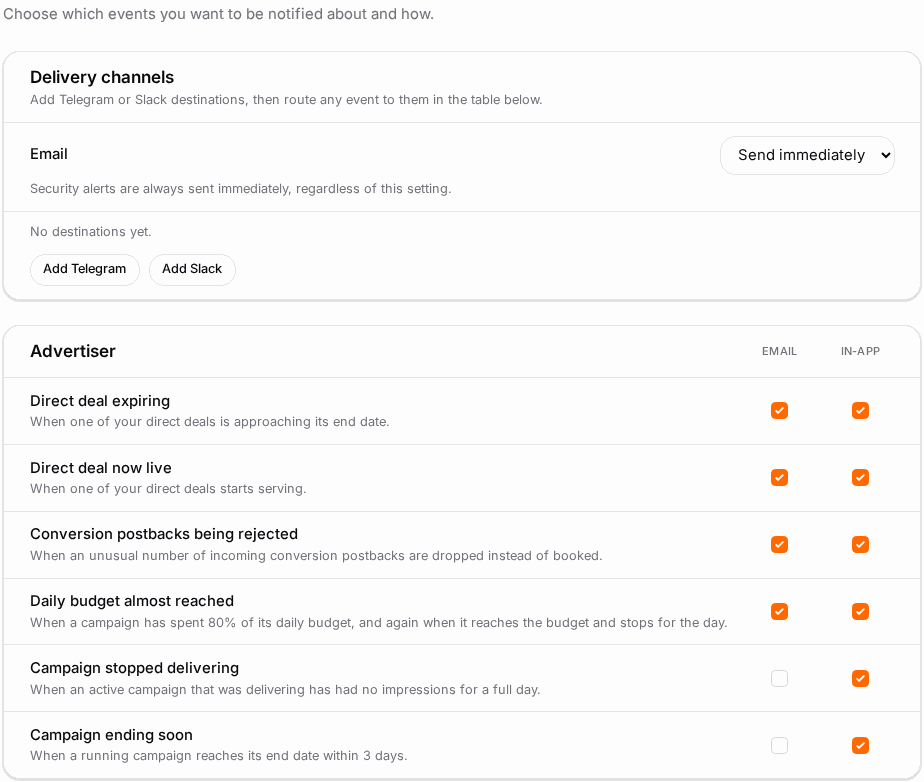
You'll see Choose which events you want to be notified about and how., a Delivery channels card, and a table with one row per event and one column per channel (Email, In-app, plus one column for each Telegram or Slack destination you add).
Pick events and channels#
- Go through the table and tick the channels you want for each event; untick what you don't need.
- Rows marked Always on are security notices — they can't be switched off.
- Click Save at the bottom. Nothing changes until you save.
Switch email to a summary#
- In Delivery channels, open Email delivery cadence.
- Choose Send immediately, Daily summary or Weekly summary.
- Click Save. Security alerts are always sent immediately, regardless of this setting.
Add Telegram (optional)#
- In Telegram, open @BotFather, send
/newbotand follow the steps. It gives you a bot token. - Send your new bot one message in Telegram, so it's allowed to write to you.
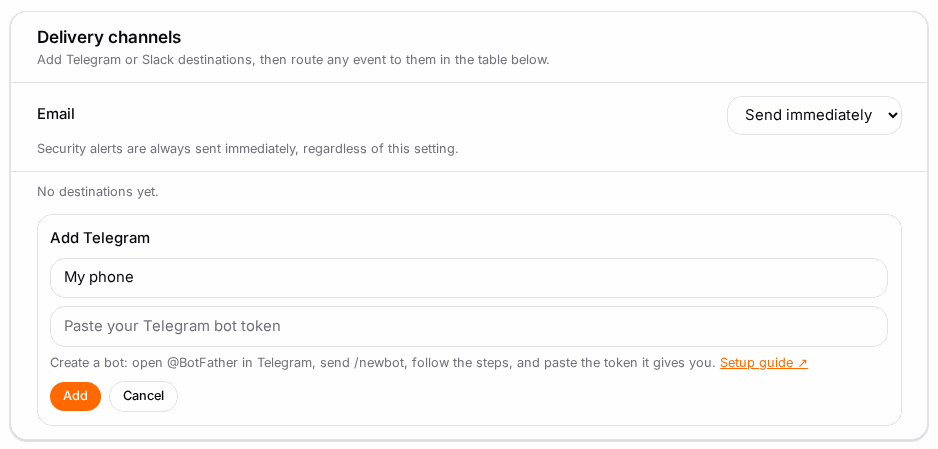
- Back on the Notifications tab, click Add Telegram, fill in Name (e.g. My phone), paste the token and click Add.
- Click Test on the new destination; the message should arrive in Telegram.
- A Telegram column appears in the table — tick the events to send there, then Save.
Check it worked#
- Notification preferences saved. appears after Save.
- Test on a destination shows Test message sent. and the message arrives.
- The bell in the top bar shows in-app notifications as they happen; its count refreshes about once a minute.
Troubleshooting#
| Symptom | Likely cause | Fix |
|---|---|---|
| Notifications are not available for this account. | The feature is off on your network | Ask your account manager |
| My changes were gone after reloading | Save wasn't clicked | Tick again and click Save |
| An event I want isn't in the table | It can't happen for your account's roles or features | Expected — only events that can fire for you are listed |
| A ticked row is greyed out | It's an Always on security notice | Expected |
| Could not deliver the test message. (Telegram) | Wrong token, or you never messaged the bot | Message the bot once, check the token, press Test again |
| Security emails arrive even on a summary | Security alerts always send immediately | Expected |
Related#
- Notifications & Alerts — every event and channel explained
- How to send account events to Slack or your own system — Slack channels and webhooks
- How to add funds — the low-balance alert lives on the Funds page
- How to turn on two-factor authentication — the security events behind the always-on alerts