
Browse the documentation
How to set up a direct deal
Applies to: Advertisers · Ad manager setups only, when the network has the module switched on
At the end of this guide one of your ad zones serves a specific advertiser's ads with priority — exclusively, up to a cap, or for a share of the traffic — before any run-of-network or RTB campaign gets a chance. Use it when you've sold a placement directly, at an agreed price, or want a house campaign to fill a set share of a zone.
Before you start#
- An account that manages its own ad zones, with Direct Deal under Campaigns. If it isn't there, ask your account manager.
- The ad zone the deal is for. See Ad Zones.
- The deal terms: exclusive or capped, the period, impression limits or a traffic percentage.
- The advertiser's creatives and landing page.
Choose the deal type first#
| Deal Type | What happens |
|---|---|
| Exclusive | Wins every matching impression on the zone during the Period. Nothing else serves there. |
| Percentage Based | Takes the Traffic Percentage of the zone's matching impressions; the rest goes on to other campaigns. |
| Capped on Max. Impressions | Serves until Max. impressions is reached in total, then stops. On click formats this is Capped on Max. Clicks. |
| Capped With Period | Serves within the Period, up to Max Daily Impressions per day. |
| Capped | Serves up to Max Daily Impressions per day, with no end date. |
| Remnant | Fills only what the deal types above leave over. |
When several deals match the same impression, Exclusive wins first, then Percentage Based, then the capped types, then Remnant.
Steps#
- Open Campaigns → Direct Deal and click Create new campaign.
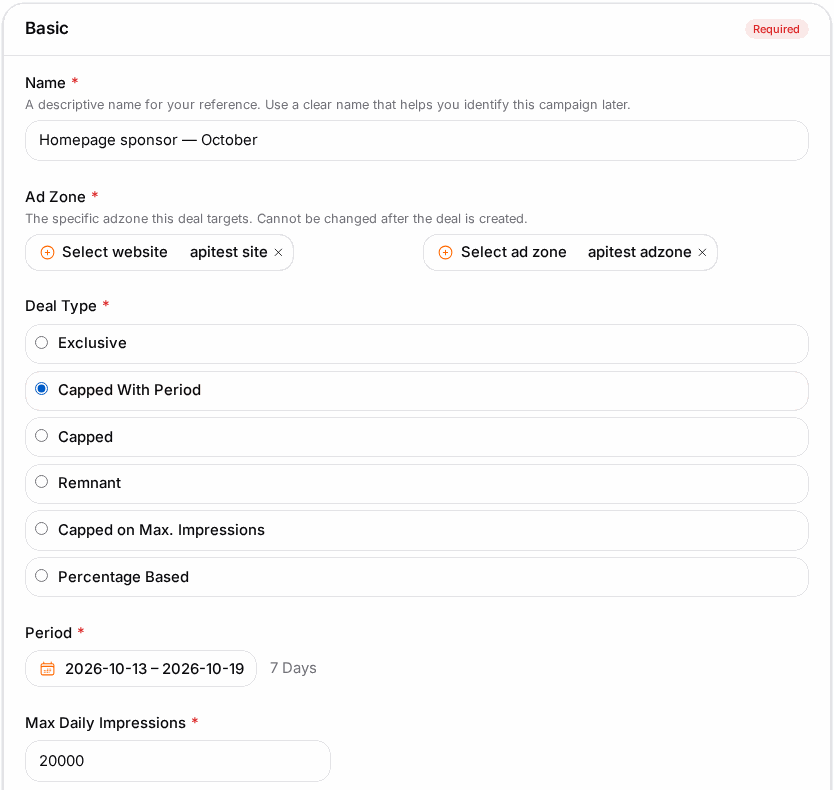
- On Basic, enter a Campaign Name and pick the Ad Type of the zone.
- Under the ad zone field, use Select website and then Select ad zone. You can't change the ad zone after the deal is created.
- Pick the Deal Type and fill in what it asks for: Period, Max Daily Impressions, Max. impressions or Traffic Percentage.
- Optionally enter CPM for Statistics — the agreed price, used only for reporting, not for bidding.
- Optionally narrow the deal to device types, operating systems and browsers. With Keyword Targeting on, the deal serves only on requests carrying one of its Keywords and never on those carrying an Excluded Keyword.
- Click Next to Geo, tick the countries the deal covers (empty = everywhere), and click Launch Campaign.
- On the Ads step, click New Ad, add the creative and Destination URL, and click Save.
Check it worked#
- The deal shows Active in Campaigns → Direct Deal.
- Open the zone's page in a country the deal targets: the deal's ad shows (for Exclusive, every time).
- In Statistics, filter on the campaign: views grow in line with the cap or percentage.
Troubleshooting#
| Symptom | Likely cause | Fix |
|---|---|---|
| The deal never serves | The Period hasn't started or has ended, or the cap is used up | Check the dates and the cap |
| An Exclusive deal shares the zone | The Period is over, or the visitor doesn't match the deal's geo or device targeting | Check the period and targeting |
| Serves less than the percentage | Only impressions that match the deal's targeting count | Widen the geo or device targeting |
| Keyword deal stopped serving | No request on the zone carries any of the Keywords | Add the keyword to the zone's code, or clear the list |
| I can't change the ad zone | The zone is fixed when the deal is created | Create a new deal on the other zone |