
Browse the documentation
How to set up a SmartZone
Applies to: Publishers · needs the matching permission on your account
A SmartZone puts another ad network's tag inside one of your own ad zones. The ad server then decides per visit whether that network serves or your own campaigns do, by a fixed share or by which one pays best. You can put several networks in one ad zone and let them compete. This guide connects a network, creates the SmartZone and reads its results.
Before you start#
- You need an ad zone on your site that already serves: How to create an ad zone.
- Get the network's ad code or tag URL for that placement from the network's own panel.
- For accurate eCPM selection, get your API key (or username and password) from the network, so its earnings can be pulled in automatically.
- The Smart Zones menu item only appears when your account has Smart Zones enabled.
Steps#
1. Connect the network#
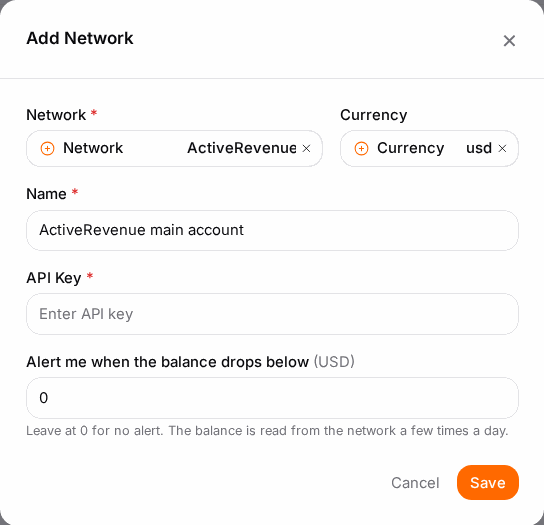
- Open Smart Zones in the left menu and go to the Networks tab.
- Click Add Network.
- Choose the Network, give it a Name, and enter the credentials it uses: API Key, Username and Password, or User ID.
- Switch on Pull Stats via API if the network supports it. This fetches the network's earnings, which eCPM selection needs.
- Click Save.
2. Create the SmartZone#
- Go to the Zones tab and click Add Smart Zone.
- On the Adzone tab, choose the Website and the Ad Zone this SmartZone lives in. The other tabs appear once the ad zone is set.
- On the General tab:
- Name: for example "Exo header 728".
- Network: the network from step 1.
- Selection: how the network competes (see the table below) and its percentage.
- Optional serving controls such as skipping bots, capping, a daily cap, referrer stopwords and keywords.
- On the Targeting tab, optionally limit the zone to countries and device types. Leave both empty for all traffic.
- On the Creative tab, choose the Creative Type and paste what the network gave you: an iFrame URL, HTML Code, a VAST URL for video zones, or a URL for pop and redirect zones. Tags that start with
//are fine. - Click Save and make sure the zone is Active.
| Selection | Use it when |
|---|---|
| Percentage-based | You agreed a fixed share of the traffic with the network. The percentage is that share. |
| eCPM Based | The best-paying source should win. The percentage only gives a new zone some traffic until it has an eCPM. |
| eCPM + Limit % | The best payer should win, but never on more than this percentage of the traffic. |
| RTB | The network buys through real-time bidding instead of a fixed tag. There is no Creative tab. |
3. Read the results#
- The Stats tab shows earnings, views, clicks and eCPM per SmartZone, by website, ad zone, network and date. More reports are under Smart Zone Reports in the menu.
- The Distribution tab shows each network's share of the traffic, its revenue and the weighted eCPM, and marks the days the best-paying network changed.
- The Health column in the zone list shows OK, attention, warning or no traffic, so a SmartZone that stopped earning stands out.
Check it worked#
- Open the page with the ad zone, with ad blockers off, a few times. Some views show the network's ad.
- The next day, the Stats tab shows views for the SmartZone. With Pull Stats via API on, earnings appear once the network reports them.
Troubleshooting#
| Symptom | Likely cause | Fix |
|---|---|---|
| "Choose a website and ad zone." when saving | The Adzone tab is empty. | Pick the website and the ad zone first. |
| "Add a valid ad URL or code on the Creative tab." | The creative is missing or not a valid URL or code. | Paste the tag exactly as the network gave it. |
| The network never serves | The zone is inactive, or targeting excludes your traffic. | Switch it Active; empty the country and device lists to test. |
| eCPM zones never win | No earnings are known for the network yet. | Switch on Pull Stats via API, or start with Percentage-based for a few days. |
| Earnings show 0 while views come in | The network has not reported yet, or the API credentials are wrong. | Check the credentials under Networks; network figures can lag a day. |