
Browse the documentation
Password & Two-Factor Security
Applies to: All users
Your account controls campaigns, earnings, and payment details, so it's worth locking down. This guide covers changing your password, turning on two-factor authentication, managing trusted devices, and what to do if you get locked out.
What this is#
Two layers protect your account: your password (something you know) and, optionally, two-factor authentication or 2FA (a rotating code from your phone). With 2FA on, even someone who steals your password can't get in without your phone. This page also covers trusted devices (so your own computer doesn't ask for a code every time) and a couple of extra login safeguards.
When you'll use this#
Set this up right after you first log in — before you put real money or traffic through the account. Come back when you get a new phone (move your 2FA), when you suspect your password leaked (change it immediately), or when you lose a device (revoke its trust). If you ever can't get in, the "If you're locked out" section is your recovery path.
Step by step#
Change your password#
- Open your account page → My Account tab.
- Open the password section.
- Enter your current password (to prove it's really you).
- Enter your new password, then type it again to confirm.
- Watch the strength meter — aim for length and a mix of characters.
- Click Save. Use the new password on your next login.
Very common or previously-blocked passwords are rejected, and the strength meter guides you to a strong one.
Turn on two-factor authentication#
- Go to the Settings tab of your account page and find Two-Factor Authentication.
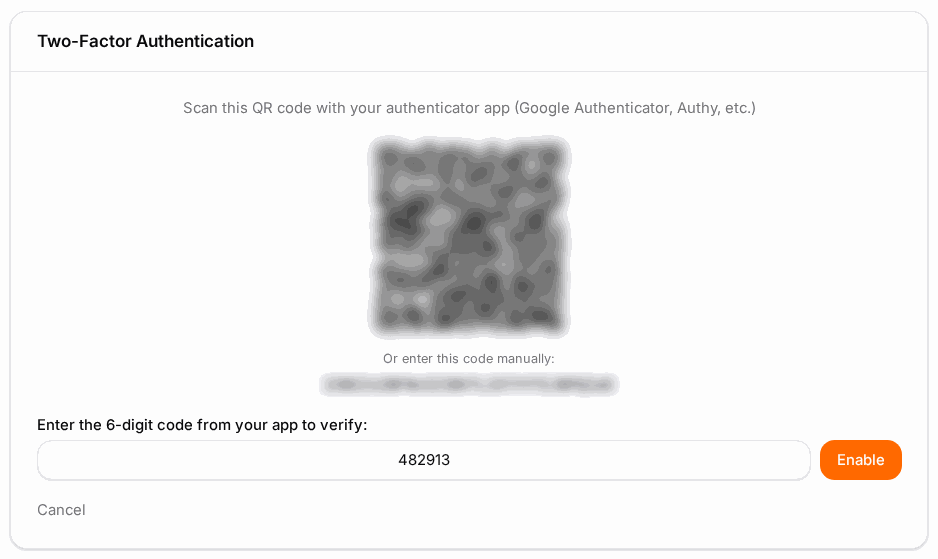
- Start the setup. A QR code appears.
- Open an authenticator app on your phone (Google Authenticator, Authy, 1Password, Microsoft Authenticator, or similar) and scan the QR code. You can also type the setup key in by hand.
- The app now shows a rotating 6-digit code. Enter that code to confirm the link.
- You'll be shown a set of backup codes — save them somewhere safe (see below). Each works once.
- Finish. From now on, every login asks for a code after your password.
Save and regenerate backup codes#
- At setup you're shown a list of one-time backup codes. Copy them into a password manager or print them.
- To issue a fresh set later, open the 2FA section and choose Regenerate backup codes. This invalidates the old set, so update your stored copy.
Trust a device (skip the code on your own computer)#
- When you pass the 2FA prompt at login, tick Trust this device.
- That device won't ask for a code again for a while.
- Only do this on a computer you control — never on a shared or public one.
Turn off two-factor authentication#
- Open the Two-Factor Authentication section under Settings.
- Choose to disable it and confirm with a current authenticator code.
- Only do this if you're switching devices or genuinely no longer want the second step — leaving it on is strongly recommended.
Options reference#
Password fields#
| Field | What to enter | Notes |
|---|---|---|
| Current password | Your existing password. | Required to prove it's you. |
| New password | Your new password. | Minimum length applies; longer and mixed is stronger. |
| Confirm password | The new password again. | Catches typos before saving. |
Two-factor actions#
| Action | What it does | Notes |
|---|---|---|
| Set up / enable 2FA | Links an authenticator app and turns on the second step. | Requires scanning the QR code and confirming a code. |
| Save backup codes | Keep the one-time codes shown at setup. | Each logs you in once if your phone is unavailable. |
| Regenerate backup codes | Issue a fresh set of codes. | Old set stops working — update your stored copy. |
| Disable 2FA | Turns off the second step. | Requires a current code to confirm. Not recommended. |
Trusted-device actions#
| Action | What it does | Notes |
|---|---|---|
| Trust this device | Skips the 2FA prompt on this device for a limited period. | Only on your own private device. |
| Revoke a device | Removes trust from one device. | It will prompt for a code again next login. |
| Revoke all devices | Removes trust from every device at once. | Do this immediately if a device is lost or stolen. |
Extra login-security options#
| Option | What it does | Notes |
|---|---|---|
| IP verification | Adds a check that logins come from an authorized IP address. | Found under Settings on your account page. |
| Stay signed in | The "remember me" option at login keeps your session active longer. | Use only on trusted devices. |
Repeated failed login attempts are rate-limited to protect against guessing — several wrong tries in a row temporarily block further attempts. Wait a few minutes and try again.
Example#
Locking down a brand-new account:
- Set a strong password (a passphrase of a few random words plus a number and symbol works well).
- Turn on Two-Factor Authentication and scan the QR code with your phone's authenticator app.
- Save the backup codes into your password manager.
- On your own laptop, tick Trust this device at the next login so you're not prompted every time.
- Leave 2FA on everywhere else.
Tips#
- Aim for length over cleverness. A long passphrase beats a short "complex" password.
- Never reuse a password from another site.
- Save your backup codes at setup. They are the difference between a two-minute recovery and a support ticket if you lose your phone.
- Don't trust shared computers. Trusted-device is for your own hardware only.
- Lost or stolen device? Revoke all devices immediately, then re-trust only the ones you still have.
Troubleshooting#
I can't log in even with the right password#
If 2FA is on, you also need a code from your authenticator app. Lost your phone? Use a backup code on the 2FA prompt. If IP verification is enabled, an unfamiliar location can be blocked. Several failed attempts trigger a short lockout — wait a few minutes.
I forgot my password#
Use the Forgot password link on the login page and enter your email. You'll get a reset link. For your security the page always says a reset was sent whether or not the address is on file, so check your inbox and spam folder.
I lost my phone but have my backup codes#
Choose the backup-code option on the 2FA prompt and enter one of your saved codes. Then set up 2FA again on your new phone.
I lost both my phone and my backup codes#
Contact support to verify your identity and regain access. This is exactly why saving backup codes at setup matters.
Too many failed attempts#
Wait a few minutes for the temporary lockout to clear, then try again with the correct details.
| Symptom | Likely cause | Fix |
|---|---|---|
| Login rejects a correct password | 2FA code also required, or temporary lockout | Enter your authenticator code; or wait out the lockout |
| Authenticator code "invalid" | Phone clock is out of sync | Enable automatic time on your phone, then retry |
| Every login asks for a code on my own PC | Device isn't trusted | Tick Trust this device at the 2FA prompt |
| Blocked from an unfamiliar network | IP verification is on | Log in from an authorized location, or ask support |
Related#
- Account & Profile — where these settings live
- Team Members & Roles — sharing access safely with colleagues
- API Keys — keeping programmatic access secure
- FAQ & Troubleshooting — more login questions
- Notifications & Alerts — the security alerts you can't switch off
- How to turn on two-factor authentication — step-by-step guide
- Connected Apps — apps that can act for your account