
Browse the documentation
How to build a creative pool
Applies to: Advertisers · Optional feature — available when your network has it switched on
At the end of this guide you'll have a creative pool — a reusable set of banners, videos or native images — filled from your media bank, rotating by the rule you choose, attached to a campaign, and you'll know where to read which creative performs best. For every pool option, see Creative & URL Pools.
Before you start#
- An advertiser account with Creative Pools in the menu.
- Your creatives — either already uploaded to your media bank (Creatives in the menu) or ready to upload.
- A campaign to attach the pool to. See How to create your first campaign.
- For conversion-based rotation: a tracking pixel (conversion type) set up under Tracking. See Conversion Tracking & Retargeting.
Steps#
Optional: organise the media bank first#
- Open Creatives. That page is your media bank.
- Put related creatives in a group (e.g. "Spring sale") or a folder, so they're quick to find when you fill the pool. See Ads & Creatives for how groups and folders work.
Create the pool#
- Open Creative Pools and click New pool.
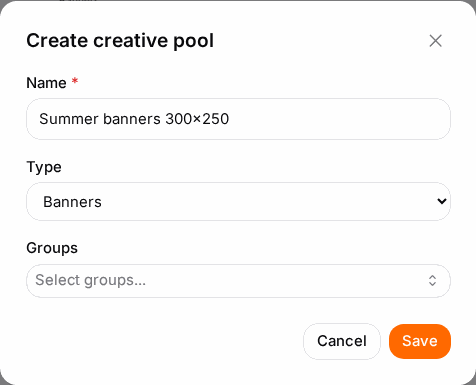
- In Create creative pool, enter a Name and pick the Type: banner, video or native. A pool only holds one type.
- Save. The new pool opens.
Fill it#
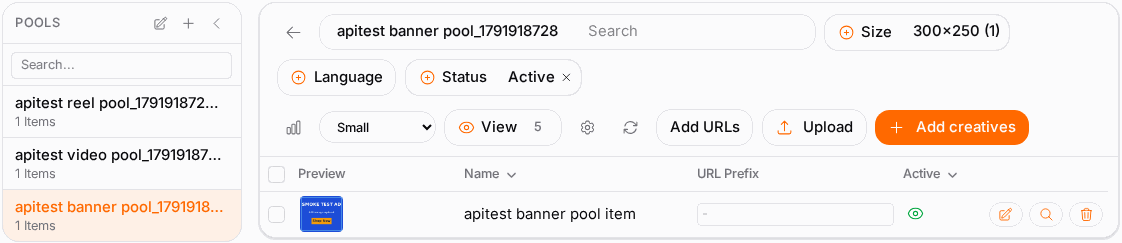
- Click Add creatives to pick creatives from your media bank. Use the search box or the Folder filter, tick the ones you want, and click Add.
- Or click Upload to upload new files — one by one, or a ZIP archive that's unpacked into separate creatives.
- Or click Add URLs to add image or HTML URLs you host yourself, one per line.
Choose the rotation#
- Click the Pool settings (cog) button.
- Pick the Sort type:
- Random — even rotation. Best while you have no data yet.
- CTR (Click-Through Rate) — favours the creatives people click most.
- CR (Conversion Rate) — favours the creatives that convert best. Then choose the conversion in Sort on tracking pixel.
- Weighted (where available) — each creative serves in proportion to the weight you give it.
- Save.
Attach it to a campaign#
- Open the campaign and go to its Ads step.
- Click Add Ads From Banner Pool, pick your pool, and click Create Ads From Pool. Each creative becomes an ad in the campaign.
Check it worked#
- In Creative Pools, the Used in column shows the campaign.
- After the campaign has run, open the pool and use Toggle stats to see views, clicks, CTR, conversions and CR per creative.
- In Statistics, View Details → By Creative Pool Item compares the creatives inside a pool.
- Changed the creatives a lot? Click Reset Stats so CTR or CR rotation starts from a clean slate.
Troubleshooting#
| Symptom | Likely cause | Fix |
|---|---|---|
| A creative never serves | It's inactive, or its size isn't one the campaign allows | Check its Active switch and the campaign's ad sizes |
| One creative gets all the traffic | CTR or CR rotation picked a winner from very little data | Switch to Random for a while, or click Reset Stats |
| Sort on tracking pixel shows "No tracking pixels configured" | You have no conversion types yet | Create one under Tracking first |
| Upload refused | The file doesn't match the pool type, e.g. a video in a banner pool | Create a pool of the right type |
| My pool isn't offered on the Ads step | No creative in the pool fits the sizes these ads run in | Add creatives in a matching size |
Related#
- Creative & URL Pools — every pool option
- Ads & Creatives — the media bank, groups and folders
- How to split-test landing pages with a URL pool
- How to read your campaign statistics