
Browse the documentation
Notifications & Alerts
Applies to: All users
The platform tells you when something happens to your account — an ad was approved, a payout went out, someone signed in from a new place. You decide which of those events reach you and through which channel: email, the in-app bell, Telegram, or Slack.
What this is#
Two things work together:
- The bell in the top bar shows your in-app feed, with an unread badge. Click an item to jump straight to what it's about.
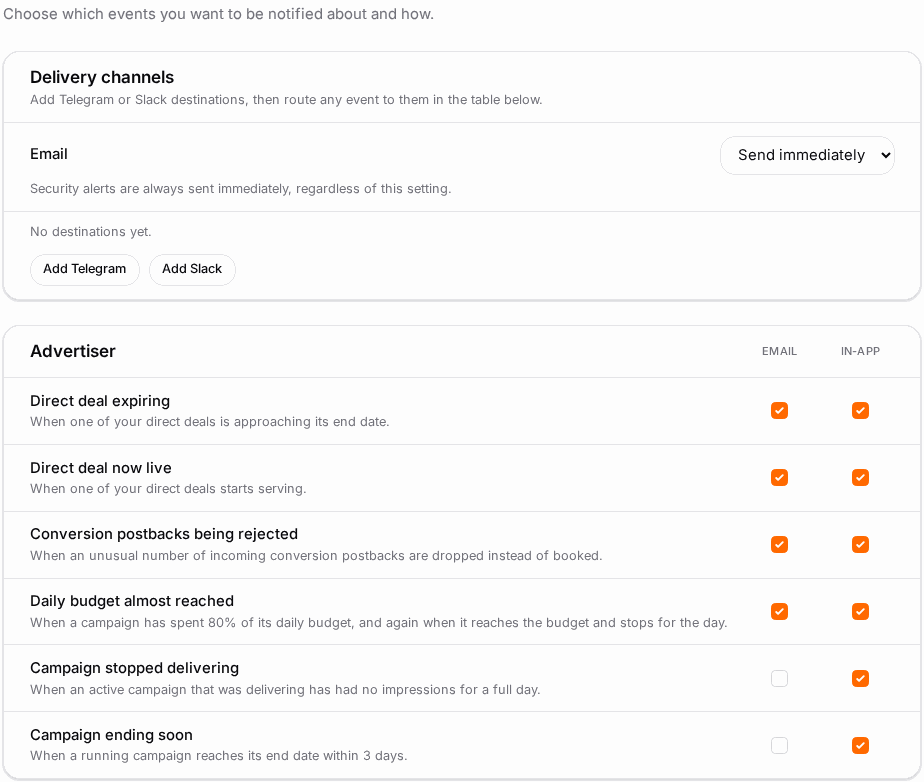
- Account → Notifications is the control panel: a table of every event that can fire for your account, with a column per delivery channel. Tick the boxes you want.
Which events appear in that table depends on your roles and what your network has enabled — an advertiser doesn't see publisher payout events, and vice versa.
When you'll use this#
- The first time you log in, to decide what should interrupt you.
- When email is too noisy and you'd rather have a daily summary.
- When you want operational alerts in a team Slack channel instead of an inbox.
- When you're waiting on something specific — an ad review, a payout, a website approval.
Step by step#
Choose what notifies you#
- Click your name or avatar → My Account, and open the Notifications tab. (The bell's Notification settings link goes straight there.)
- You'll see the event table, grouped by area. Each row has a checkbox per channel — Email, In-app, and one per destination you've added.
- Tick or untick to suit. Rows marked Always on can't be switched off — those are the security notices.
- Click Save at the bottom of the table — nothing is stored until you do.
Switch email to a digest#
- On the same tab, find the email delivery cadence control.
- Choose Send immediately, Daily summary, or Weekly summary.
- Security alerts are always sent immediately regardless of this setting.
Add a Telegram destination#
- In Telegram, open @BotFather, send
/newbot, and follow the steps. It gives you a bot token. - On the Notifications tab, click Add Telegram.
- Give the destination a name (e.g. "My phone"), paste the bot token, and add it.
- Use Test to send a test message and confirm it arrives.
- A new Telegram column appears in the event table — tick the events you want sent there.
Add a Slack destination#
Slack works two ways; pick whichever your workspace allows.
Incoming Webhook (simplest)
- In Slack, create an app, turn on Incoming Webhooks, and use Add New Webhook to Workspace to connect a channel.
- Copy the generated URL (
https://hooks.slack.com/services/…). - On the Notifications tab, click Add Slack, choose Incoming Webhook URL, name it and paste the URL.
Bot token (Web API)
- In Slack, create an app, add the chat:write scope under OAuth & Permissions, install it to your workspace, and invite the app into the target channel.
- Copy the Bot User OAuth Token (
xoxb-…) and the channel ID (e.g.C0123ABCD). - On the Notifications tab, click Add Slack, choose Bot token (Web API), and paste both.
Then Test it, and tick the events you want routed there.
Read and clear the feed#
- Click the bell in the top bar.
- The dropdown lists your recent notifications, newest first. Clicking one opens the page it refers to.
- Mark all read clears the badge.
The badge refreshes about once a minute, so a brand-new notification can take a moment to appear.
Options reference#
Channels#
| Channel | What it is | Notes |
|---|---|---|
| Sent to your account email address. | Obeys the digest setting, except for security events. | |
| In-app | The bell feed inside the dashboard. | Not available for marketing events. |
| Telegram | One or more bots you own. | You create the bot; there's no platform bot. |
| Slack | One or more channels you own. | Webhook or bot token. |
You can add as many Telegram and Slack destinations as you like and route each event to a different subset — critical alerts to a team channel, everything else to email.
Event groups#
| Group | Typical events |
|---|---|
| Advertiser | Ad approved · Ad rejected · Campaign paused by staff · Payment received · Daily budget almost reached · Bid below the minimum price · Minimum prices updated · Campaign stopped delivering · Campaign ending soon · Flat deal accepted / declined · Direct deal now live · Direct deal expiring · Conversion postbacks being rejected · Ad Shop campaigns created |
| Publisher | Website approved · Website rejected · Payout sent · Payout could not be paid · ads.txt mismatch · Ad-network balance low · Ad scan finding |
| Account & security | New sign-in location · Password changed · Email address changed · Two-factor enabled / disabled · Someone was given access to your account · Someone's access was removed · Mini Network requests |
| Marketing | Newsletters · Service announcements |
The exact list on your account depends on your roles and which features your network runs — rows for things you can't do are simply not shown.
Campaign alerts#
These watch your campaigns for you. Each one sends one message listing every campaign it applies to, with the campaign IDs, not a separate email per campaign. It reports each campaign once, and again only when something changes.
| Alert | When it arrives | What's in it |
|---|---|---|
| Daily budget almost reached | A campaign has spent 80% of today's daily budget, and again when it reaches 100% and stops for the rest of the day. | Today's spend / daily budget (percentage) for each campaign. |
| Bid below the minimum price | Once a day, for active CPC/CPM campaigns whose bid is under the current minimum price for their ad format and targeting. | Bid < minimum, per campaign. |
| Minimum prices updated | A few minutes after the network updates its minimum prices, and only if some of your campaigns are now below them. | Bid < new minimum, per campaign. |
| Campaign stopped delivering | An active campaign that delivered impressions last week has had none since yesterday. | The campaigns that stopped. |
| Campaign ending soon | A running campaign reaches its end date within 3 days. | The end date of each campaign. |
The first three arrive by email and in the bell by default. The last two arrive in the bell only, and you can add email in the table.
Always-on events#
Security and access notices are marked Always on and can't be switched off. They exist so a password change, a 2FA change, a sign-in from a new location, or someone being given access to your account can never happen silently. Those emails also ignore the digest setting.
Destination states#
| State | Meaning |
|---|---|
| Linked | The destination is working. |
| Pending | Added but not yet confirmed — send a Test. |
Example#
A quiet inbox with loud alerts where they matter. Ilse runs both advertiser and publisher sides and was drowning in email.
- She opens Account → Notifications and switches the email cadence to Daily summary.
- She unticks Email on the routine rows — ad approvals, scheduled reports — and leaves In-app ticked so they're still there when she looks.
- She adds a Slack destination pointing at her team's
#adopschannel, and ticks it for Payout could not be paid, Ad-network balance low and Conversion postbacks being rejected — the three things somebody must act on the same day. - She adds a Telegram destination on her phone and ticks only New sign-in location.
- Security notices stay on email as well, because they're Always on.
Tips#
- Route by urgency, not by area. Things you must act on today belong in Slack or Telegram; everything else can live in the bell.
- Use the digest before you unsubscribe. A daily summary usually solves "too much email" without losing anything.
- Test every destination. A mistyped token fails silently — the Test button is the only way to be sure.
- Keep the budget and minimum-price alerts on email if you run capped or close-to-the-floor campaigns. They tell you about a campaign that stopped buying traffic while there is still time to react.
- Don't switch off the postback-rejection alert if you run conversion tracking. It's often the first sign that attribution has broken.
- Your bot, your channel. Telegram and Slack destinations belong to you, not to the platform — an administrator can't see or change them.
- Members see the account's feed. If several people share an account, the bell shows the account's notifications, not one person's.
Troubleshooting#
| Symptom | Likely cause | Fix |
|---|---|---|
| "Notifications are not available for this account" | The feature is switched off on your network | Ask your account manager |
| The event I want isn't in the table | It can't fire for your roles, or the feature behind it isn't enabled | Check the role you're in; ask your account manager about the feature |
| A row is ticked and greyed out | It's a mandatory security notice | Expected — these can't be disabled |
| Telegram messages don't arrive | The bot token is wrong, or you never started a chat with your bot | Message the bot once in Telegram, then press Test |
| Slack messages don't arrive | The webhook was revoked, or (bot-token mode) the app isn't in the channel | Re-create the webhook, or invite the app into the channel |
| I get the security emails even on a digest | Security alerts always send immediately | Expected |
| The bell badge is stale | The count refreshes about once a minute | Wait a moment or reload |
| No bell at all | It's hidden on admin pages and during impersonation | Expected |
Related#
- Account & Profile — where the Notifications tab lives
- Password & Two-Factor Security — the events behind the security alerts
- Team Members & Roles — who else receives the account's notifications
- Adding Funds — the low-balance alert, which is set on the Funds page
- How to choose which alerts you get, and where — step-by-step guide
- How to send account events to Slack or your own system — step-by-step guide