
Browse the documentation
How to create an ad zone and put it on your site
Applies to: Publishers
An ad zone is one ad placement on your website: a banner in the header, a native widget under an article, a pop on the whole page. This guide creates a zone, copies its code into your page and checks that it serves ads.
Before you start#
- Add the website first: How to add a website. Without a website the ad zone form shows Add a website first.
- Decide the format. Ad Zone Types explains each one. The type, and for banners the size, cannot be changed after the zone is saved.
- You need to be able to edit your site's HTML or its page template.
Steps#
- Open Adzones in the left menu and click New Ad Zone. You can also start from the website list with Create ad zone.
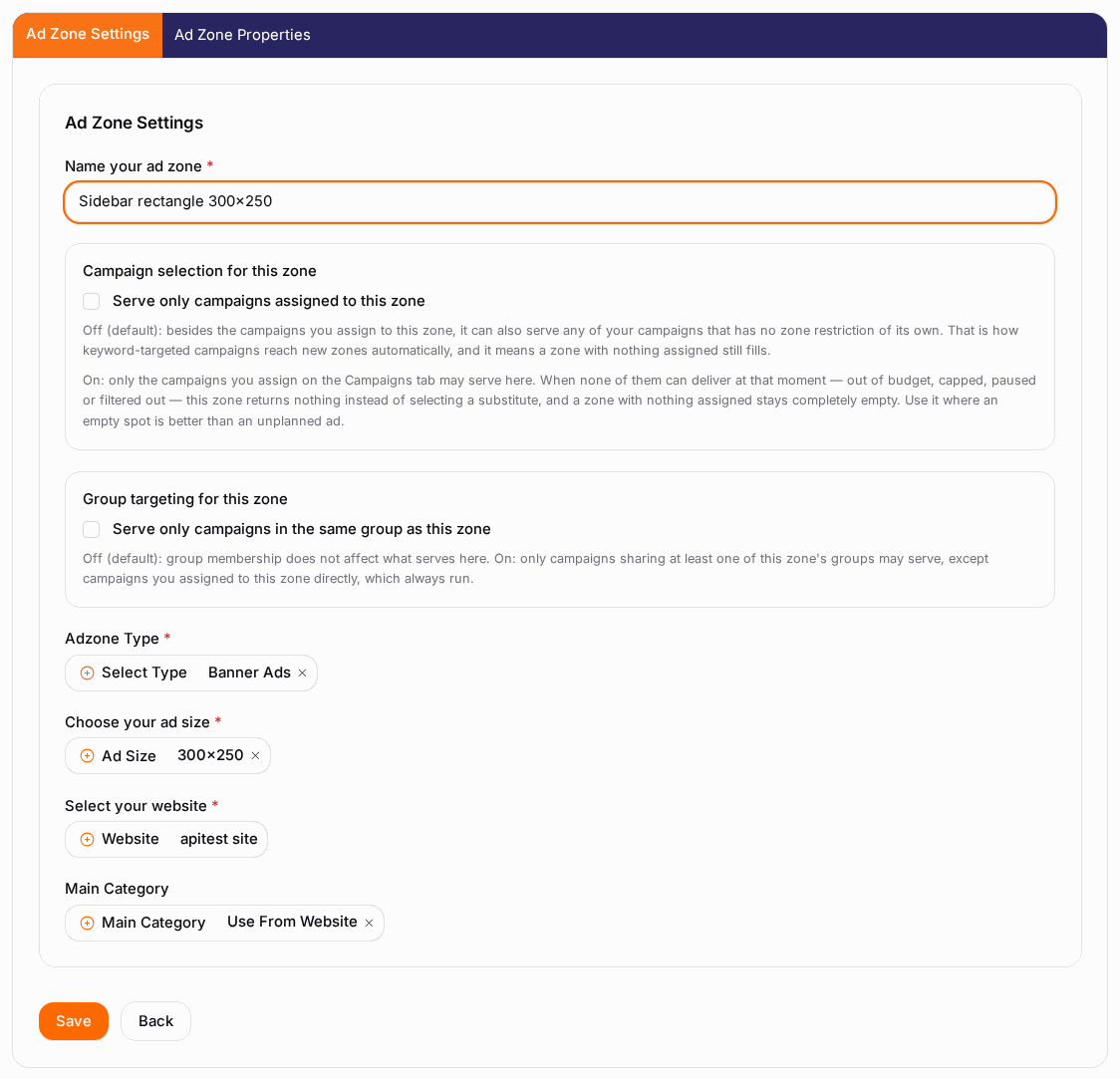
- Fill in the settings. Prefer to be walked through? Click Guided setup at the top and the form highlights one field at a time.
- Name your ad zone: a label such as "Header 728x90" or "Article native".
- Adzone Type: the format, for example Banner, Native, Pop or Video.
- Choose your ad size: for banner zones, the banner dimensions.
- Select your website: the site the zone runs on.
- Main Category and Rating: shown on some networks; pick what fits the page.
- Fill in the settings block for your type (for example Banner Settings or Native Ad Settings). The defaults work for most sites.
- Click Save. You see "Adzone created successfully" and the zone reopens with all its tabs.
Get the code#
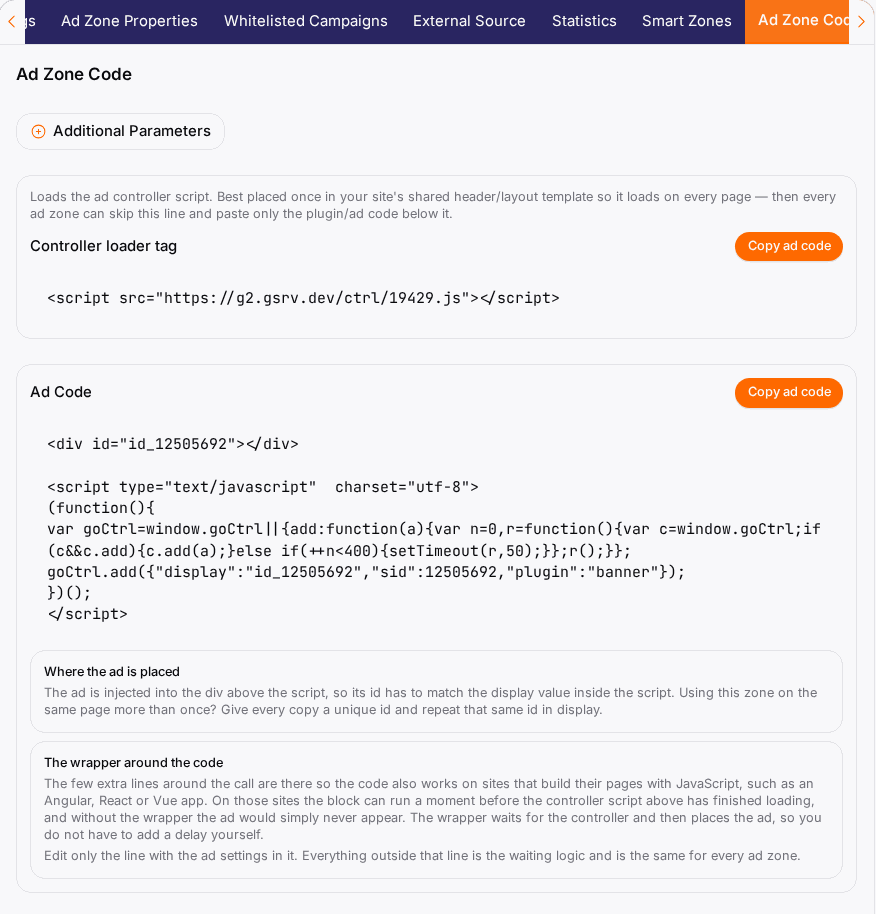
- Open the Ad Zone Code tab.
- If you see Controller loader tag, that line loads the ad script. Paste it once into your site's shared header or layout template so it is on every page; after that, every zone only needs its own code below it.
- Under Ad Code, click Copy ad code.
- Optional: open Additional Parameters to add values such as
subidto the code. The code updates when you pick one; copy it again afterwards.
Banner zones also offer an iframe Code and an iframe URL, for pages where you cannot run scripts.
Put it on your page#
- Open the page or template where the ad should appear.
- Paste the ad code at that exact spot. The ad is placed in the
divthat comes with the code; if you use the same zone twice on one page, give each copy its owndivid and repeat that id in the code'sdisplayvalue. - For banners, keep space for the ad (a container with the banner's width and height) so the page does not jump when it loads.
- Publish the page.
Using a template means every page that uses it carries the ad, without pasting it page by page.
Check it worked#
- Open the page in a normal browser with ad blockers switched off.
- The placement shows an ad. A new zone can need a little traffic before paid campaigns fill it.
- The next day, open the zone's Statistics tab or the Statistics page and look for views on the zone.
Troubleshooting#
| Symptom | Likely cause | Fix |
|---|---|---|
| Nothing shows | An ad blocker is on, the loader tag is missing, or the website is not verified yet. | Test without blockers, add the Controller loader tag to the page, verify the website. |
| Empty space, the page loads fine | No campaign can fill the zone at the moment. | Give it traffic and time; check the zone's Statistics tab for requests. |
| The page jumps when the ad loads | No space was reserved. | Wrap banner code in a container with the banner's size. |
| Double ads or doubled statistics | The same code was pasted twice. | Use the code once per placement; create one zone per slot. |
| The wrong type or size | Type and size are fixed after saving. | Create a new zone with the right type and size. |