
Browse the documentation
Traffic Sources and API Integrations
Applies to: Tracker & affiliate users · Optional feature — available when your network has it switched on
Two tracker pages describe where your traffic comes from. Sources lists the ad platforms you buy clicks from and decides how conversions are reported back to each of them. API Integrations connects your accounts at those platforms by API, so the tracker can read your spend and balance and act on your campaigns there.
What this is#
Sources#
A source is one traffic origin you buy from — Facebook Ads, TikTok, a push network, a pop network. Every tracking link belongs to a source, so the source decides two things for all of its links:
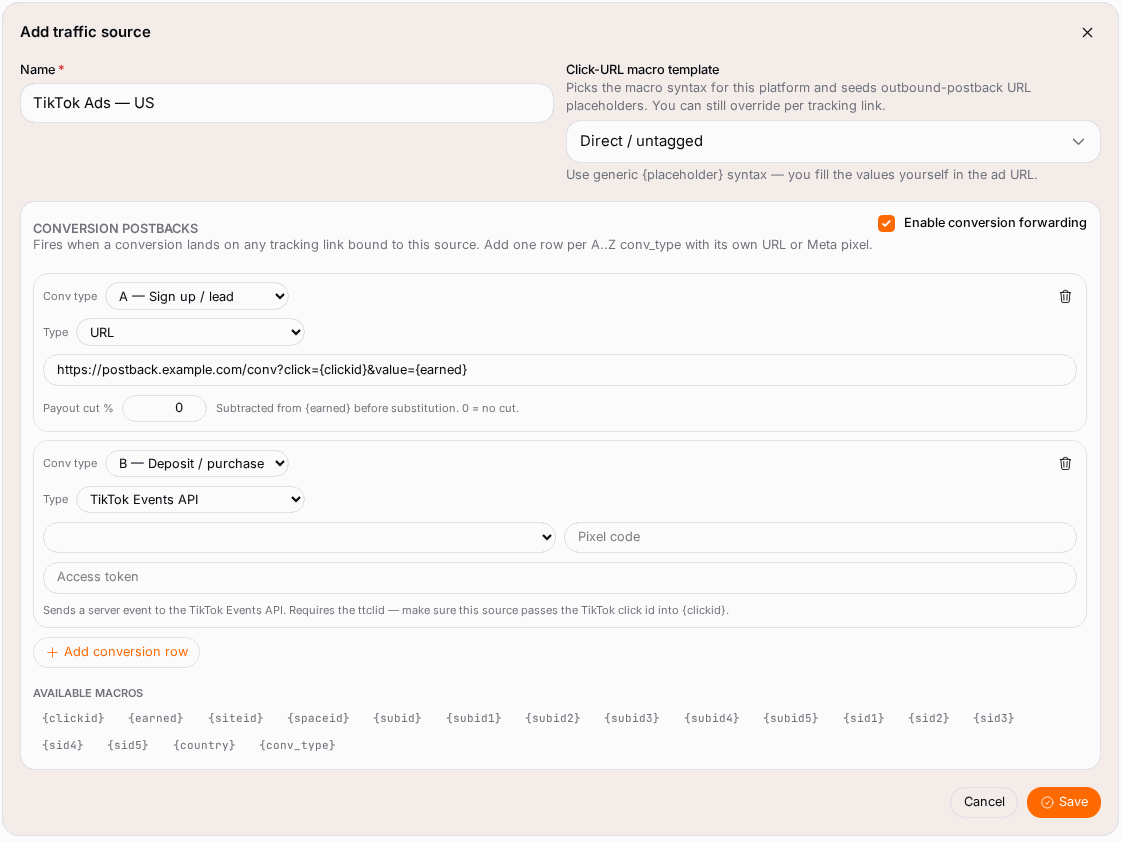
- The click-URL macros. The Click-URL macro template picks the macro syntax of the platform (
{m1},${SUBID},{{ad.id}}…), so the platform fills in its own placement, campaign and click IDs on every click. You can still override it on a single tracking link. - Where conversions go next. Under Conversion postbacks you add one row per conversion type (A–Z). Each row is either a plain server-to-server URL or a Conversions API destination (Meta, TikTok, Snapchat, Pinterest, Microsoft, LinkedIn), so the platform you bought the click on learns which clicks converted and can optimise for them.
API Integrations#
API Integrations holds your accounts at the traffic networks themselves, connected with their API key. Once a network is connected the tracker can:
- pull your campaign spend from it, so profit and ROI are calculated without spreadsheets — the Cost sync column shows whether that works;
- show your balance at the network and warn you before it runs out;
- act on your campaigns there — for example when a rule pauses a losing source, or when Agentic Media Buying blocks a placement.
The API Reports tab is the log of what happened in those calls: per Space ID and Campaign ID, the Message the network returned, its State and the Time.
When you'll use this#
- You start buying on a new platform: add a source for it before you build tracking links.
- You want Meta, TikTok or another platform to optimise on your real conversions.
- You want spend imported automatically, a low-balance warning, or rules that pause sources at the network.
Step by step#
Add a source#
- Open Sources from the tracker menu and click Add source.
- Enter a Name (for example Facebook Ads – US campaign).
- Choose the Click-URL macro template for the platform. Search the list by name; it pre-fills the macro syntax.
- To pass conversions back to the platform, tick Enable conversion forwarding and click Add conversion row for each conversion type that should fire: pick the Conv type and fill in the URL or the Conversions API details.
- Click Save. Now create tracking links under this source on the Tracking Links page.
The Available macros under the postback rows are what you can put in an outbound URL: {clickid}, {earned}, {siteid}, {spaceid}, {subid}–{subid5}, {sid1}–{sid5}, {country} and {conv_type}.
Connect a network by API#
- Open API Integrations and click Add Network.
- Choose the Network, give it a Name and paste the API Key from your account at that network. Some networks ask for more (an email, a username and password); for another network running on GoAdserver you also enter its Tenant base URL.
- Optionally set Alert me when the balance drops below — the balance is read from the network a few times a day; 0 means no alert.
- Keep Active ticked and click Save.
Watch the Cost sync column after the first daily sweep: Synced is healthy; Reconnect needed means the key expired or was revoked — paste a new one; Rate limited and Sync error are temporary or need the network's support; Driver pending means cost import for that network isn't available yet.
Options reference#
Sources table#
| Column | Meaning |
|---|---|
| Name | Your label for the source. |
| Template | The click-URL macro template in use. |
| Tracking links | How many links belong to the source. A source with links can't be deleted — move or delete the links first. |
| Postbacks | How many conversion rows are configured, or (not set). |
API Integrations — Networks tab#
| Column | Meaning |
|---|---|
| Network / Name | The platform and your label for the account. |
| Currency | The currency the network reports in. |
| Status | Active or Inactive. |
| Cost sync | Result of the last spend import (see above). |
| Balance | Your balance at the network, when it reports one. |
Example#
Lena buys push traffic on two networks. She adds a source per network with each network's macro template, then a conversion row for type A — Lead that calls the network's postback URL with {clickid}. On API Integrations she connects both accounts and sets a balance alert of 100. A week later one network shows Reconnect needed — her API key was rotated; she pastes the new key and spend flows again.
Tips#
- One source per platform (or per platform account) keeps reports and postbacks clean.
- Fire only the conversion types the platform should optimise on — usually the one you're paid for.
- Check API Reports first when a pause or a cost import didn't happen.
Troubleshooting#
| Symptom | Likely cause | Fix |
|---|---|---|
| Source can't be deleted | It still has tracking links | Move or delete those links first. |
| The platform never receives conversions | Enable conversion forwarding is off, or there is no row for that conversion type | Add a row for the conversion type that arrives. |
| Spend stays at zero | Cost sync shows Reconnect needed or Never synced | Renew the API key; spend arrives after the next sweep. |
| No networks to choose from | None are enabled on your account | Contact support. |
Related#
- Tracking Links — links are created under a source
- Postbacks & Conversions — inbound postbacks and every outbound destination
- Ad Spend & Cost Tracking — spend, profit and ROI
- Tracker Rules — pause sources automatically
- How to send conversions to Meta (Conversions API)