
Browse the documentation
How to turn on two-factor authentication
Applies to: All users
Two-factor authentication (2FA) asks for a 6-digit code from your phone after your password, so a stolen password alone can't open your account. Setting it up takes two minutes.
Before you start#
- Install an authenticator app on your phone: Google Authenticator, Authy, 1Password, Microsoft Authenticator or similar.
- Have a safe place ready for backup codes — a password manager is ideal.
- Make sure you're in your own account. If you've switched into someone else's account as a team member, the two-factor card isn't shown — switch back first.
Steps#
Set it up#
- Click your name in the top bar → Account, and open the Settings tab.
- Find the Two-Factor Authentication card and click Enable two-factor authentication.
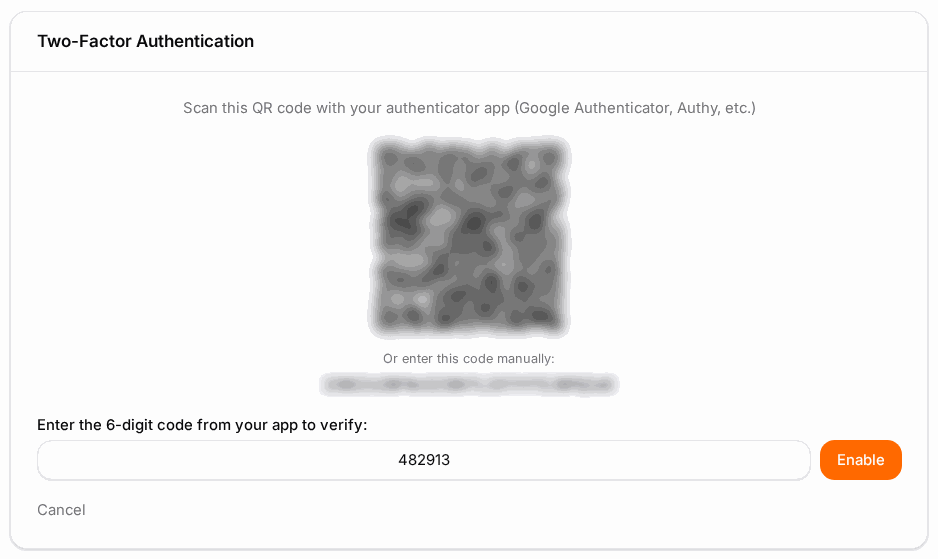
- A QR code appears: Scan this QR code with your authenticator app. Scan it with the app. If you can't scan, type the code shown under Or enter this code manually: into the app.
- The app now shows a code that changes every 30 seconds. Type it under Enter the 6-digit code from your app to verify: and click Enable.
- Save your backup codes appears. Click Copy or Download and store them safely — each code logs you in once if you ever lose your phone. Then click Done.
The card now says Enabled — Two-factor authentication is active on your account.
Trust your own computer#
At your next sign-in, after your password you're asked for the code. Tick Trust this device for 30 days to skip the code on this browser for 30 days. Only tick it on a computer you control — never on a shared or public one.
Manage trusted devices#
On the Two-Factor Authentication card, click Manage next to the number of trusted device(s). Revoke removes one browser; Revoke all devices removes them all — do this straight away if a laptop is lost or stolen.
Get new backup codes#
Used some, or lost the list? On the same card, enter a current code under Regenerate backup codes and click Regenerate. The old codes stop working.
Check it worked#
Sign out and back in. After your password you'll see Two-Factor Authentication — Enter the 6-digit code from your authenticator app. Enter it and click Verify.
Troubleshooting#
| Symptom | Likely cause | Fix |
|---|---|---|
| "Invalid code. Please try again." when enabling | The phone's clock is off, or the code just changed | Turn on automatic date and time on the phone; enter the newest code |
| No two-factor card in Settings | You're working inside another account as a team member | Return to your own account first |
| Lost your phone | — | At sign-in, choose Use a backup code instead and enter one of your saved codes; then set 2FA up again on the new phone |
| Lost phone and backup codes | — | Contact support to verify your identity |
| Asked for a code on your own computer every time | The browser isn't trusted, or cookies are cleared | Tick Trust this device for 30 days at sign-in |
To switch 2FA off (not recommended), enter a current code under Disable two-factor authentication and click Disable.
Related#
- Password & Two-Factor Security — passwords, IP verification and lockouts
- How to invite a team member — share access without sharing your login
- Notifications & Alerts — the security alerts you always receive