
Product Feed Ads
Product feed ads turn a shop’s catalogue into native ads. The advertiser adds the URL of their product feed once; every product in stock becomes an ad with its photo, name and price, and the ads follow the feed from then on: new products are added, changed ones are updated, sold-out ones are paused.
See product feed ads live with a demo shop’s catalogue.
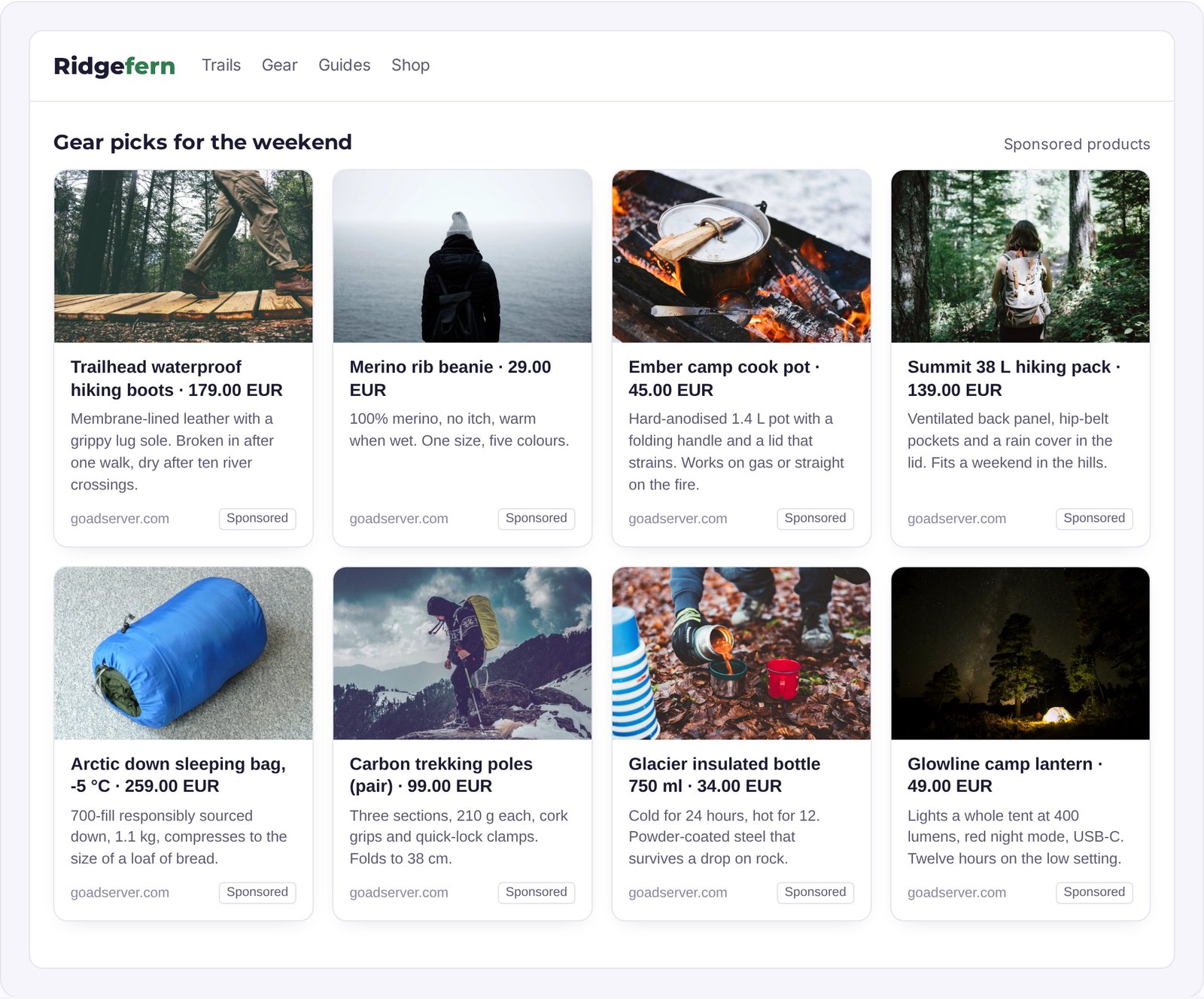
How product feed ads work
A product feed is the file a shop already keeps for comparison and shopping sites: one line per product with an id, a title, a link, an image and a price. Point a native campaign at it and the ad server reads the feed and keeps one ad per product in step with it.
- One ad per product, with the product photo, the name (with the price in the title if you like) and the product’s own page as the landing page.
- Kept in sync every 1, 6, 12 or 24 hours, or with one click: a new product becomes a new ad, a changed price or photo updates its ad.
- Sold out means paused. A product marked out of stock, or gone from the feed, stops showing at once, and comes back when it is in stock again.
Ordinary ads, without the busywork
Every product ad is a normal ad of the campaign. The campaign’s budget and targeting apply to all of them, the feed sets their bid, each one has its own statistics, and you can still pause or edit a single product by hand. Clicks, impressions and conversions are counted and billed like any other native ad, and the ads run in every native layout your publishers use.
Which feeds work
- Google Merchant feeds in RSS or Atom, the format most shop systems export out of the box.
- CSV or TSV files with the same column names: id, title, description, link, image_link, price, sale_price, availability.
- Up to 5,000 products per feed and 20 feeds per account. A sale price wins over the regular price.
For networks and for advertisers
On your own ad platform, product feeds are a self-serve feature for your advertisers: shops set up a catalogue campaign in minutes instead of building ads by hand. Agencies and integrations can do the same through the API, where a feed is created, synced and read with a few calls. The step-by-step guide is in the documentation: Product feeds.
More ad formats
Product feed ads are one of many formats you can run from one platform. Browse them all on the ad formats page, or try each one on the live demo pages.
How to set it up
- Create a native campaign, or use one you have. Its budget and targeting apply to every product ad.
- Open Feeds, tab Product catalogues, and click Add product feed.
- Pick the campaign and paste the feed address: your Google Merchant feed or a CSV/TSV file.
- Choose how often to read it and how many products at most, then save. The feed is read straight away, and the table shows how many products became ads.
Frequently asked questions
What is a product feed ad?
A native ad made from one product of a shop’s catalogue: its photo, name and price, linking to the product page. The ad server keeps one ad per product and updates them from the feed on a schedule.
What happens when a product sells out?
Its ad is paused, not deleted, so its statistics stay, and it runs again when the product is back in stock. Deleting a whole feed pauses its ads the same way.
Can the same catalogue run as banners?
Yes. Point the feed at a banner campaign instead and every product is drawn into a banner: see dynamic banners.
Documentation
Set it up step by step in the GoAdserver documentation: Product feeds and Creating a campaign.